
Can’t read it on screen? Circle it to translate.
Text in images, handwritten menus, paused video frames, manga, and shared screens. No screenshots to save. No apps to switch.



It’s not screenshot translation It’s a translation lens for your screen.
Hold the Z shortcut and circle any area. The moment you release, it recognizes the content and keeps the translation on the current page.

The world is vast; don’t be trapped in place by language


 GPT-4.1 mini


The world is vast; don’t be trapped in place by language
世界は広い。言葉の壁に足を止められないで



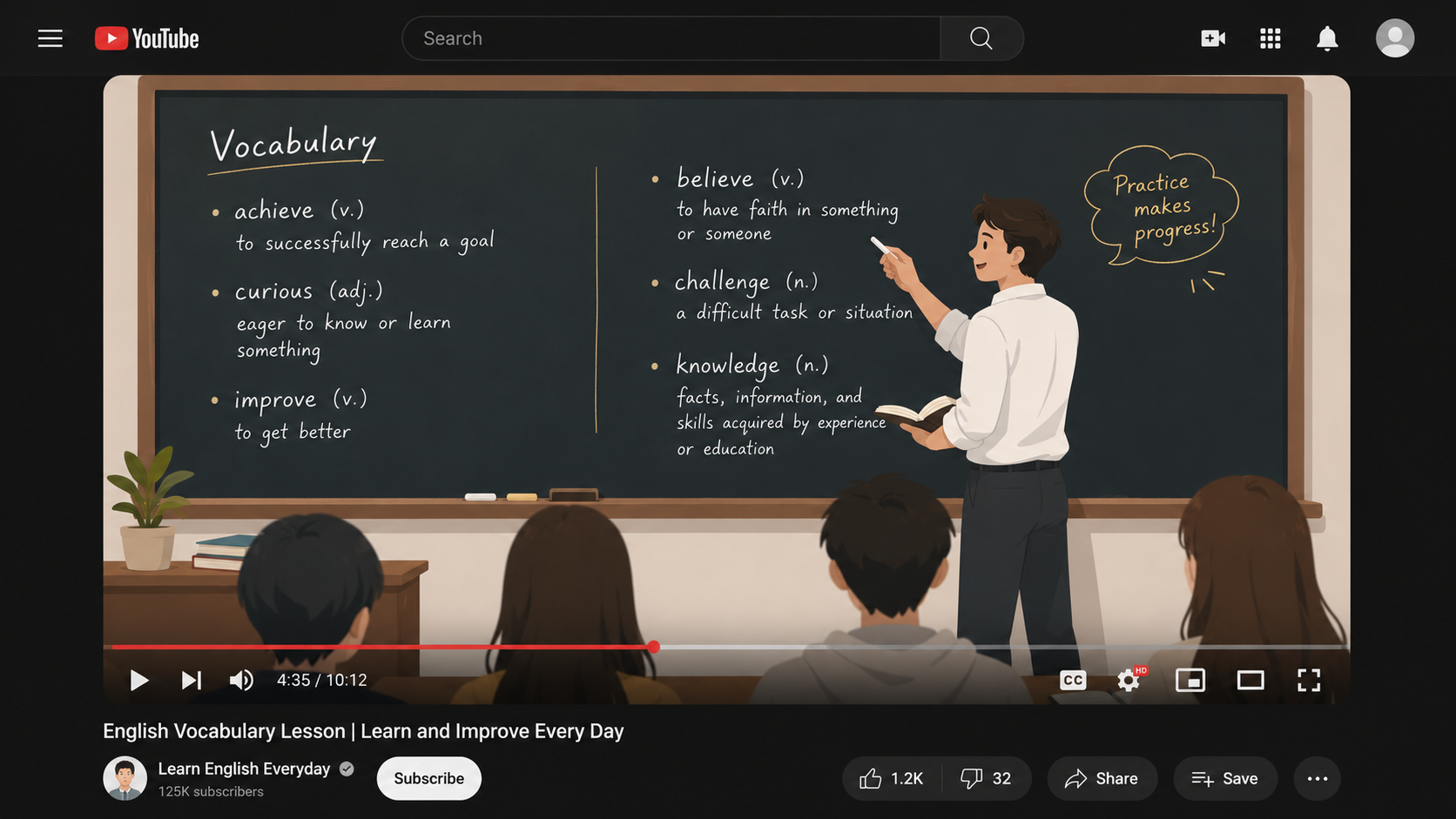
Watching a tutorial? Pause and circle what you need translated
Slides, code demos, and whiteboards rarely have reliable subtitles. Pause the video and circle what you need—the translation appears right beside it, without leaving the player.

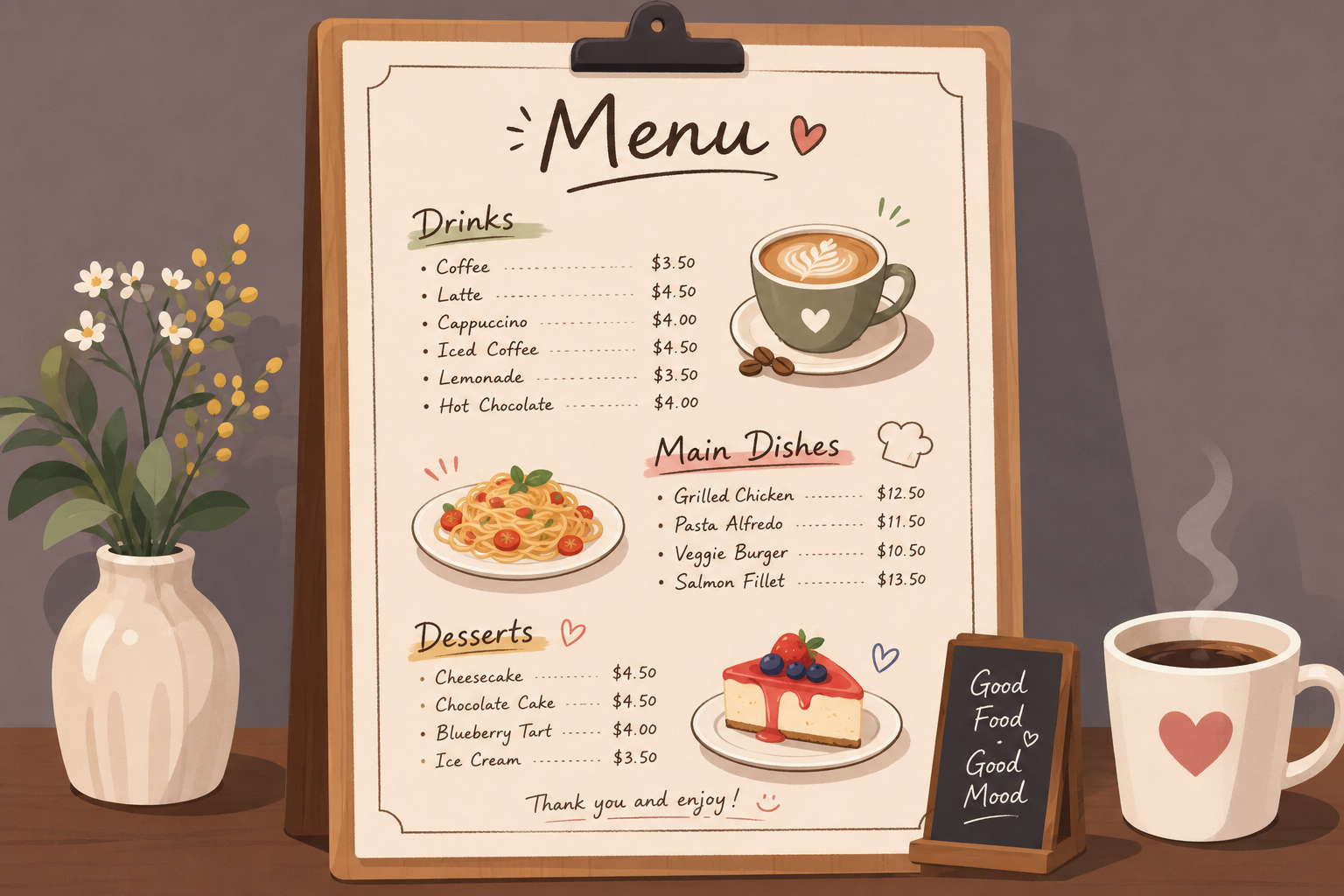
Menus and road signs in travel videos— no more guessing
Pause the video and circle a dish, road sign, or handwritten menu. Even when the words are part of an image, area selection translation recognizes them and shows the translation instantly.


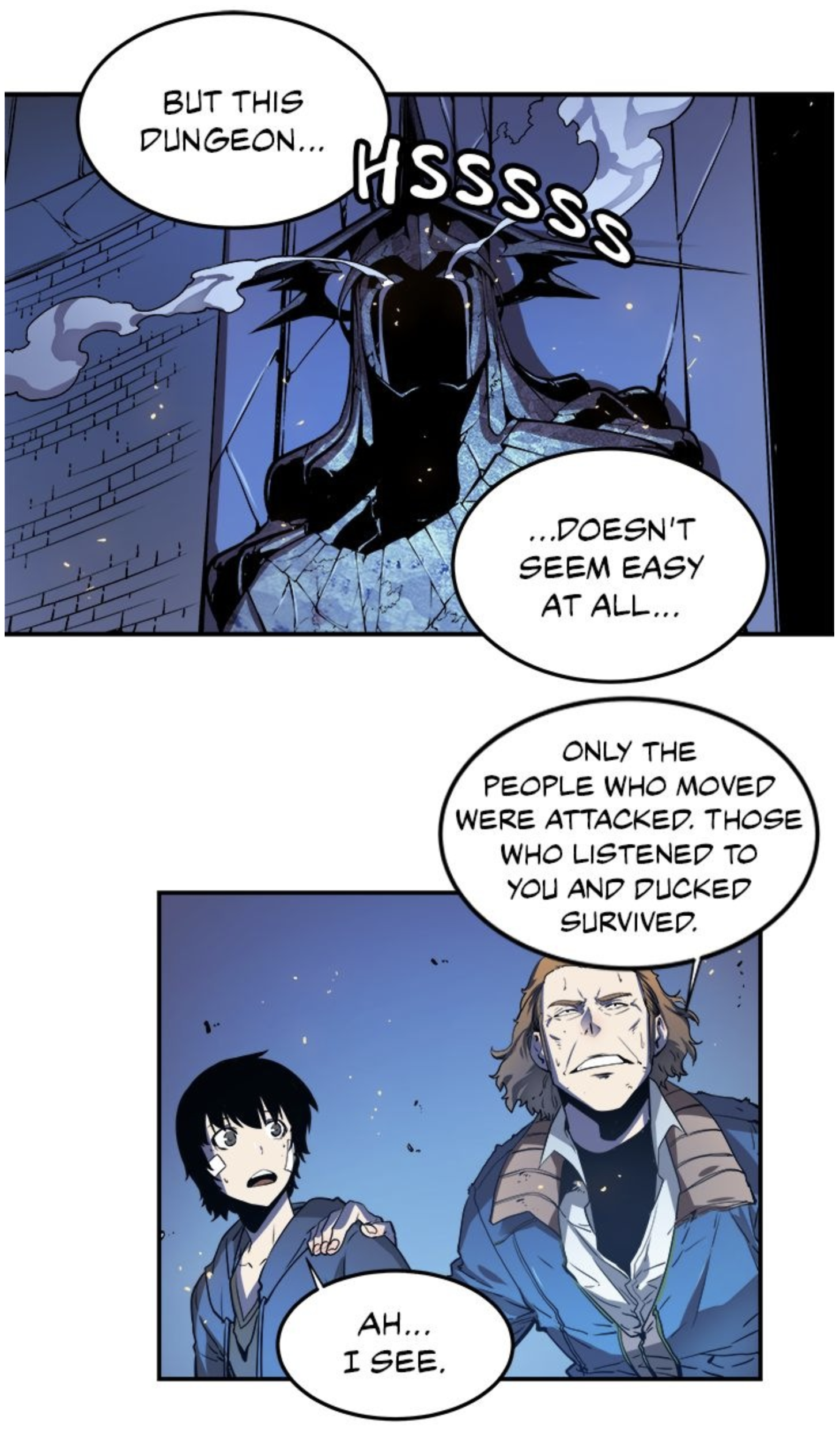
Reading raw manga? Translate one speech bubble at a time
Manga is made of images, so you can’t select the text. Circle any speech bubble to recognize its structure and see the translation right beside it.

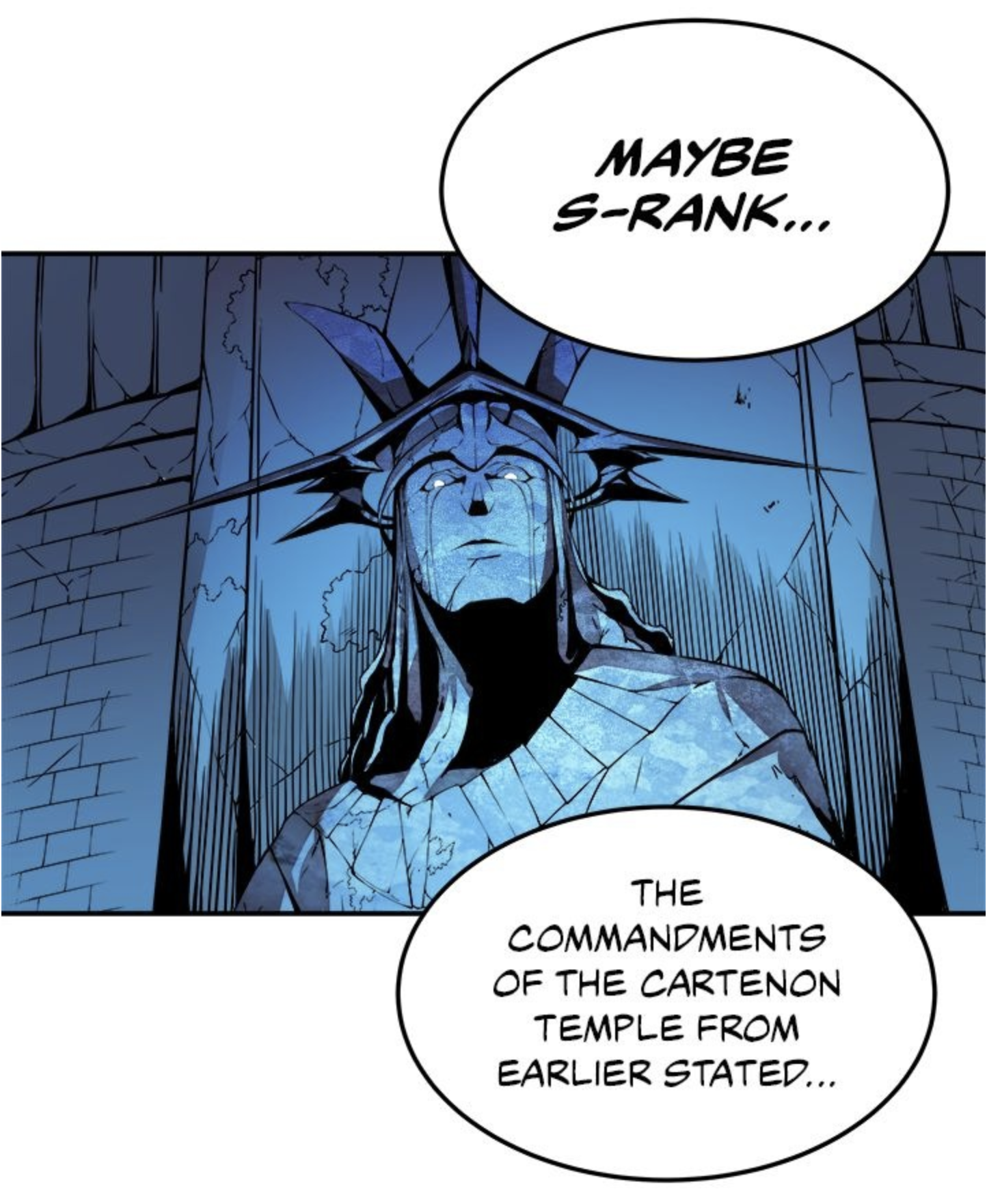

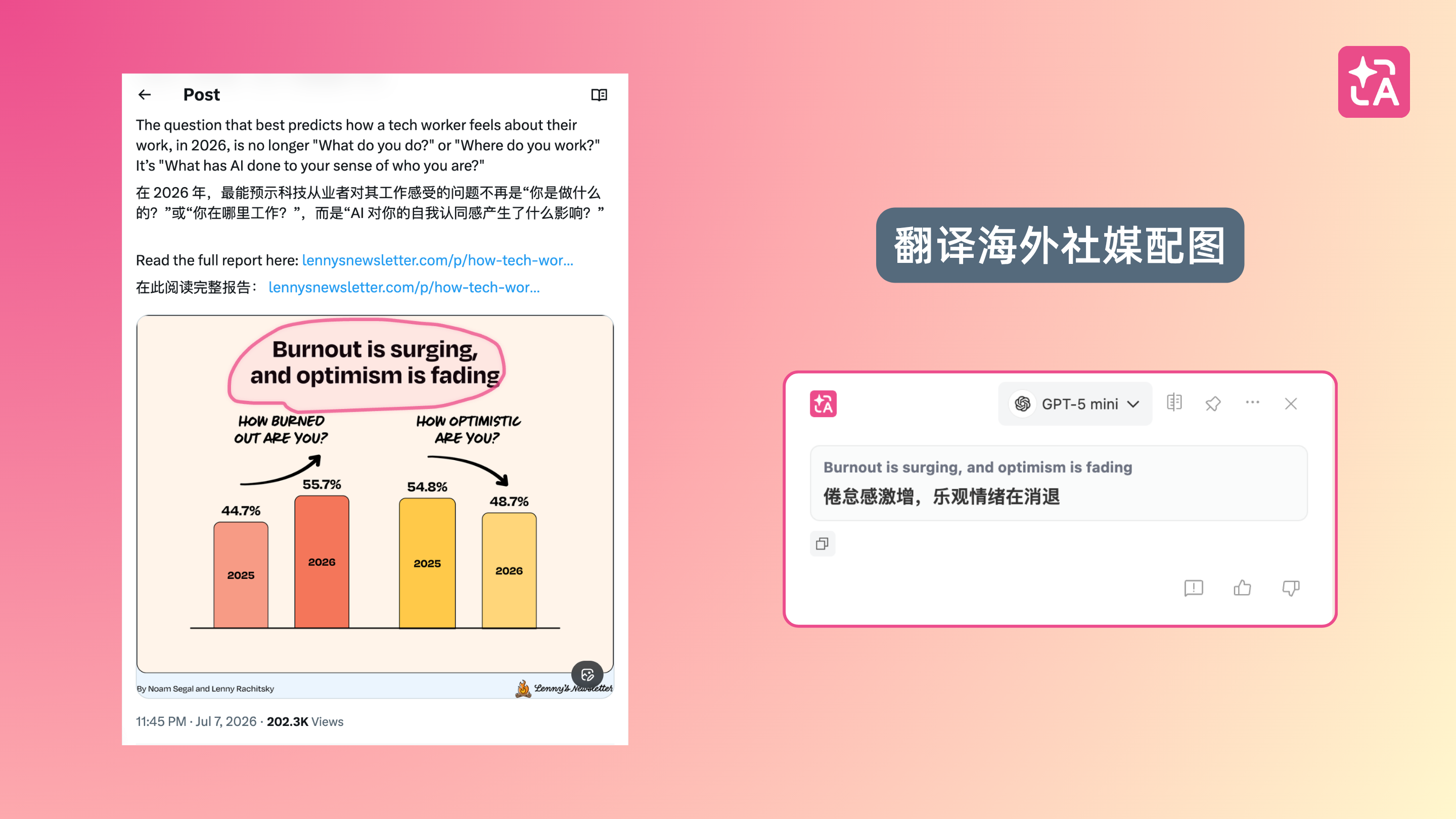
Text screenshots on social media? Circle them to translate
Memes, flowcharts, stickers, and chat screenshots often hide key information inside images. No need to download the original—circle the part you want, and the translation appears right beside it.

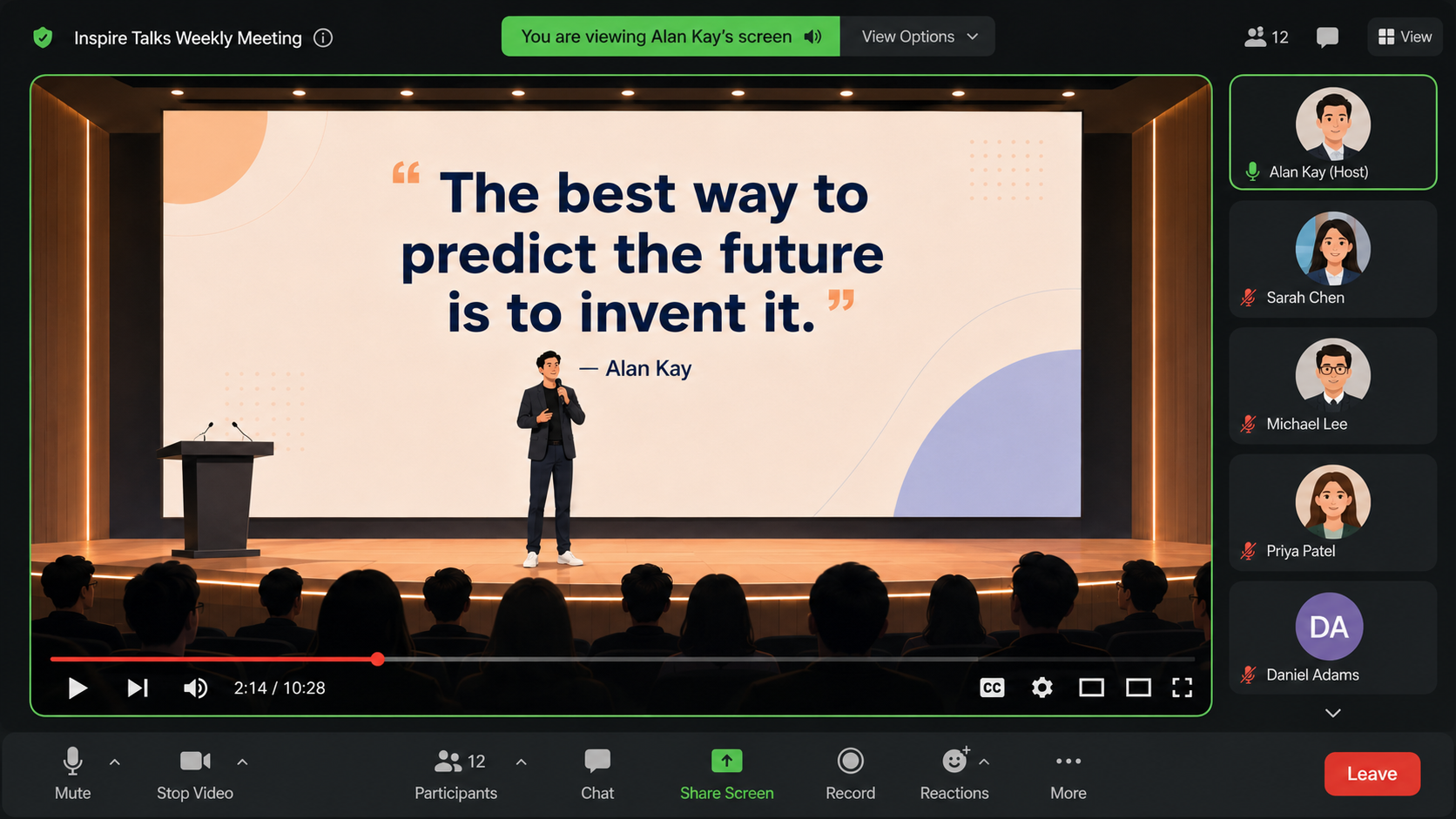
Shared screens in online meetings— no more chasing subtitles
Slides, whiteboards, and pop-ups often have no subtitles. Pause on what you need, hold Z, and circle it to understand shared content without leaving the meeting.



Two steps. Translate anything on your screen.
Curious? The answer should already be in view. Update the extension, hold Z, and circle something.
Choose “Text selection” in the panel
 Signed inPro

 OpenAI
 Translate (Alt+A)
 Document Translation
 Text Translation
 Hover Translation
 Text selection
 SettingsV 1.31.2More Features
Enable area selection
Signed inPro OpenAITranslate (Alt+A)Hover TranslationText selection
 Current website settingsV 1.31.2
Text selection



 =Translate selected area
Hold the shortcut and circle a page area to recognize and translate text in images or text that can’t be selected.