














Immersive Translate
Upgrade to Pro
English
简体中文
繁體中文
繁體中文(香港)
English
日本語
العربية
Deutsch
Español
Français
हिन्दी
Italiano
한국어
Português
Português (Brasil)
Русский
google
openAI
Gemini
DeepL
Microsoft
Tencent Hunyuan
Volctrans
Youdao
DeepSeek
Baidu
Niu
Caiyun
Hunyuan
OpenL
BigModel
SiliconFlow
google
openAI
Gemini
DeepL
Microsoft
Tencent Hunyuan
Volctrans
Youdao
DeepSeek
Baidu
Niu
Caiyun
Hunyuan
OpenL
BigModel
SiliconFlow
google
openAI
Gemini
DeepL
Microsoft
Tencent Hunyuan
Volctrans
Youdao
DeepSeek
Baidu
Niu
Caiyun
Hunyuan
OpenL
BigModel
SiliconFlow

Why Choose Immersive Translate
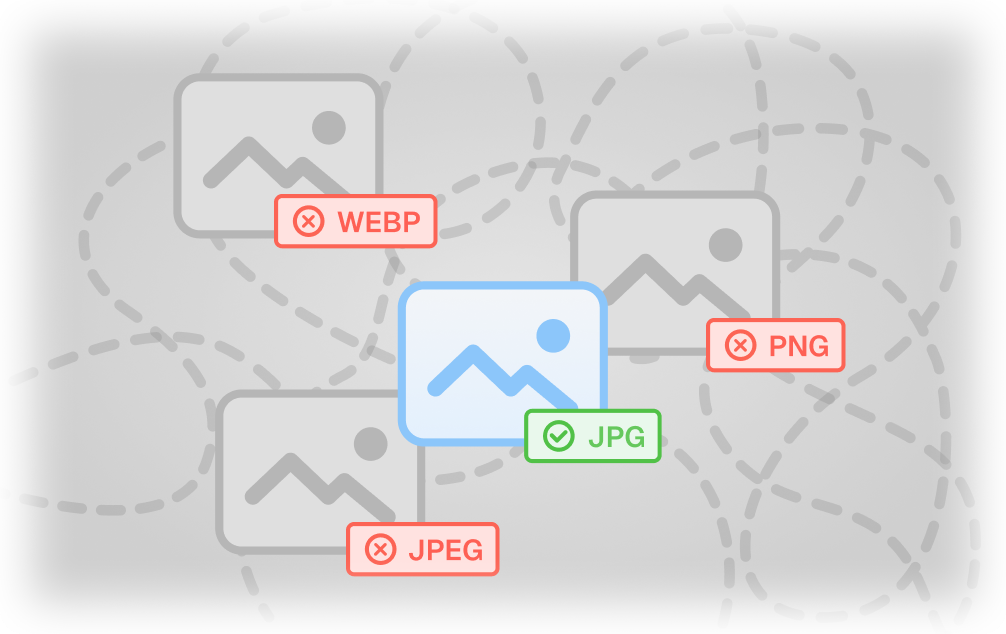
Previously, working with map translator images meant dealing with clunky overlays and workflow interruptions. Immersive Translate delivers clean, native-looking translations across JPG, JPEG, PNG, and WEBP formats via two flexible entry points.
Before
user-pain-points
User Pains
Low OCR accuracy for complex maps
Cumbersome workflow breaks reading flow
Flat text overlays ruin visual layout
After
happy-emoji
solutions
Immersive Translate Solution
happy-emojiSupports JPG, JPEG, PNG, and WEBP with high OCR accuracy for map translator images and format-specific text detection.
happy-emojiWeb upload and browser-extension right-click provide smooth entry points, while batch workflows help with larger map translator image sets.
happy-emojiOCR-precise detection and Inpaint background restoration place translation naturally inside map translator visuals, preserving layout and typography.

Tips for the Best Map Translator Results

Get accurate location details by following these best practices for translating map images and navigation texts. Use these tips to improve map translator translation quality in practical image workflows.
Do
Use high-resolution map screenshots
Crop street names clearly
Ensure legible sans-serif fonts
Select clear PNG or WEBP formats
Don't
Avoid blurry or pixelated maps
Don't use maps with heavy icons
Avoid complex handwritten styles
Don't crop off key text labels

Efficient Map Translator for Travel

Inpaint Text Replacement

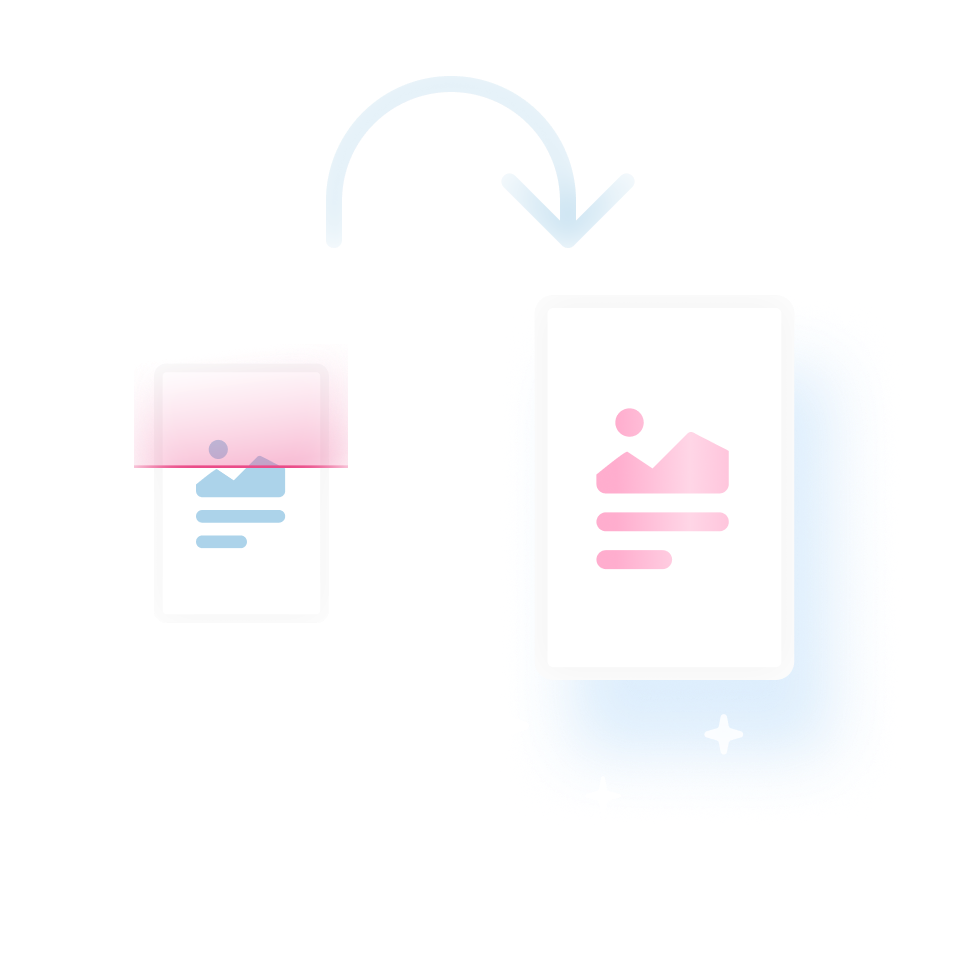
Unlike basic overlays, this map translator uses inpainting to erase foreign text and reconstruct the map background, ensuring street names sit naturally inside the original image without clutter.

Retain Map Visual Clarity

The tool preserves distinct colors and map typography during translation, ensuring that landmarks, routes, and transit lines remain clearly visible in the final JPG or PNG output.

Retain Map Visual Clarity
Supports Various Map Formats

Whether it is a downloaded WEBP graphic or a printed photo saved as JPEG, this map translator handles these formats directly without requiring complex file conversions.

Instant Right-Click Translation

Using the browser extension, users can right-click any map image found on travel websites to translate place names instantly without leaving the current page. That makes map translator translation more useful in real reading, design, and review workflows.


Instant Right-Click Translation
Choose Translation Engines

Select from engines like DeepL or Google within the map translator to ensure street names and location terminology are localized accurately for your specific destination.

Supported image formats

JPEG
WEBP
JPG
PNG

Frequently Asked Questions About Map Translator

Can I use this map translator to read street names on a saved screenshot?
Yes, simply upload the screenshot to the web app. The OCR detects street names and labels, while the Inpaint feature removes the original text before overlaying the translation, so the map looks clean and unobstructed.
How accurate is the OCR for translating complex map text?
The OCR provides precise positional accuracy for all text regions. For difficult fonts or crowded areas, you can switch between AI engines like DeepL or OpenAI within the tool to improve translation accuracy.
Does the map translator keep the original image layout intact?
Absolutely. Unlike tools that paste text over the image, Immersive Translate reconstructs the background and places the translation inside the empty space, preserving the original map design and visual hierarchy.
Which image formats are supported for a map translator?
You can translate JPG, JPEG, PNG, and WEBP files. This ensures compatibility whether you are working with high-resolution map exports, compressed JPEGs, or modern WEBP screenshots. It is especially helpful when the source image contains layered layouts, small text, or design-sensitive backgrounds.
How does this compare to Google Translate's image mode for maps?
Google Translate often places text boxes on top of the image, obscuring details. This map translator erases the original text and overlays the translation directly onto the map background, providing a more natural and readable result.
Can I paste a map image directly from my clipboard?
Yes, the web app allows you to paste images directly from your clipboard. This makes it easy to instantly translate a map image you have copied without saving it as a file first.
Is using this map translator free?
The full image translation feature is free to use. Pro membership is available for users who need higher OCR accuracy, finer layout preservation, or priority processing for their projects.