Immersive Translate vs Liner AI: Read Foreign-Language Sources Side by Side
Read foreign-language articles, reports and research sources with the original in view. Immersive Translate pairs webpage and PDF translations with their source, so you can check terminology and read beyond the summary.
Using another browser? View all downloadsUna visita tranquila empieza con una ruta sencilla.
A relaxing visit starts with a simple route.
Consulta el mapa de transporte y busca una parada cerca de tu alojamiento.
Check the transit map and find a stop near your accommodation.
Reading illustration: translations appear below each original paragraph. The light background is an optional, adjustable style.
Is Immersive Translate the right Liner AI alternative for you?
Choose Immersive Translate when your main task is reading foreign-language sources in full: bilingual webpages, translated PDFs and unfamiliar words in context. Liner focuses on AI research, source-backed answers, summaries and highlighting. You can use a research assistant to discover a source, then use Immersive Translate to read it in depth.
Find the source. Then understand every paragraph.
For research, study or work, a summary is only the starting point. Bilingual reading keeps the full argument and original wording available when you need to check a claim or understand a detail.
Immersive Translate
A bilingual reading tool for webpages, documents and video subtitles, with multiple translation services and tools for understanding unfamiliar text.
Liner AI
An AI research assistant with source-based answers, web and PDF summaries, follow-up questions and highlighting. It also offers academic research and writing tools.
Four differences that matter when you read
Compare bilingual webpage translation, PDF output, word lookup and translation-engine choice to find the workflow that fits your reading task.
Go beyond the summary. Read the details.
With Spanish-to-English webpage translation, each translated paragraph stays close to its source. Follow an article, check a technical term and return to the original without repeatedly copying text into a chat.
Spanish · Original
Leer en otro idioma te permite descubrir nuevas ideas.
English · Translation
Reading in another language helps you discover new ideas.
Keep the original close
Read each translated paragraph next to its source. Check terminology, qualifications and details without repeatedly copying text into a chat.
Clear up a word, then keep reading
Select unfamiliar text or use hover translation for help in context. For text embedded in a video frame or image, use area translation when available.
Use research answers as a starting point
Liner’s summaries, citations and follow-up questions can help you explore a topic. Immersive Translate helps you continue into foreign-language sources for a closer read.
Compare the workflow, feature by feature
From translating an article in your browser to reading a PDF report, compare how each workflow keeps the source available. Features and quotas depend on your settings and plan.
| Feature | Immersive Translate | Liner AI |
|---|---|---|
| READING AND RESEARCH | ||
| Webpage reading | Read original paragraphs and translations together on the page. | Get page summaries, ask questions and save highlights. |
| PDF workflow | Translate the document with layout preservation and bilingual output options. | Summarize and ask questions about PDFs; request a full translation and export a new document through Liner Write. |
| Unfamiliar words | Use text selection and hover translation in your reading flow. | Look up words and request translation through the assistant. |
| Research discovery | Translate sources you open and want to read. | Search for sources and receive cited answers, including academic research workflows. |
| Engine and model choice | Choose from supported machine-translation and AI services; availability varies by plan. | Choose from AI models available with the selected Liner plan. |
| Video workflow | Read bilingual subtitles on supported video sites. | Summarize YouTube videos and ask questions about their content. |
Spanish → English · Real PDF example
One PDF, two ways to read the result
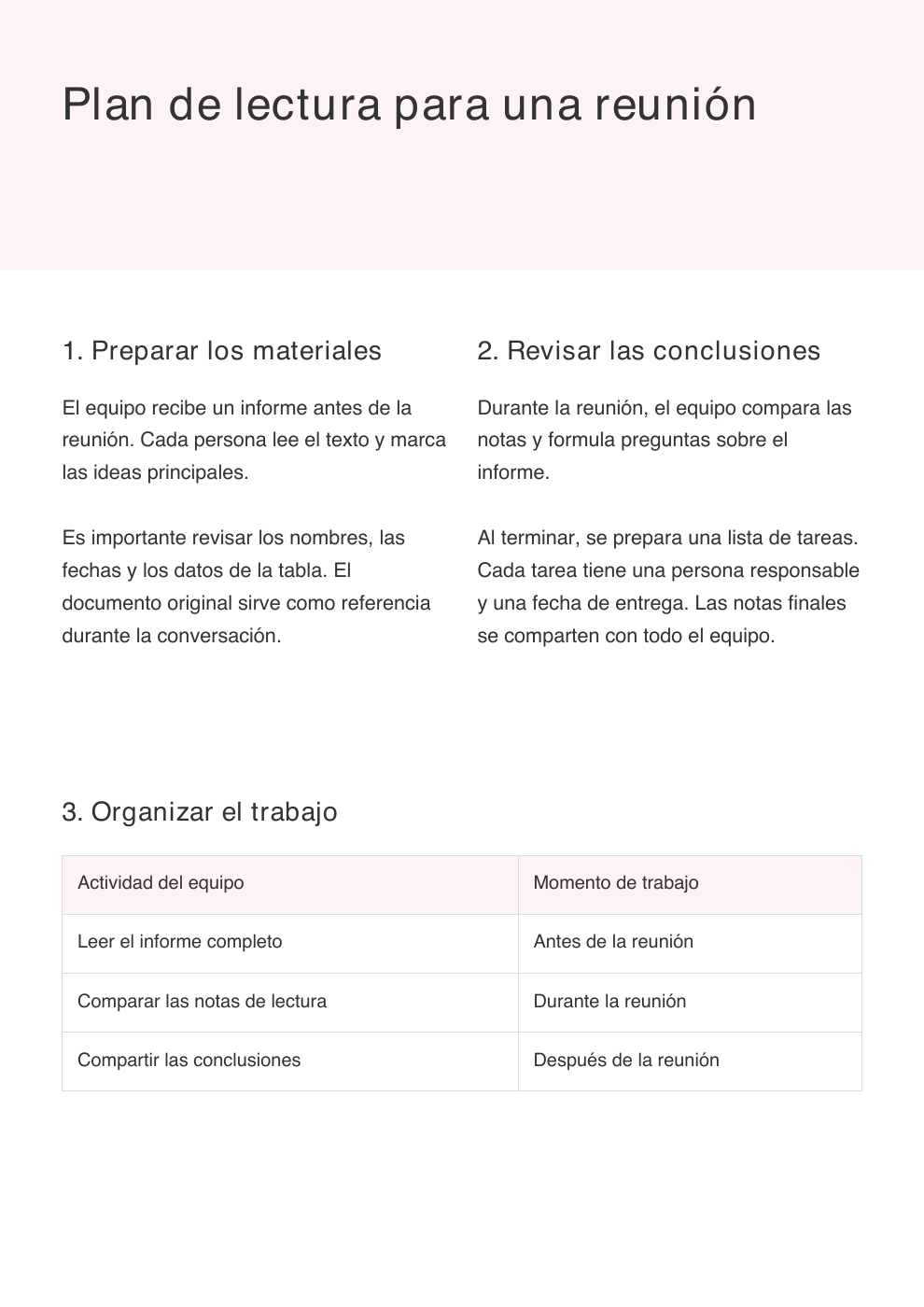
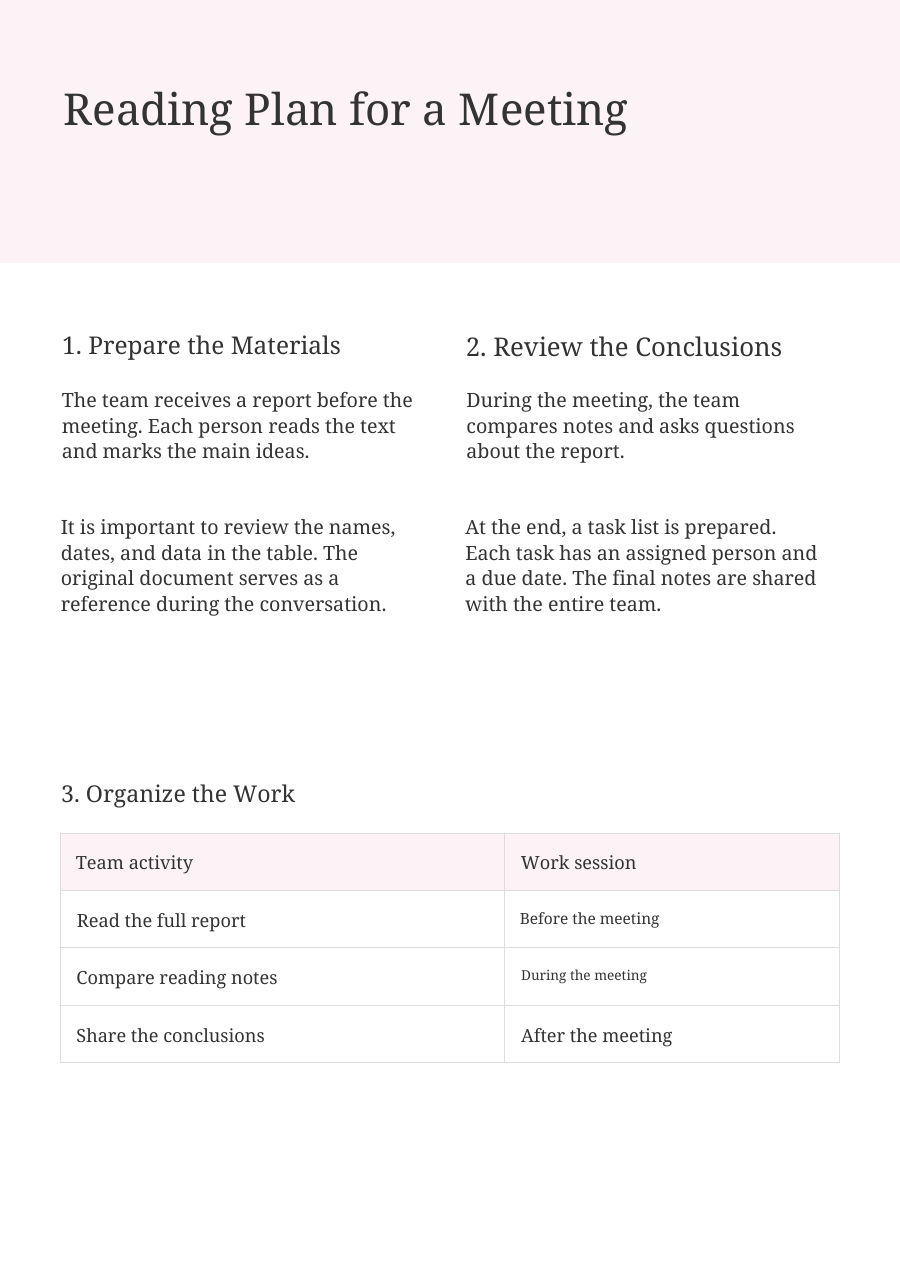
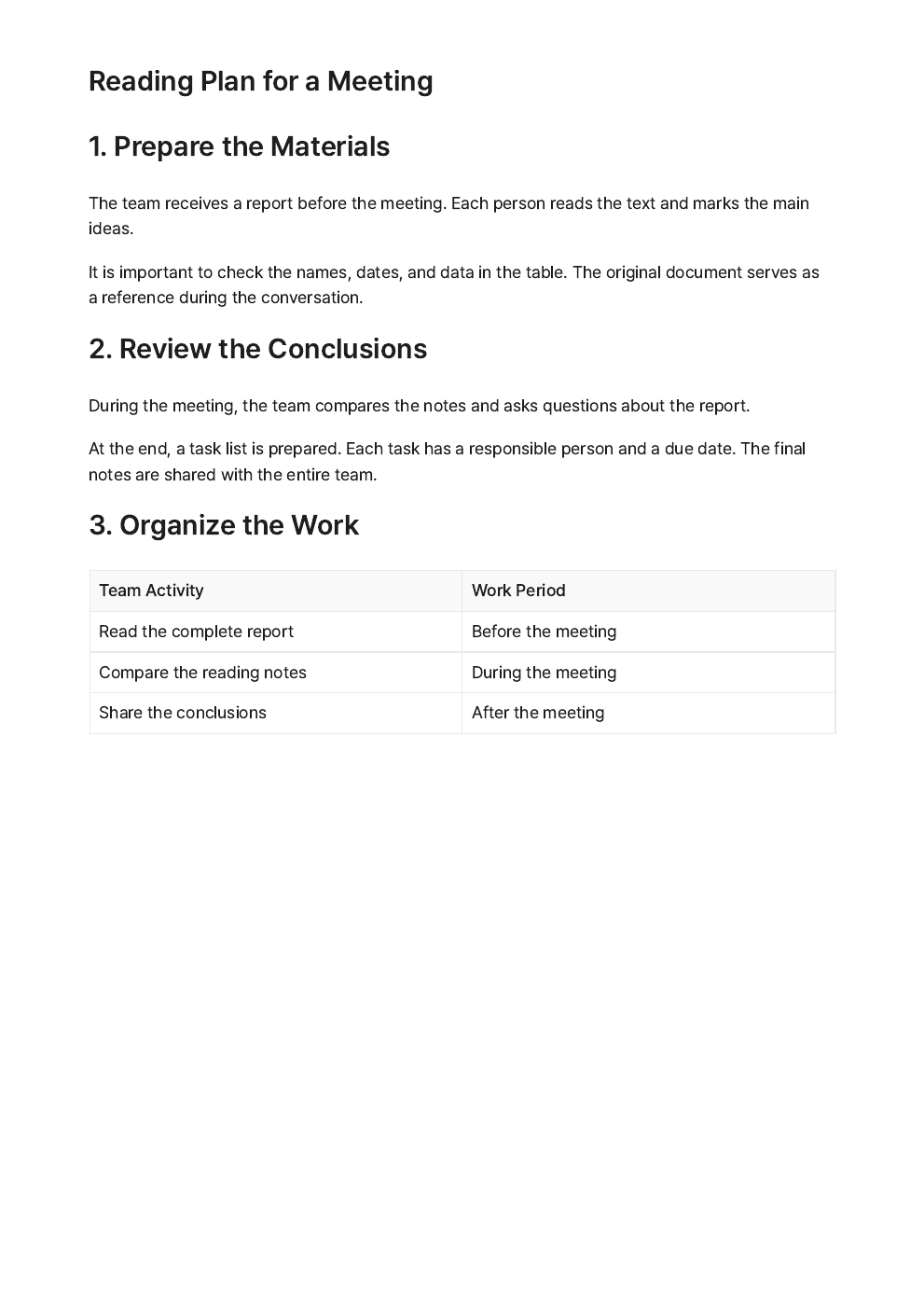
Compare the same Spanish PDF translated through Immersive Translate and Liner Write. Check headings, columns and tables in the previews, then open the original and result files for a closer look.
Same CC0 input. Immersive Translate: OpenAI service, bilingual output, 22 Oct 2026. Liner Write: full English translation requested, PDF export, 22 Oct 2026; model not shown. Images show unedited outputs; Immersive Translate shows the English half of its full bilingual PDF.
1. The original Spanish PDF
Spanish · Original
2. Two English results
Immersive Translate
Liner Write
3. Original and translation together
Immersive Translate
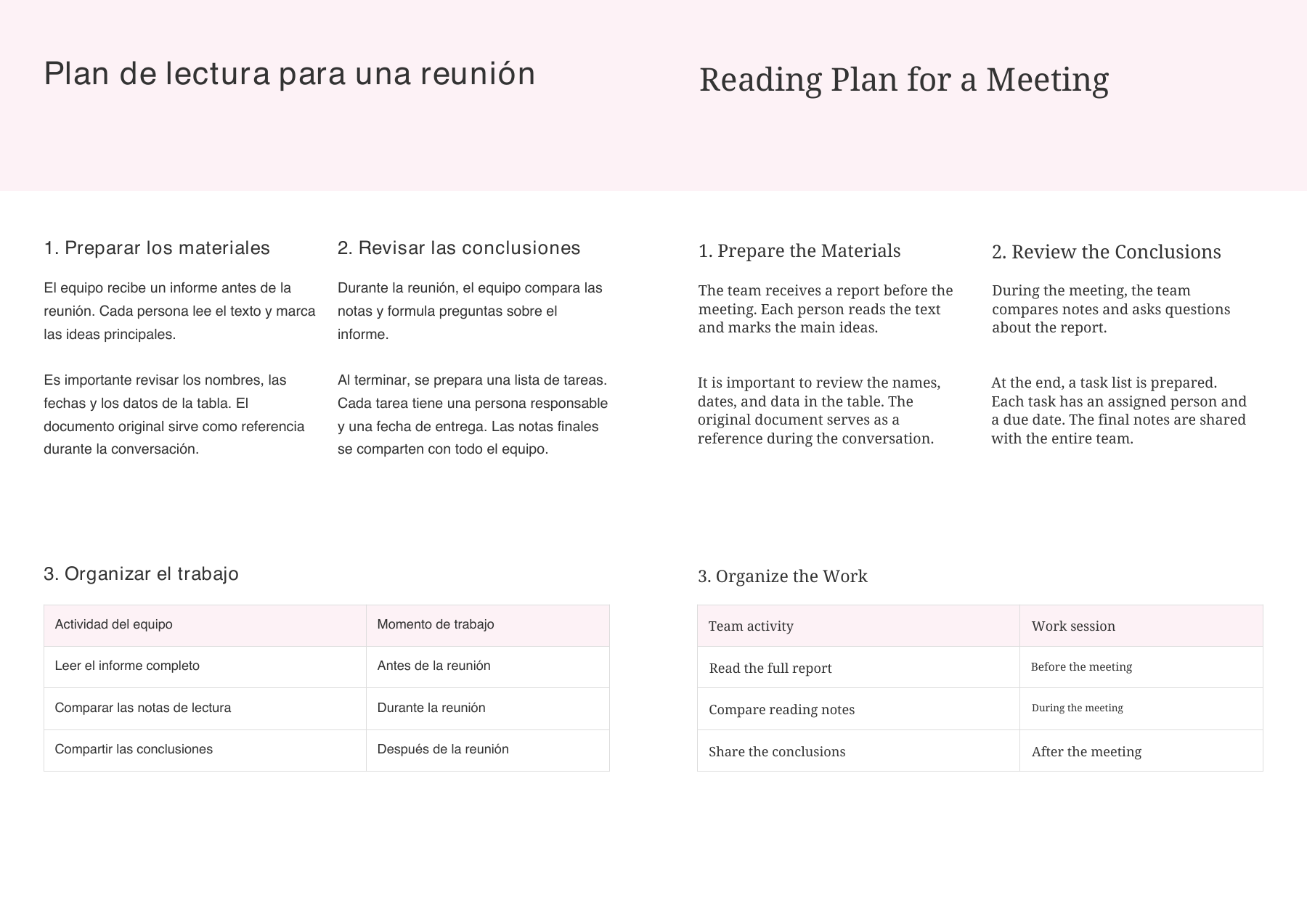
Immersive Translate
OpenAI service · English half of bilingual output
Liner Write
Full translation in Liner Write · PDF export
Choose the translation service that fits the source
Choose a supported translation service for your language pair and subject, whether you are reading news, technical documentation or a long report. Keep the original available to check names and terminology.
Multiple services in one reading workflow
Immersive Translate integrates machine-translation and AI services, so you can choose a supported engine while keeping the original visible. Liner also offers model choices for its research assistant; the tools serve different reading tasks.
Services, document features and quotas depend on your settings and plan. A model option alone does not establish a translation-quality ranking.
What a summary cannot tell you on its own
For foreign-language research, distinguish finding the main points from reading a complete translated article or PDF. Use the original to check quotations, context and details.
"A PDF summary is the same as a translated PDF."
A summary helps you find the main points. A translated document helps you follow the full text, tables and surrounding context. Choose the output that your task needs.
"You have to replace your research assistant to read bilingually."
You can keep Liner for source discovery or questions and use Immersive Translate to read foreign-language webpages and PDFs. The workflows can complement each other.
Add Immersive Translate to Your Workflow in 3 Steps
Install once, then keep original and translated content together across webpages, PDFs, videos, and more.
Install the Extension
Add Immersive Translate to your browser in one click. Available for Chrome, Firefox, Safari, and Edge.
DownloadVisit Any Page
Navigate to any foreign-language webpage, PDF, or video and keep your reading context in one place.
Open an exampleStart Reading Bilingually
Open the reading layer and compare original plus translation side by side with your preferred engine.
View tutorial100+
Languages
20+
Translation engines
30M+
Global users
Free
Core features stay free
Trusted by 30 Million Users — A Top-Rated Online Translator