














immersive translate logoImmersive Translate
English
google
openAI
Gemini
DeepL
Microsoft
Tencent Smart
Volctrans
Youdao
DeepSeek
Baidu
Niu
Caiyun
Tencent
OpenL
BigModel
SiliconFlow
google
openAI
Gemini
DeepL
Microsoft
Tencent Smart
Volctrans
Youdao
DeepSeek
Baidu
Niu
Caiyun
Tencent
OpenL
BigModel
SiliconFlow
google
openAI
Gemini
DeepL
Microsoft
Tencent Smart
Volctrans
Youdao
DeepSeek
Baidu
Niu
Caiyun
Tencent
OpenL
BigModel
SiliconFlow

Video translation demo

Teams Meeting Translation Made Simple

Immersive Translate transforms Teams meeting translation by delivering real-time bilingual captions directly during your calls. Unlike traditional tools requiring post-meeting processing, our solution lets you understand conversations instantly while preserving original context through side-by-side subtitles, ensuring seamless cross-language collaboration without workflow disruption.
Before
user-pain-points
User Pains
Post-meeting transcription delays understanding during live discussions
Translation-only output loses original language context and nuance
Separate tools disrupt natural meeting flow and participation
After
happy-emoji
solutions
Immersive Translate Solution
happy-emojiReal-time bilingual captions appear instantly during Teams calls
happy-emojiSide-by-side subtitles preserve original meaning while translating content
happy-emojiSeamless integration requires no workflow changes or meeting interruptions
happy-emojiExport bilingual transcripts post-meeting for reference and documentation

Four steps to enjoy content in your native language

1

Copy & paste video link

2

Click Translate Video and wait a moment

3

Click Play Immediately to view

Teams Meeting Translation That Actually Works

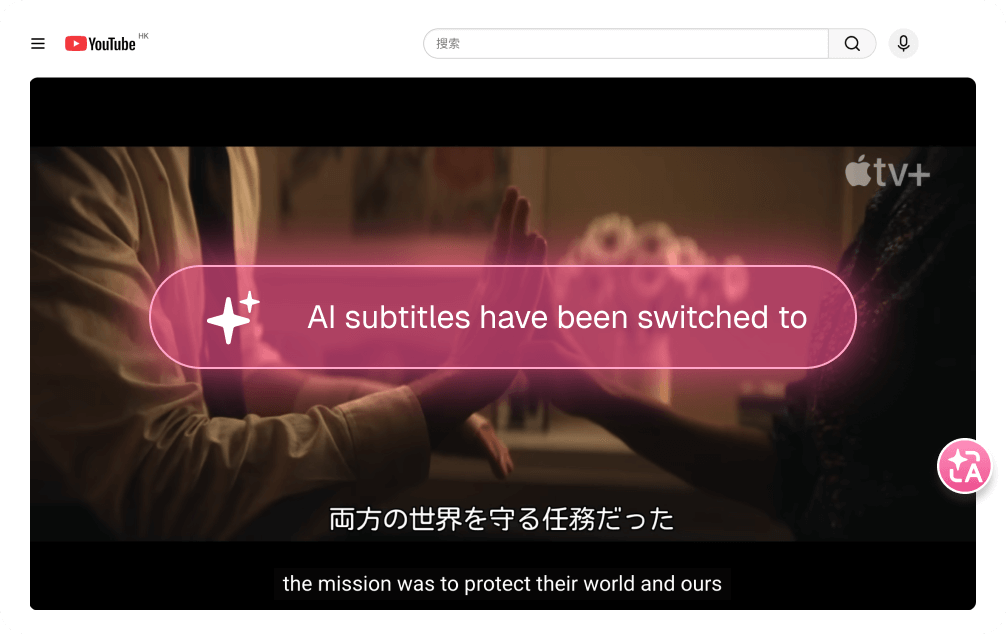
Real-Time Bilingual Captions

Immersive Translate displays original and translated Teams meeting captions side-by-side during live calls, enabling instant comprehension across language barriers without disrupting meeting flow or requiring participants to switch between translation windows.

Native Integration

Works directly with Microsoft Teams Live Caption feature, requiring no separate software installation or complex setup processes, ensuring stable performance during critical business meetings and international collaboration sessions without technical complications.


Native Integration
100+ Languages
100+ Languages

Supports translation between over 100 language pairs powered by 20+ AI translation engines including ChatGPT, DeepL, and Google Translate, accommodating diverse global teams and multilingual stakeholders in cross-border meetings.

Context-Aware Translation

AI-powered translation engines understand meeting context and business terminology, delivering natural, accurate translations that preserve professional tone and technical accuracy rather than producing awkward literal translations that confuse participants.

Context-Aware Translation
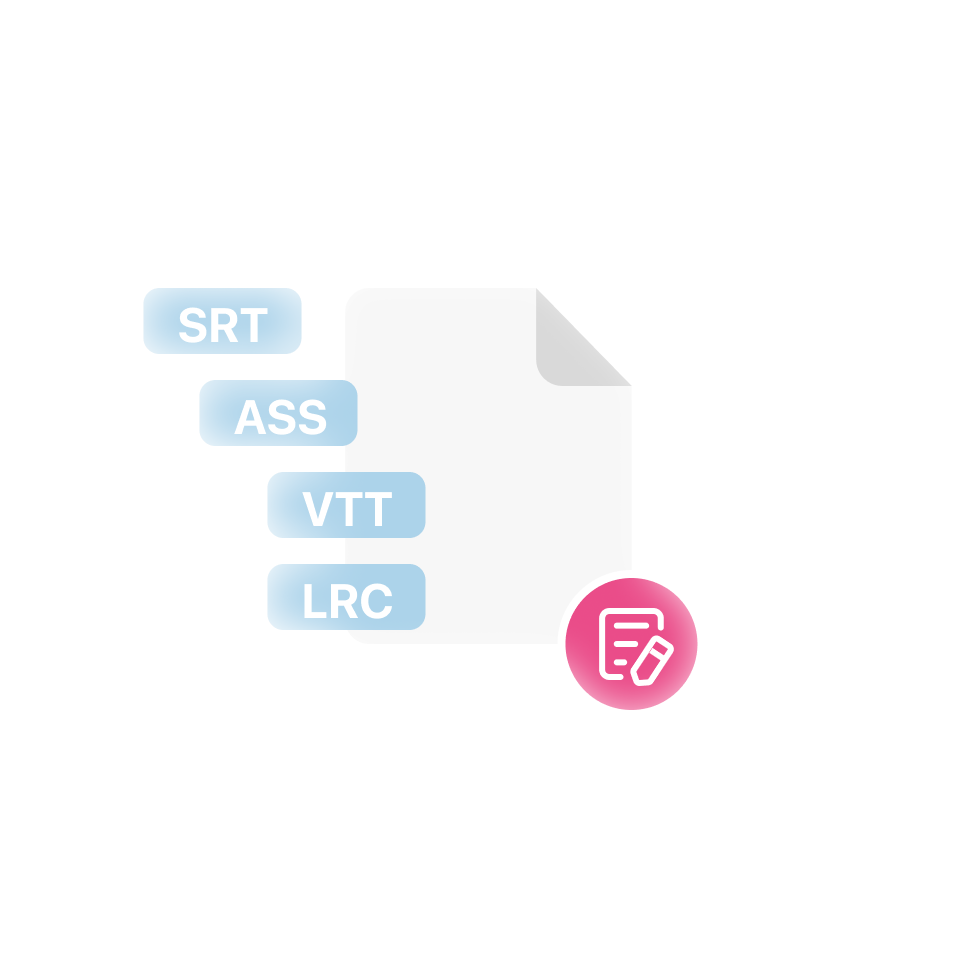
Transcript Export
Transcript Export

Export complete bilingual meeting transcripts after Teams calls conclude, creating permanent records with both original and translated text for documentation, compliance requirements, team members who missed meetings, and future reference.

Customizable Display

Adjust subtitle font size, color, background opacity, and screen position to ensure optimal readability during Teams video conferences, accommodating different screen sizes, lighting conditions, and individual visual preferences for maximum comprehension.

Customizable Display

Supported categories

Streaming Services
Video Sharing
Online Education
Social Networking
News & Information
Creator Platforms
Developer & Technology Platforms

Teams Meeting Translation: Frequently Asked Questions

How does real-time translation work in Microsoft Teams meetings?
Real-time translation in Microsoft Teams meetings works by leveraging the platform's native Live Caption feature combined with translation technology. When you enable live captions during a Teams call, the system transcribes spoken words into text in real-time. Translation tools like Immersive Translate then overlay bilingual subtitles on top of these captions, displaying both the original language and your preferred translation simultaneously. This means you can follow along with what's being said in English while seeing the translation in your native language, or vice versa. The process happens with minimal delay, typically just a few seconds, allowing you to participate actively in cross-language meetings without waiting for manual interpretation. For the best experience, ensure your Teams app is updated and that participants speak clearly. The accuracy of Microsoft Teams meeting translation depends on audio quality, speaker accents, and the complexity of terminology being discussed. Immersive Translate enhances this by offering access to 20+ premium AI translation engines including ChatGPT, DeepL, and Google Translate, so you can choose the service that works best for your specific language pair and industry context.
Can I get a bilingual transcript after my Teams meeting ends?
Yes, you can obtain a bilingual transcript after your Microsoft Teams meeting concludes when using Immersive Translate. Here's how it works: During the meeting, Immersive Translate captures both the original live captions and the translated text in real-time. After the meeting ends, you can export this content as a bilingual transcript file, which includes timestamps, speaker identification (when available), and both language versions side-by-side. This is incredibly valuable for several scenarios: international team members can review what was discussed in their preferred language, you can create meeting minutes without manual translation work, and non-attendees can catch up on key decisions regardless of their language proficiency. The exported transcript can be saved in common formats that are easy to share via email or collaboration platforms. This post-meeting translation capability sets Immersive Translate apart from basic Teams live caption translation, as it provides a permanent, searchable record of multilingual discussions. For teams that frequently conduct cross-border meetings, this feature eliminates the need to hire professional translators for meeting documentation, saving both time and budget while ensuring nothing gets lost in translation.
Which languages are supported for Teams meeting translation?
Immersive Translate supports translation between 100+ languages for Microsoft Teams meetings, covering virtually all major business languages worldwide. This includes commonly requested pairs like English to Spanish, English to Chinese (Simplified and Traditional), English to Japanese, English to Korean, English to French, English to German, English to Portuguese, and English to Arabic. Beyond these mainstream options, the tool also handles less common language combinations such as Thai to English, Vietnamese to English, Polish to German, and many others. The extensive language support is possible because Immersive Translate integrates with 20+ leading translation engines, each with different language strengths. For instance, DeepL excels at European language pairs, while ChatGPT and Google Translate offer broader coverage including regional dialects and emerging languages. When you're in a Teams video conference with participants from multiple countries, you can select your preferred target language, and the system will translate all spoken content into that language in real-time. This multilingual meeting translation capability is particularly valuable for global enterprises, international educational institutions, and remote teams spanning different continents. The quality of translation varies by language pair and engine, so Immersive Translate allows you to switch between different translation services mid-meeting to find the optimal balance of speed and accuracy for your specific needs.
Do I need to install anything to translate Teams meetings?
To translate Microsoft Teams meetings with Immersive Translate, you need to install the browser extension, which works seamlessly with the Teams web version. The installation process is straightforward: visit the Chrome Web Store, Firefox Add-ons, or Edge Add-ons marketplace, search for Immersive Translate, and click 'Add to Browser.' The entire setup takes less than two minutes. Once installed, the extension automatically detects when you join a Teams meeting through your browser and offers to enable bilingual live caption translation with a single click. You don't need to download separate software or modify your Teams settings. The extension works in the background, intercepting the live captions that Teams generates and adding translated subtitles in real-time. For users who prefer the Teams desktop app, the translation functionality works best when you access meetings through a supported browser instead. One significant advantage of this approach is that it doesn't require IT department approval or system-wide installations, making it ideal for individual users in large organizations or freelancers working with international clients. The extension is lightweight and doesn't slow down your browser or interfere with other Teams features like screen sharing, breakout rooms, or recording. After installation, you can customize subtitle appearance, choose your preferred translation engine, and set default language pairs for future meetings.
How accurate is AI translation for technical or specialized Teams meetings?
The accuracy of AI translation for technical or specialized Microsoft Teams meetings depends on several factors: the translation engine you choose, the specificity of terminology, and the context provided. For general business discussions, modern AI translation engines integrated into Immersive Translate achieve 85-95% accuracy, which is sufficient for understanding key points and participating in conversations. However, for highly specialized fields like medical conferences, legal consultations, financial analysis meetings, or engineering design reviews, accuracy can vary. This is where Immersive Translate's multi-engine approach becomes crucial. You can switch between ChatGPT (excellent for context understanding and natural phrasing), DeepL (superior for European languages and nuanced expressions), DeepSeek (strong in technical Chinese-English translation), and Google Translate (broad language coverage) to find which performs best for your specific industry terminology. For example, in a pharmaceutical research meeting discussing clinical trial protocols, ChatGPT might better preserve the meaning of complex medical terms compared to generic translation services. To maximize accuracy during specialized Teams meeting translation, consider these best practices: share relevant documents or glossaries before the meeting so the AI has context, speak clearly and avoid excessive jargon when possible, and use the subtitle editing feature in Immersive Translate to correct any mistranslations in real-time or during post-meeting review. For critical business negotiations or compliance-related discussions, we recommend using AI translation as a comprehension aid while having a professional interpreter on standby for verification.
Can Immersive Translate handle multiple speakers in a Teams meeting?
Yes, Immersive Translate can handle multiple speakers in a Microsoft Teams meeting, though the experience depends on how Teams itself processes the audio. When Teams live captions are enabled, the platform attempts to identify different speakers and label their contributions (though this feature works better in some scenarios than others). Immersive Translate then translates these labeled captions, preserving the speaker identification in the bilingual subtitle display. This means you can follow who said what, even when the conversation switches between languages or when participants from different countries are speaking. For example, in a multinational project meeting where the French team lead speaks in French, the German developer responds in English, and the Chinese stakeholder asks questions in Mandarin, Immersive Translate will provide translations for each speaker's contribution in your chosen target language. The real-time translation keeps pace with natural conversation flow, typically with only 2-4 seconds of delay. One limitation to be aware of: if multiple people speak simultaneously or interrupt each other frequently, the caption accuracy (and therefore translation quality) may decrease, as this challenges the underlying speech recognition system. For the best multi-speaker Teams meeting translation experience, encourage participants to use the 'raise hand' feature, mute when not speaking, and speak one at a time. The post-meeting bilingual transcript feature is particularly valuable for multi-speaker meetings, as it allows you to review each person's contributions in both languages, making it easier to extract action items and key decisions from complex multilingual discussions.
Is there a difference between translating live Teams meetings versus recorded Teams meetings?
Yes, there are important differences between translating live Microsoft Teams meetings and recorded meetings, and Immersive Translate handles each scenario differently. For live Teams meetings, the translation happens in real-time as people speak, with Immersive Translate processing the live captions generated by Teams and displaying bilingual subtitles with minimal delay. This allows you to participate actively in the conversation, ask questions, and respond appropriately. The challenge with live meeting translation is that you're working with whatever audio quality and speech clarity exists in the moment, and there's no opportunity to pause and verify translations before they appear. For recorded Teams meetings, you have more flexibility and potentially higher accuracy. When you play back a recorded meeting, you can pause the video to read complex translations more carefully, rewind to catch something you missed, or even switch between different translation engines to compare results for critical sections. Additionally, if the recorded meeting has professionally edited captions or transcripts (rather than auto-generated ones), the translation quality will be significantly better because the source text is more accurate. Immersive Translate's video translation feature works excellently with recorded Teams meetings shared via links or downloaded files. You can upload the recording, generate or import subtitles, translate them using your preferred AI engine, edit any mistranslations, and then export a bilingual subtitle file that can be permanently attached to the recording for future reference. This is particularly valuable for training videos, onboarding sessions, or important strategic meetings that will be reviewed by team members in different regions. For organizations that regularly record Teams meetings for compliance or knowledge management purposes, adding bilingual subtitles through Immersive Translate transforms these recordings into accessible multilingual resources that serve global teams long after the original meeting concluded.