














immersive translate logoImmersive Translate
English
google
openAI
Gemini
DeepL
Microsoft
Tencent Smart
Volctrans
Youdao
DeepSeek
Baidu
Niu
Caiyun
Tencent
OpenL
BigModel
SiliconFlow
google
openAI
Gemini
DeepL
Microsoft
Tencent Smart
Volctrans
Youdao
DeepSeek
Baidu
Niu
Caiyun
Tencent
OpenL
BigModel
SiliconFlow
google
openAI
Gemini
DeepL
Microsoft
Tencent Smart
Volctrans
Youdao
DeepSeek
Baidu
Niu
Caiyun
Tencent
OpenL
BigModel
SiliconFlow

Video translation demo

Zoom Real-Time Translation Made Simple
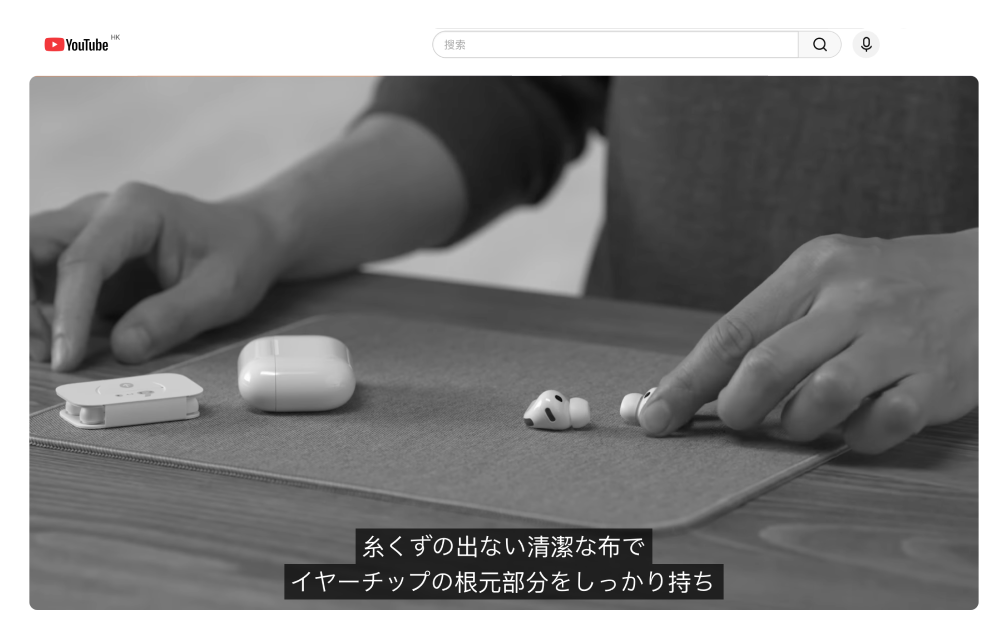
Immersive Translate transforms Zoom meetings with instant bilingual captions that appear during live calls. Unlike traditional transcription tools requiring post-processing, our solution delivers real-time understanding while preserving original context through side-by-side subtitle display, ensuring seamless cross-language collaboration without workflow interruption.
Before
user-pain-points
User Pains
Post-meeting transcription delays understanding during live discussions
Translation-only output loses original language context completely
Separate tools disrupt natural meeting flow and participation
After
happy-emoji
solutions
Immersive Translate Solution
happy-emojiInstant bilingual captions during Zoom calls without waiting
happy-emojiSide-by-side original and translated text preserves linguistic context
happy-emojiSeamless integration with Zoom's native Live Caption feature
happy-emojiPost-meeting bilingual transcript export for reference and sharing

Four steps to enjoy content in your native language

1

Copy & paste video link

2

Click Translate Video and wait a moment

3

Click Play Immediately to view

Zoom Real-Time Translation That Actually Works
Bilingual Captions
Bilingual Captions

Display original and translated Zoom captions side-by-side during live meetings, enabling participants to understand discussions in real-time while maintaining linguistic context for accurate comprehension and language learning opportunities.

Native Integration

Leverages Zoom's built-in Live Caption technology with translation overlay, requiring no separate transcription workflow or audio processing delays, ensuring instant multilingual accessibility during video conferences and webinars.


Native Integration
Multi-Language Support

Translate Zoom meeting captions across 100+ language pairs using 20+ premium AI translation engines including ChatGPT, DeepL, and Google Translate, accommodating diverse international teams and global collaboration needs.

Transcript Export

Generate and download bilingual meeting transcripts after Zoom sessions conclude, preserving both original and translated content for documentation, review, compliance requirements, and knowledge sharing across language barriers.

Transcript Export
Customizable Display

Adjust subtitle font size, color, background opacity, and screen position to ensure optimal readability during Zoom calls, accommodating different viewing preferences, screen sizes, and accessibility requirements for participants.

Context-Aware Translation

AI-powered translation engines analyze meeting context and specialized terminology to deliver natural, accurate Zoom caption translations, avoiding literal word-for-word conversion that often produces confusing or misleading interpretations.
Context-Aware Translation

Supported categories

Streaming Services
Video Sharing
Online Education
Social Networking
News & Information
Creator Platforms
Developer & Technology Platforms

Frequently Asked Questions About Zoom Real-Time Translation

How does real-time translation work during Zoom meetings?
Real-time translation in Zoom meetings works by leveraging Zoom's native Live Caption feature combined with translation tools like Immersive Translate. When you enable Live Captions in Zoom, the platform automatically transcribes spoken words into text. Immersive Translate then intercepts these captions and translates them into your preferred language in real-time, displaying both the original and translated text side-by-side on your screen. This bilingual subtitle approach allows you to follow the conversation in your native language while still seeing the original context. The translation happens almost instantaneously, with only a 1-2 second delay, ensuring you stay engaged with the discussion. Unlike traditional interpretation services that require human interpreters, this AI-powered solution supports over 100 languages and works automatically once configured. For the best experience, ensure your Zoom app is updated and that participants speak clearly. After the meeting, Immersive Translate can also export a bilingual transcript, giving you a complete record of the conversation in both languages for future reference or sharing with team members who couldn't attend.
Can I translate Zoom meetings into multiple languages simultaneously?
While Zoom's built-in features don't support simultaneous translation into multiple languages for a single user, Immersive Translate offers a practical workaround for multilingual meeting scenarios. During a live Zoom call, you can set one primary translation language that displays alongside the original captions. However, if you need to share meeting content with team members who speak different languages, Immersive Translate's post-meeting transcript export feature becomes invaluable. After the meeting ends, you can export the bilingual transcript and then re-translate it into additional languages using Immersive Translate's document translation capabilities. This is particularly useful for international teams where meeting participants speak English, Spanish, Mandarin, and other languages. For organizations regularly hosting multilingual Zoom webinars or global team meetings, a recommended workflow is to record the session, enable Live Captions, use Immersive Translate for your primary language during the live call, and then create multiple translated transcript versions afterward. This approach ensures everyone receives meeting information in their preferred language without requiring multiple live interpreters or complex technical setups. The Pro membership unlocks faster processing and priority access to premium translation engines like DeepL and ChatGPT for more accurate multilingual outputs.
Does Zoom real-time translation work for all meeting participants or just me?
Zoom real-time translation through Immersive Translate is a client-side solution, meaning it works individually for each user who has the tool installed. When you use Immersive Translate during a Zoom meeting, only you see the translated captions on your screen—other participants continue to see the meeting in their own configured language or without translation. This is actually an advantage because each team member can choose their preferred translation language independently. For example, in a global meeting with participants from Japan, Brazil, and France, the Japanese attendee can translate English speech to Japanese, the Brazilian to Portuguese, and the French participant to French—all simultaneously and without interfering with each other's experience. To enable this for your entire team, each member needs to install the Immersive Translate browser extension or desktop application and configure their language preferences. Meeting hosts cannot force translation settings on participants, which respects individual language needs and privacy. If you're organizing a multilingual Zoom conference and want to ensure all participants can access translation, consider sharing setup instructions before the meeting. For enterprise deployments, IT administrators can pre-configure Immersive Translate across company devices to streamline the onboarding process. This decentralized approach to Zoom meeting translation offers more flexibility than traditional interpretation channels while maintaining professional-quality results through AI-powered translation engines.
What's the difference between Zoom's built-in translation and using Immersive Translate?
Zoom's native translation capabilities are limited compared to what Immersive Translate offers. Zoom provides automated Live Captions in English and a few other languages, but these are primarily transcription features rather than true translation tools. Zoom's interpretation feature requires human interpreters to be assigned to specific language channels, which is expensive and logistically complex for most organizations. In contrast, Immersive Translate transforms Zoom's Live Captions into a powerful multilingual communication tool by adding AI-powered translation on top of the existing transcription. The key differences include language coverage—Immersive Translate supports over 100 language pairs versus Zoom's limited interpretation channels; cost efficiency—no need to hire professional interpreters for every meeting; bilingual display—you see both original and translated text simultaneously, which helps with context and language learning; translation engine flexibility—choose from 20+ AI services including ChatGPT, DeepL, Google Translate, and specialized models; and post-meeting value—export bilingual transcripts for documentation and sharing. Additionally, Immersive Translate works consistently across Zoom, Google Meet, and Microsoft Teams, so you learn one tool for all your video conferencing needs. For technical discussions with specialized terminology, you can switch between translation engines mid-meeting to find the most accurate rendering. The combination of Zoom's reliable speech recognition with Immersive Translate's advanced translation creates a more accessible and inclusive meeting environment than either tool could achieve alone.
How accurate is real-time translation for Zoom meetings with technical or specialized content?
The accuracy of real-time translation during Zoom meetings depends on several factors: the clarity of the original speech, the complexity of the terminology, and the translation engine you select. For general business conversations, Immersive Translate typically achieves 85-95% accuracy when using premium engines like DeepL or ChatGPT. However, technical discussions in fields like medicine, law, engineering, or finance require special attention. Immersive Translate addresses this challenge by offering multiple translation engines that you can switch between during the meeting. For instance, if you're in a medical conference call and notice that Google Translate is struggling with pharmaceutical terms, you can instantly switch to DeepL or ChatGPT, which often handle specialized vocabulary better. The bilingual subtitle display is particularly valuable here—seeing the original English term alongside the translation helps you verify accuracy and catch potential mistranslations. For recurring technical meetings, consider these best practices: ask speakers to enable Zoom's Live Captions for better source transcription quality; create a custom glossary of key terms in your field (a feature available in some translation engines); review the post-meeting bilingual transcript and correct any terminology errors for your records; and for critical technical discussions, use Immersive Translate as a comprehension aid rather than a replacement for professional interpretation. Many users report that even with occasional terminology challenges, real-time translation enables them to follow 80% of technical content immediately, with the exported transcript allowing them to clarify the remaining 20% afterward—a significant improvement over understanding nothing during non-native language meetings.
Can I use Zoom real-time translation on mobile devices or only on desktop?
Immersive Translate's Zoom real-time translation capabilities are primarily optimized for desktop and laptop computers through the browser extension, which provides the most seamless experience. When you join Zoom meetings through Chrome, Edge, or other supported browsers with the Immersive Translate extension installed, the translation overlay integrates directly with Zoom's interface. However, mobile translation for Zoom meetings presents technical challenges because Zoom's mobile apps (iOS and Android) don't support browser extensions in the same way. For mobile users who need translation during Zoom calls, there are alternative workflows: you can join the Zoom meeting on your phone for audio/video participation while simultaneously opening the meeting link in a mobile browser with Immersive Translate enabled to view translated captions on a second screen; use Zoom's desktop app on a laptop for the best translation experience; or record the meeting and translate it afterward using Immersive Translate's video translation feature by uploading the recording. The desktop experience offers additional advantages like customizable subtitle positioning, font size adjustments for better readability, and the ability to edit and export bilingual transcripts immediately after the meeting. For professionals who frequently attend multilingual Zoom meetings while traveling, we recommend using a laptop or tablet with keyboard support rather than relying solely on smartphones. Immersive Translate continues to develop mobile capabilities, and future updates may bring more integrated solutions for iOS and Android Zoom apps. Currently, the desktop browser extension remains the most reliable method for real-time Zoom meeting translation with full feature access.
How do I set up and optimize Zoom real-time translation for my international team meetings?
Setting up Zoom real-time translation with Immersive Translate for international team meetings involves several steps to ensure optimal performance. First, install the Immersive Translate browser extension from the Chrome Web Store or your browser's extension marketplace—this takes less than two minutes. Next, create a free account or upgrade to Pro for access to premium translation engines and unlimited meeting translation. Before your first multilingual meeting, configure your preferences: select your preferred translation language pair (for example, English to Spanish), choose a translation engine (DeepL and ChatGPT generally provide the best quality for business content), and adjust subtitle display settings like font size and position for comfortable reading. When joining a Zoom meeting, make sure to use the browser version rather than the desktop app for full compatibility, and enable Zoom's Live Captions feature from the meeting controls—this provides the source text that Immersive Translate will translate. For team-wide implementation, share a setup guide with all international participants so everyone can configure their own language preferences. To optimize translation quality during meetings, encourage speakers to speak clearly and at a moderate pace, minimize background noise by muting when not speaking, and use Zoom's 'Original Sound' option for better audio quality. After the meeting, take advantage of Immersive Translate's transcript export feature to create bilingual meeting minutes that can be shared with the entire team, including those who couldn't attend. For recurring international meetings, consider designating a 'translation coordinator' who can troubleshoot technical issues and ensure all participants are successfully using the translation features. Many organizations report that after an initial 15-minute training session, team members become proficient with Zoom real-time translation, leading to more inclusive and productive global collaboration.