














Immersive Translate
Upgrade to Pro
English
简体中文
繁體中文
繁體中文(香港)
English
日本語
العربية
Deutsch
Español
Français
हिन्दी
Italiano
한국어
Português
Português (Brasil)
Русский
google
openAI
Gemini
DeepL
Microsoft
Tencent Hunyuan
Volctrans
Youdao
DeepSeek
Baidu
Niu
Caiyun
Hunyuan
OpenL
BigModel
SiliconFlow
google
openAI
Gemini
DeepL
Microsoft
Tencent Hunyuan
Volctrans
Youdao
DeepSeek
Baidu
Niu
Caiyun
Hunyuan
OpenL
BigModel
SiliconFlow
google
openAI
Gemini
DeepL
Microsoft
Tencent Hunyuan
Volctrans
Youdao
DeepSeek
Baidu
Niu
Caiyun
Hunyuan
OpenL
BigModel
SiliconFlow

Why Choose Immersive Translate
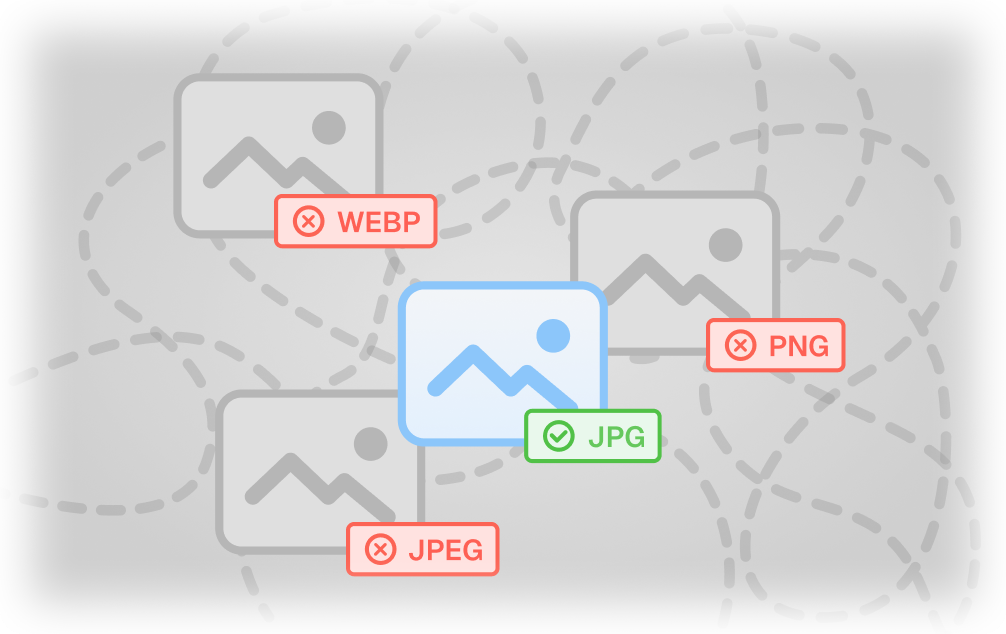
Previously, WebP translation suffered from clunky overlays and format gaps. Now, Immersive Translate delivers natively designed results via web upload or extension right-click. It also keeps WebP translator translation inside the original image layout.
Before
user-pain-points
User Pains
Limited WebP support or poor OCR accuracy
Cumbersome workflow requiring multiple steps
Flat text overlays ruin the original visual
After
happy-emoji
solutions
Immersive Translate Solution
happy-emojiSupports JPG, JPEG, PNG, and WEBP with high OCR accuracy for WebP translator images and format-specific text detection.
happy-emojiWeb upload and browser-extension right-click provide smooth entry points, while batch workflows help with larger WebP translator image sets.
happy-emojiOCR-precise detection and Inpaint background restoration place translation naturally inside WebP translator visuals, preserving layout and typography.

Tips for Getting the Best WebP Translator Results

To ensure accurate text recognition and clean output with your WebP translator, follow these specific guidelines for optimizing image clarity and layout.
Do
Use high-resolution WebP files
Crop to focus on text areas
Ensure fonts are legible and clear
Maintain reasonable file compression size
Don't
Don't use blurry or pixelated images
Avoid cluttered or overlapping backgrounds
Don't use heavily decorative fonts
Avoid text that is too small

Native WebP Translator for Modern Images
Direct WEBP File Support

This WebP translator handles modern WEBP files natively without requiring conversion, ensuring efficient processing for both lightweight social media posts and high-density visual content directly in the browser.

OCR + Inpaint Pipeline

The tool utilizes precise OCR to detect text regions within WEBP images, then employs Inpainting to erase original text and reconstruct backgrounds, allowing translations to sit naturally inside the visual rather than as overlays.

OCR + Inpaint Pipeline
Web App or Extension Upload

Users can upload WEBP images directly to the web app or paste from the clipboard for immediate results, while the browser extension allows right-click translation of WEBP visuals found on any webpage.

Switchable AI Engines

Optimize accuracy by selecting from 16+ engines like OpenAI, DeepL, or Gemini for your WebP translator task, ensuring the specific terminology or style matches the context of the image content.


Switchable AI Engines
Full JPG, PNG, and JPEG

While optimized for WEBP, the tool seamlessly processes JPG, JPEG, and PNG formats under the same workflow, providing a unified solution for translating diverse image types without quality loss.

Supported image formats

JPEG
WEBP
JPG
PNG

WebP Translator FAQs

Can a WebP translator preserve the original image quality during translation?
Yes, a dedicated WebP translator processes the image to maintain visual fidelity. By using OCR and Inpaint technology, Immersive Translate erases the original text and reconstructs the background before overlaying the translation. This ensures the output remains a high-quality image, not a screenshot with flat text boxes pasted on top.
How does this WebP translator handle the text overlay compared to standard tools?
Unlike standard tools that paste text over the image, this WebP translator uses an Inpaint process to remove original text and reconstruct the background. It then places the translated text directly into the image, making it look like a native design rather than a machine-edited overlay covering the content.
Which AI engines work best as a WebP translator for accurate results?
You can choose from 16+ engines, including OpenAI, DeepL, and Google, to suit your specific needs. Immersive Translate allows you to switch freely between these models, ensuring your WebP translator uses the best engine for the language pair or content style, like software UI or web graphics.
Do I need to upload files to use the WebP translator, or is there a faster way?
You can upload files to the web app or use the browser extension for a seamless workflow. The extension allows you to right-click any WebP image on a webpage to translate it instantly in place, acting as a powerful WebP translator without ever leaving your current tab.
Why does my translated WebP image look better than using Google Translate's image mode?
Google Translate's image mode often creates text boxes that obscure the background art. This WebP translator prioritizes visual fidelity by actually removing the source text and restoring the background image. The result is a clean, localized image that integrates the translation naturally.
Is the WebP translator feature free to use, or are there costs involved?
The full WebP translator feature is completely free to use. While you can access all core translation capabilities without paying, a Pro membership is available for those who need higher OCR accuracy, finer layout preservation, and priority processing for complex or batch jobs.
Does the WebP translator support long images like infographics or screenshots?
Yes, it supports common formats like WEBP, including long images typical of webpages or screenshots. The OCR detects text regions precisely regardless of dimensions, allowing you to translate detailed infographics or software UI screenshots while keeping the original layout intact.