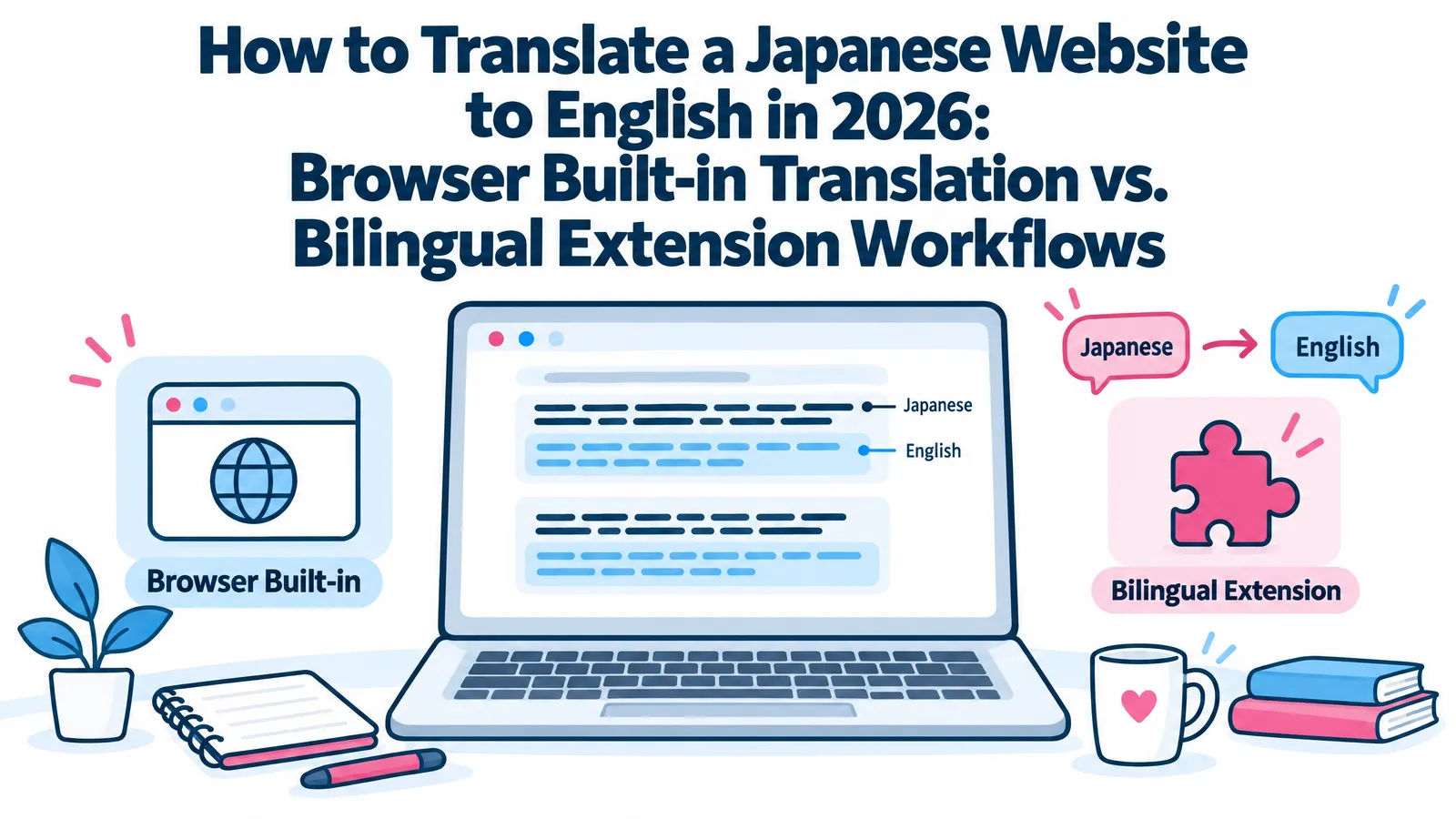
How to Translate a Japanese Website to English in 2026: Browser Built-in Translation vs. Bilingual Extension Workflows
You can translate a Japanese website to English in one of three ways: use your browser's built-in translation (Chrome, Safari, or Edge), paste the page URL into an online website translator such as Google Translate or Yandex Translate, or install a bilingual translation extension that shows the English translation alongside the original Japanese text. This guide walks through each method step by step, in the Japanese-to-English direction only.
One clarification before we start: this guide is for readers who want to read Japanese websites in English. If you're a site owner looking to localize your own website into multiple languages, that's a different project, and the tools below aren't designed for it.
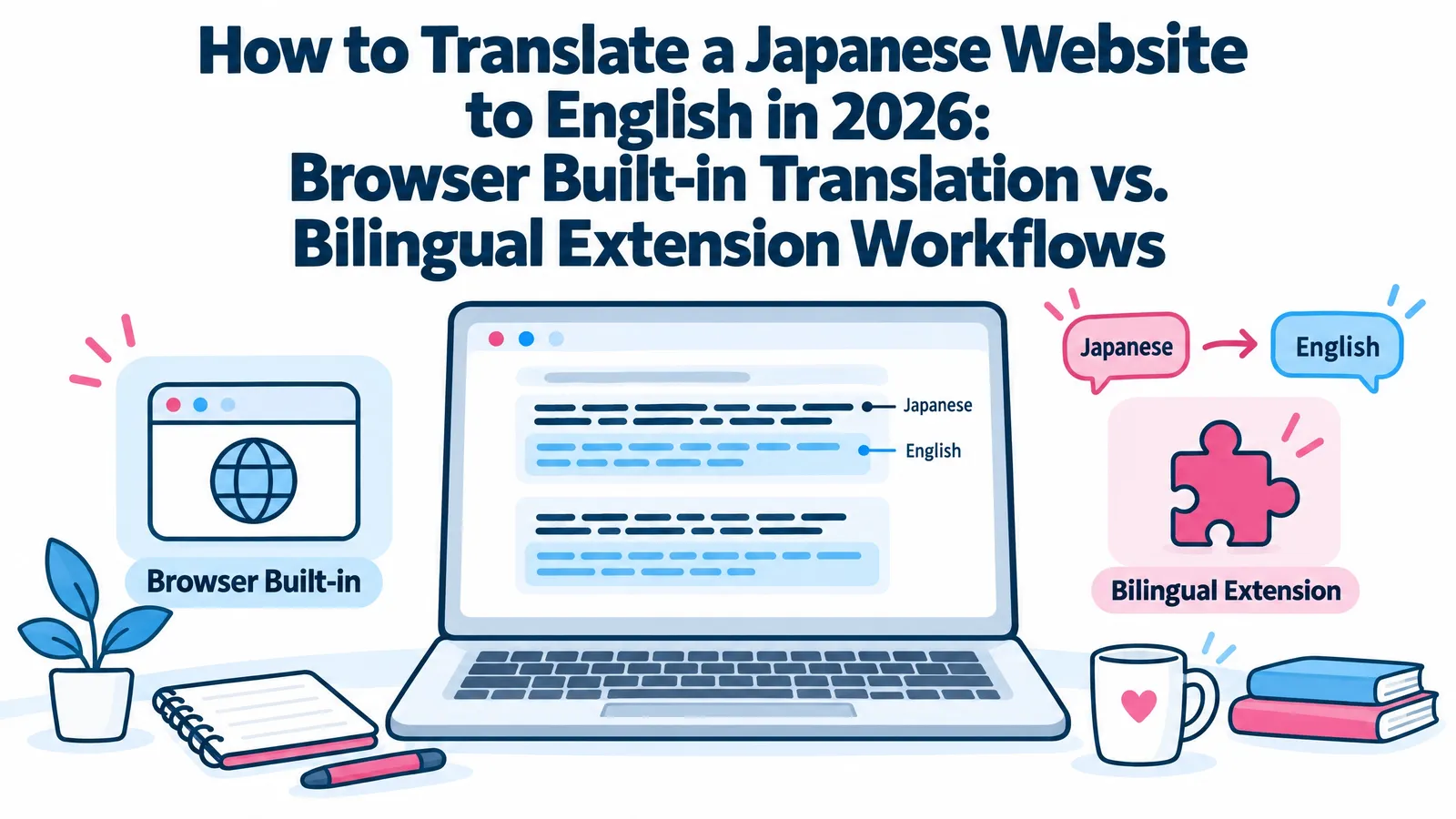
Quick Answer: Three Ways to Translate a Japanese Website to English
-
Browser built-in translation — one or two clicks, no installation. Best when you just need to read a single page quickly.
-
Online URL translators (Google Translate, Yandex Translate) — paste a link, get a translated copy of the page. Best when the translate button doesn't appear, or on a computer where you can't install anything.
-
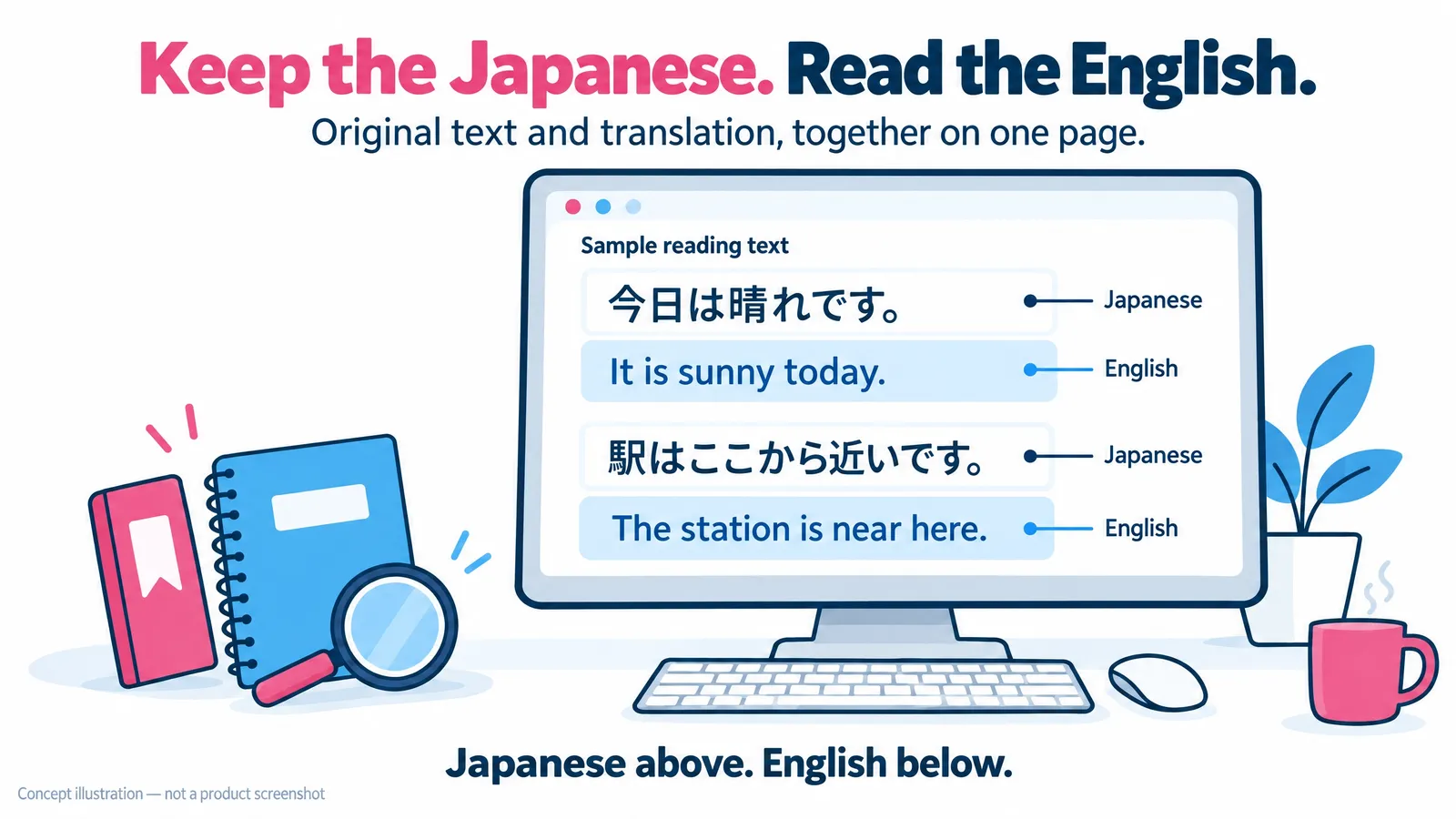
Bilingual translation extensions — the original Japanese stays on the page, with English shown underneath each paragraph. Best for long-term reading of news sites, forums, and documentation.
If you only remember one rule: use built-in translation for a quick look, and a bilingual extension if you read Japanese sites regularly.
Method 1: Translate a Japanese Website with Your Browser's Built-in Translation
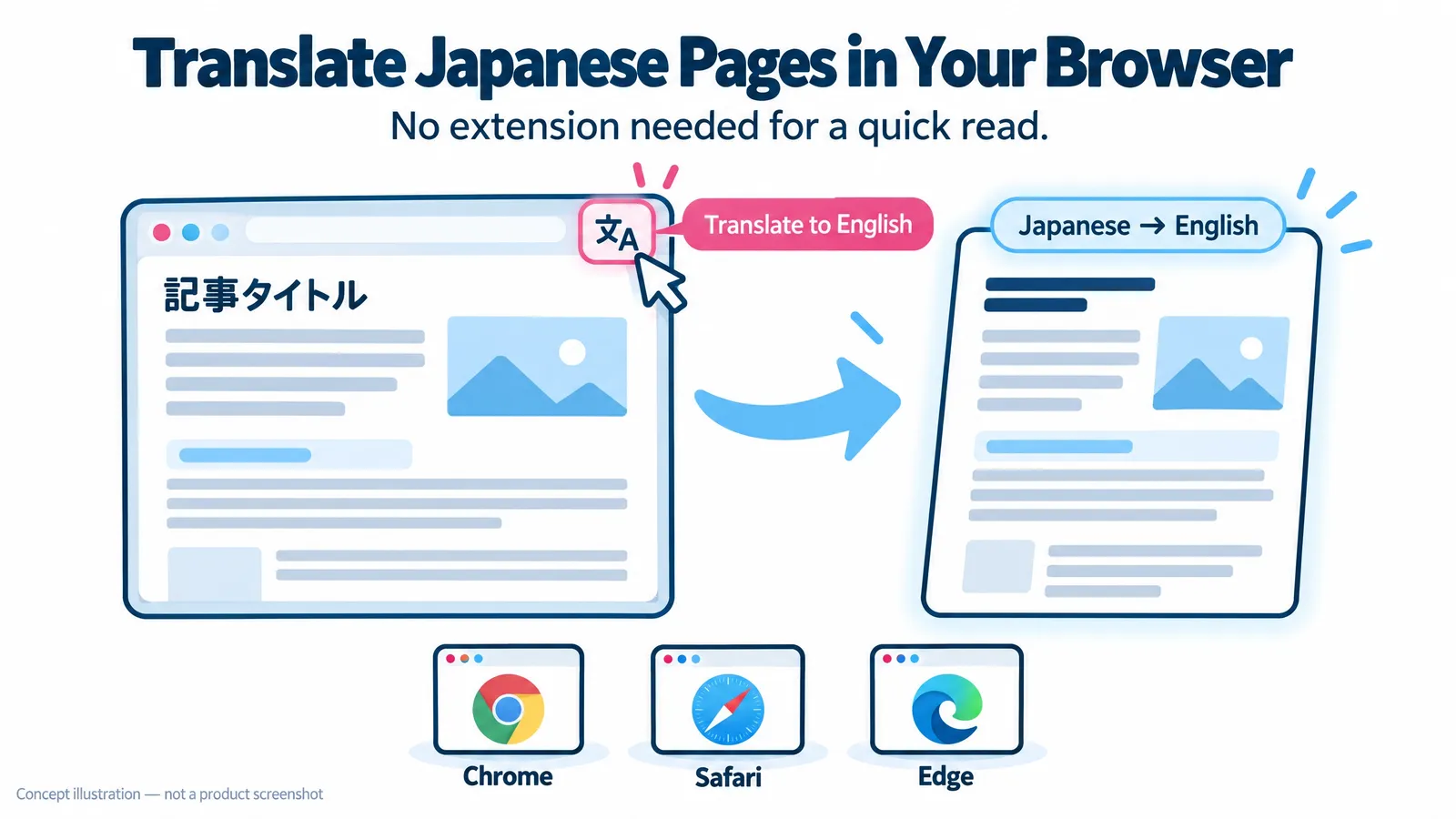
The fastest way to translate a Japanese website to English is the translation feature already in your browser. Exact menu names shift between browser versions, so treat the labels below as a guide rather than fixed wording.
In Google Chrome
-
Open the Japanese page in Chrome.
-
Click the translate icon in the address bar, or open the three-dot menu at the top right and select the translate option.
-
Confirm the target language is English ("Translate to English").
-
Chrome replaces the page text with its English translation.
In Safari on Mac
-
Open the Japanese page in Safari.
-
Click the page menu icon next to the address bar.
-
Choose "Translate Website," then confirm English as the target language.
In Microsoft Edge
-
Open the Japanese page in Edge.
-
Right-click anywhere on the page.
-
Select "Translate to English."
Built-in translation is convenient, but keep its limits in mind: the translation replaces the original text, so you can't compare the English against the Japanese, and you'll need to trigger it again on each new page you visit.
Method 2: Paste the URL into an Online Website Translator
If you'd rather not adjust browser settings—or you're on a computer where the built-in translate option is unavailable—online tools can translate the entire page for you.
Google Translate:
-
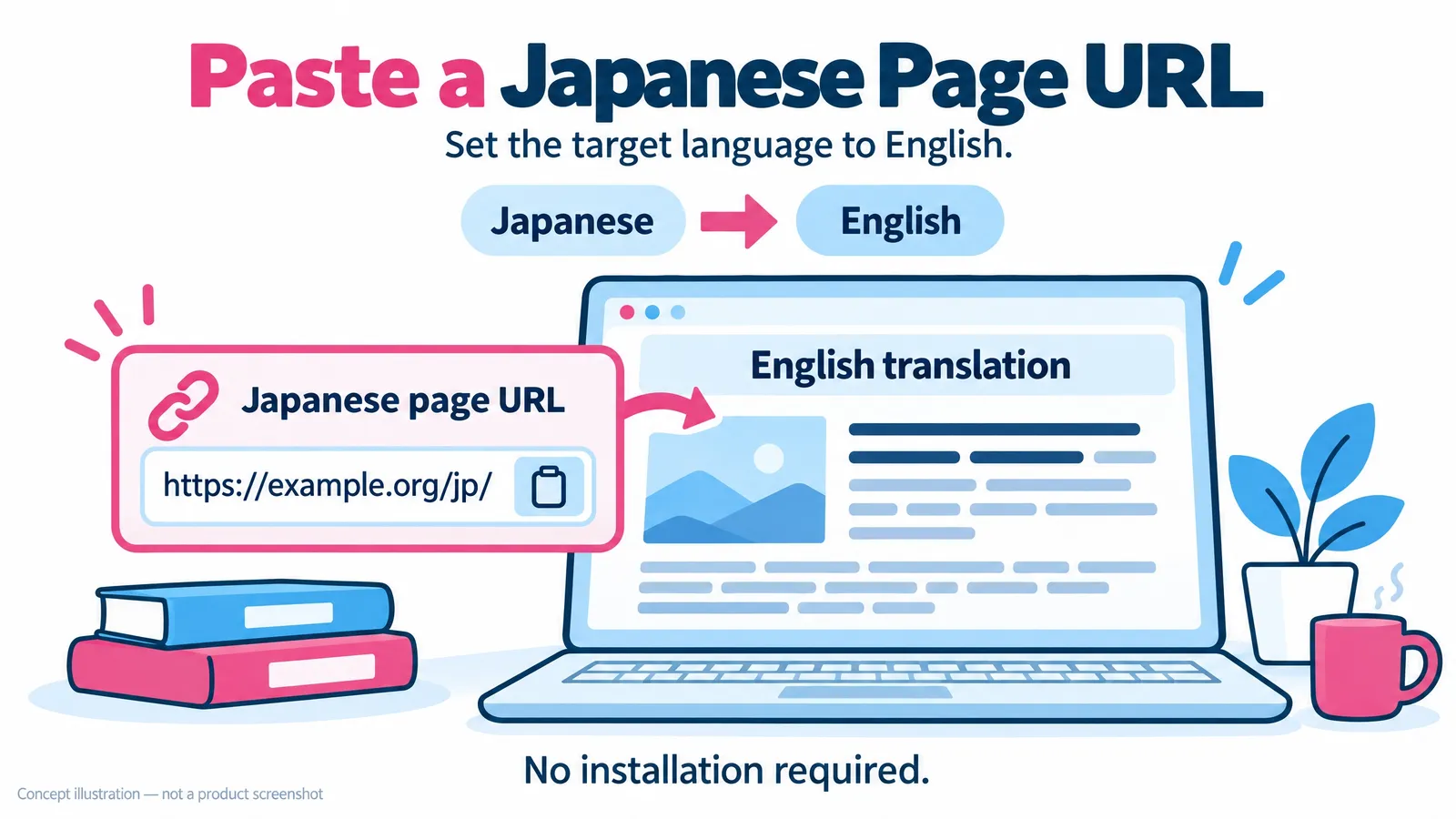
Go to translate.google.com in any browser.
-
Open the "Websites" tab.
-
Paste the full URL of the Japanese page.
-
Set the target language to English and press Enter. Google displays a translated version of the page.
Yandex Translate:
-
Go to translate.yandex.com.
-
Paste the link to the Japanese page.
-
Choose English as the target language.
This approach requires no installation and works from any device with a browser. The trade-off is that it's a one-time, replacement-style translation: you view a translated copy of the page rather than the live page, and pages that load content dynamically may not translate completely. For a one-off look at a product page or news article, though, it's often the quickest route.
Method 3: Read Japanese Websites Side by Side with a Bilingual Translation Extension
Both methods above replace the original text. If you read Japanese websites often—for study, research, or following Japanese news and communities—a bilingual extension offers a different experience: the original Japanese stays in place, and the English translation appears directly beneath each paragraph, so you keep the page's context and can always check the source text.
Immersive Translate is one such extension: a free, bilingual AI translation tool that runs as a browser extension. Here's how to set it up for Japanese-to-English reading:
-
Install the extension for your browser from the official download page for all platforms (Chrome, Edge, Firefox, and Safari are all supported).
-
Open any Japanese website.
-
Trigger web page translation from the extension.
-
The page switches to a bilingual view: each Japanese paragraph followed by its English translation—a layout the company says it pioneered for website translation.
-
If you'd like a different translation engine, the extension integrates more than 20 translation engines, including DeepL and Google, and supports more than 100 language pairs.
While reading, you can also select any word or phrase for an instant translation, or hover over a paragraph and use a shortcut key to reveal its translation—useful when you only need help with occasional sentences rather than the whole page.
Privacy is worth checking before you translate anything sensitive. According to its security page, Immersive Translate states that applicable official translation services do not use your content to train models, and that requests travel over encrypted channels.
For pages that resist standard translation, the extension can serve as a fallback, too. As one Chrome user, Dan, put it in a review on the official site: "It can translate the web apps even though google translate doesn't recognise."
If Chrome is your browser, you can Add to Chrome directly; users on other platforms will find their install option on the download page.
Japanese Website Won't Translate? What to Do When the Translate Button Is Missing
Sometimes you open a Japanese page and no translate icon appears. You're not alone—one traveler in a Japan travel forum asked exactly this: some sites offer a translation button, and when there isn't one, what then? Work through the symptoms below:
-
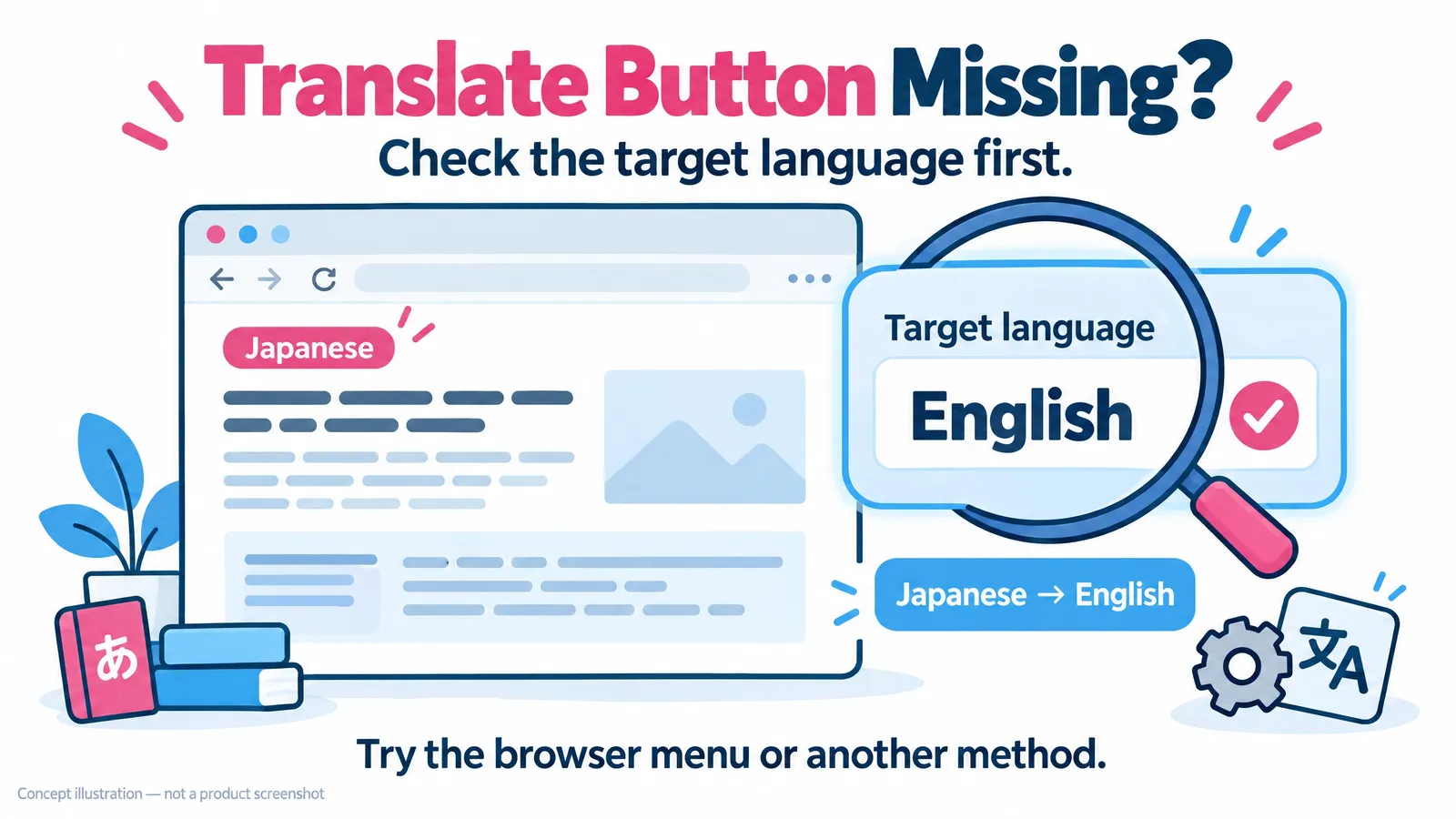
No translate icon in the address bar or menu. Trigger translation manually from the browser menu instead of waiting for a prompt (see Method 1 for the Chrome, Safari, and Edge paths).
-
The page isn't translated, or goes to the wrong language. Check your browser's language settings and make sure the target language is set to English.
-
Parts of the page stay in Japanese. Content that loads as you scroll may translate late or not at all with built-in tools. A URL translator (Method 2) or a bilingual extension (Method 3) usually handles these pages more reliably.
-
The site behaves like an app rather than a normal page. Some web apps aren't recognized by browser translation. A bilingual extension is the practical workaround here—the user review quoted above describes exactly this scenario.
Each fix above is something you can do yourself in a minute or two, without needing to work out why the browser behaved the way it did.
Which Method Should You Choose?
| Method | Setup | Keeps original text? | Engine choice | Best for |
|---|---|---|---|---|
| Browser built-in translation | None | No — replaces text | Fixed by the browser | Quick look at one page |
| Online URL translator | None | No — translated copy | Fixed by the tool | Shared computers, no-install situations |
| Bilingual extension (e.g., Immersive Translate) | One-time install | Yes — side-by-side view | 20+ engines, incl. DeepL and Google | Regular reading of Japanese sites |
If "free" is your filter, know that free online text translators usually cap how much you can translate. Based on their own pages (checked October 2026; limits may have changed since):
| Tool | Free limit (text translation) |
|---|---|
| translate.com | 500 characters per day |
| kanjikana.com | 1,000-character cap |
| SYSTRAN online translator | 5,000 characters |
Immersive Translate describes itself as a free, bilingual AI translation tool; check its current terms for usage details.
One more check before you commit to a tool: confirm the direction. Some pages that rank for Japanese–English translation are actually built for English-to-Japanese, so make sure the tool you pick translates Japanese into English.
Translating Japanese Websites on iPhone and Android
On a phone, the same three paths apply, though the menus differ from desktop. Mobile Safari and the Chrome app both include page translation options—their placement varies by browser version and operating system, so look for "Translate" in the browser's share or settings menu. The URL-translator route from Method 2 works on any device with a browser.
For regular mobile reading, Immersive Translate also ships native apps: an iOS app on the App Store, and an Android app available through Google Play or as an APK.
FAQ
What is the best website to translate Japanese to English?
There's no single best choice for every situation. For a quick read, your browser's built-in translation or Google Translate's "Websites" tab is the fastest. For ongoing reading, a bilingual extension keeps the original text visible side by side. Match the tool to how often you read Japanese sites.
Can I translate an entire website to English?
Yes. Browser tools and extensions translate each page as you visit it, while URL translators like Google Translate produce a translated copy of one page at a time. Note that no method saves a translated copy of every page on a site in a single step.
Is there an online translator that can translate Japanese to English?
Yes—several. Your browser's built-in translation, the "Websites" tab of Google Translate, Yandex Translate's site tool, and bilingual translation extensions all render Japanese pages in English, each with the trade-offs described above.
How do I force a website to translate to English?
Trigger translation manually from your browser's menu (Chrome: three-dot menu; Safari: page menu; Edge: right-click the page). If nothing happens, verify the target language setting, then paste the URL into an online translator or use a bilingual extension instead.
Start Reading Japanese Websites in English Today
All three paths lead to the same place: a Japanese website you can actually read. Use your browser's built-in translation or a URL translator for occasional pages. If Japanese sites are part of your weekly routine, a bilingual extension—Add to Chrome or the download page for all platforms—keeps the original and the English side by side.
For deeper setup help, the help center has how-to guides, and the official FAQ covers common questions.