Auto-Translate Facebook Posts and Comments: Official Settings Plus a Bilingual Extension Workflow
Quick Answer: How to Auto-Translate Facebook Posts
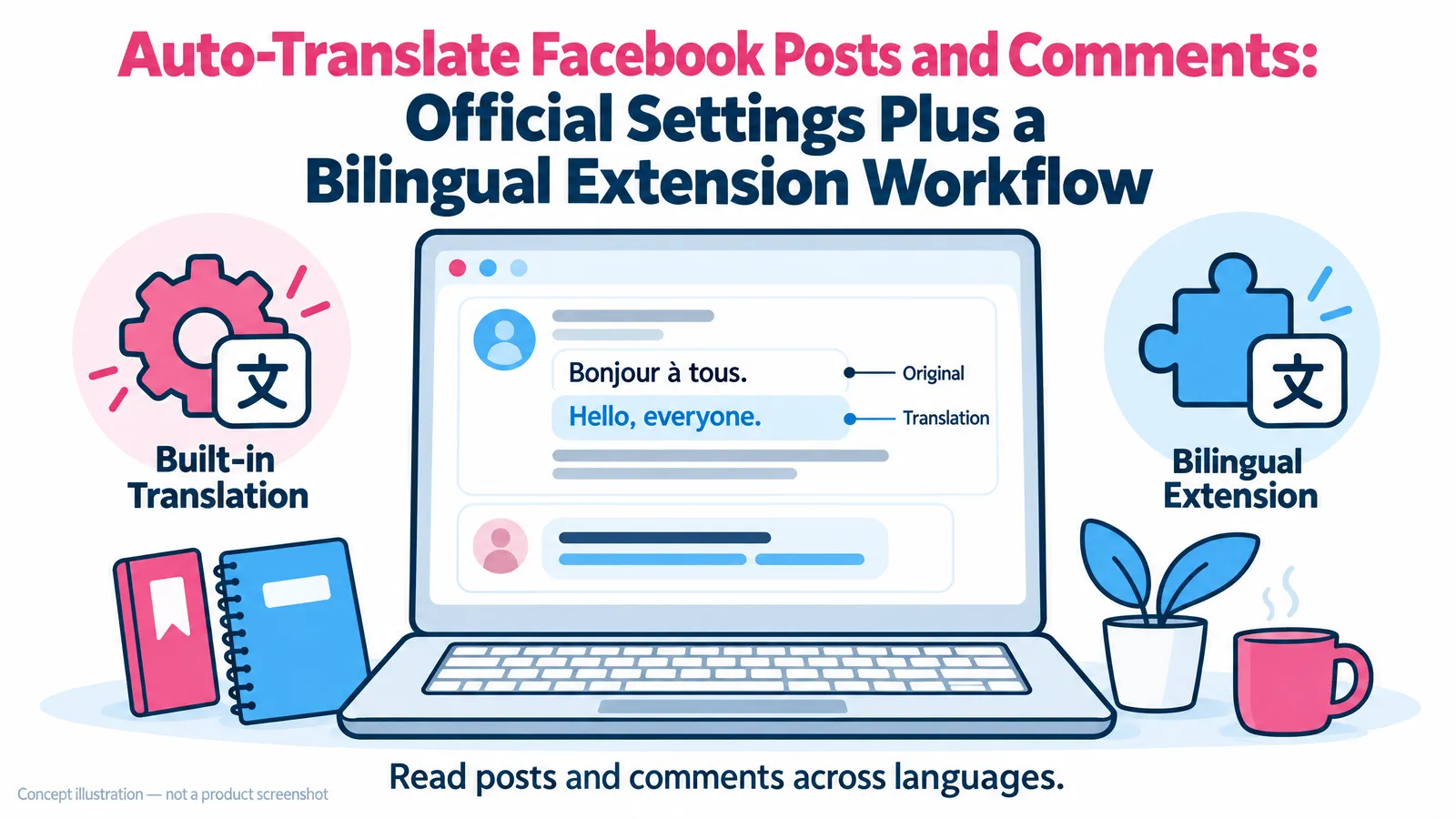
Can you translate Facebook posts automatically? Yes—and you don't have to pick just one method. Facebook itself translates posts automatically or on-demand once you adjust your language preferences or use its built-in translation buttons. Two paths cover almost every situation:
-
Facebook's built-in settings. Tap See Translation below a post or comment written in another language, or manage automatic translation in your Language and Region settings. Details in How to Translate Facebook Posts with Built-In Settings.
-
A bilingual browser extension. On the Facebook website, a free extension can display the translation directly beneath the original text of posts, comments, and your whole feed. Details in How to Auto-Translate Facebook Posts with a Bilingual Browser Extension.
If the See Translation button is missing, or a translation doesn't look right, start with When Built-In Translation Isn't Enough.
How to Translate Facebook Posts with Built-In Settings
Wondering whether you can translate on Facebook, or how to put translation on Facebook? The answer lives in one place: your language settings. Facebook's built-in tools handle two jobs: translating the posts and comments you read, and controlling when that translation happens automatically. The steps below reflect Facebook's current interface; menu names can shift between app versions.
Translate Posts and Comments with See Translation
The fastest way to translate a single item:
-
Go to the post or comment you want to translate.
-
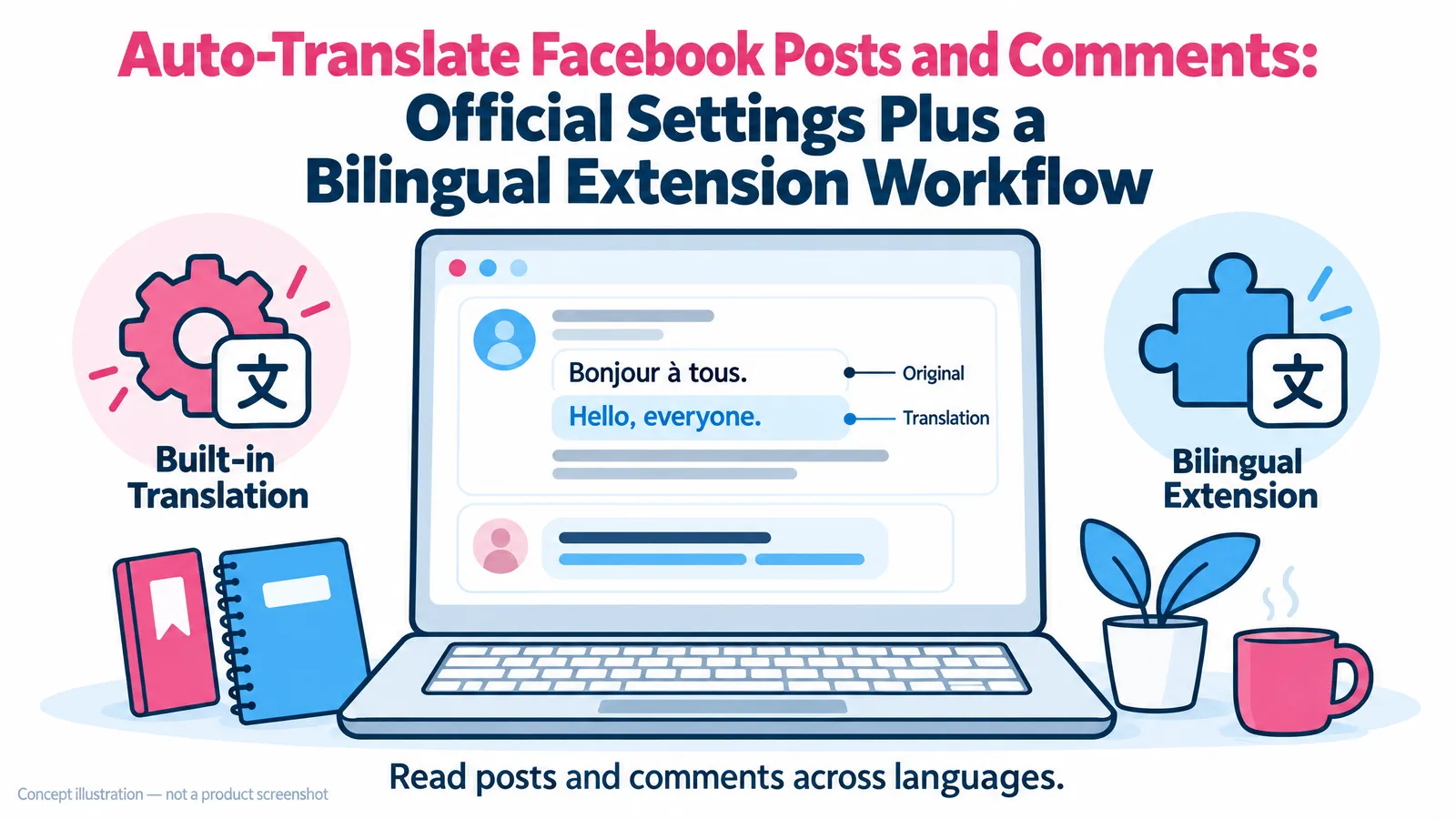
Tap See Translation below the post or comment.
Facebook comment translation works the same way as post translation: the button appears below each comment written in a language other than yours. This is on-demand translation—nothing changes until you tap.
Turn On (or Off) Automatic Translation in Your Language Settings
To turn automatic translation on:
-
Tap Menu in the top right of Facebook.
-
Scroll down and tap Settings & privacy, then tap Settings.
-
Tap Language and Region below Preferences.
-
Select a language.
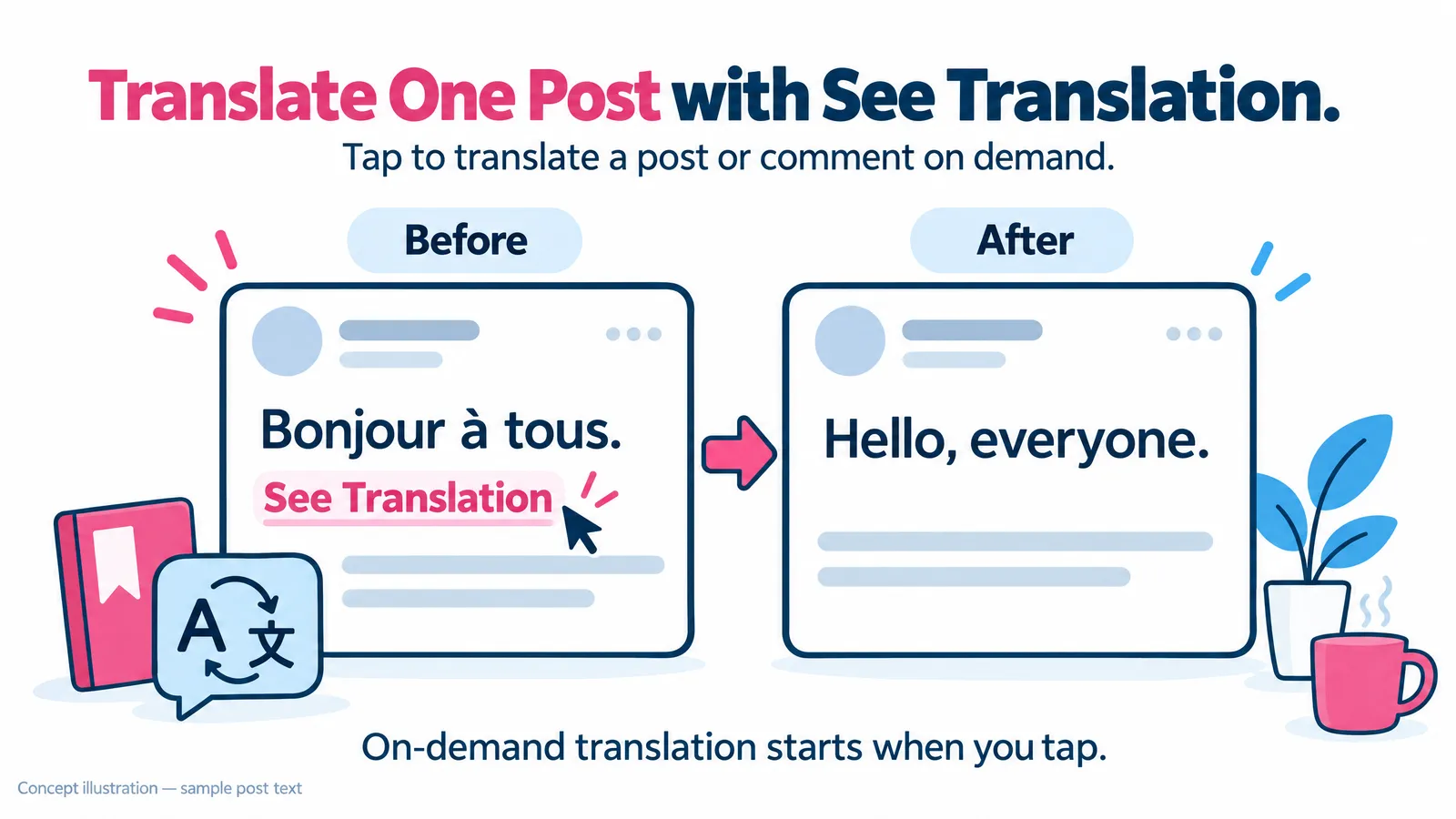
On desktop, the same options sit under Settings & Privacy > Settings > Language and Region. Your choices here tell Facebook which languages you read, so posts in other languages can be translated for you.
To turn it off, do the reverse: Facebook notes that you can turn off translation options for posts and comments in your language settings. If posts you'd rather read in the original language keep getting translated, this is the switch to change.
The Same Settings on iPhone, Android, and Desktop
The setting lives in the same place on every device; only the route to it differs:
| Device | Path to language settings |
|---|---|
| iPhone & Android (Facebook app) | Menu (top right) → Settings & privacy → Settings → Language and Region |
| Desktop (facebook.com) | Settings & Privacy → Settings → Language and Region |
In the mobile app, the Menu button sits in the top-right corner; on desktop, it's in the top-right dropdown. The app and web versions occasionally name these menus slightly differently.
When Built-In Translation Isn't Enough
Facebook's built-in tools are the first thing to try, but two complaints show up again and again from real users: the See Translation button isn't always there, and the translation it produces isn't always reliable. Both have workarounds.
Why the See Translation Button Might Be Missing
If you can't translate on Facebook anymore, work through this checklist before assuming it's broken:
-
Check your language settings. If you do not see the translation option, Facebook's own guidance is to check your language settings—the feature depends on them.
-
Confirm the post is actually in another language. The button typically appears only on posts that differ from the language you read.
-
Update the app or switch surfaces. Behavior can vary between the mobile app, mobile web, and desktop, and older app versions may lag behind.
-
Check where you're reading. Some contexts don't always behave like the main feed. One group discussion asked how to enable the translate option "for all posts," with commenters reporting mixed results.
-
Try the web version. If the app still won't cooperate, facebook.com in a desktop browser gives you a second environment to test.
These are observations drawn from Facebook's public guidance and user reports, not official guarantees; Facebook doesn't promise a fix for every case.
When the Built-In Translation Gets It Wrong
Quality is the other gap. In one public Facebook discussion, a user reported that an automatic Khmer-to-English translation "has nothing to do with the original text in khmer." When a single translated sentence replaces the original, there's no easy way to check it, and reading the translation side by side with the original text is the most direct way to verify what was actually written.
How to Auto-Translate Facebook Posts with a Bilingual Browser Extension
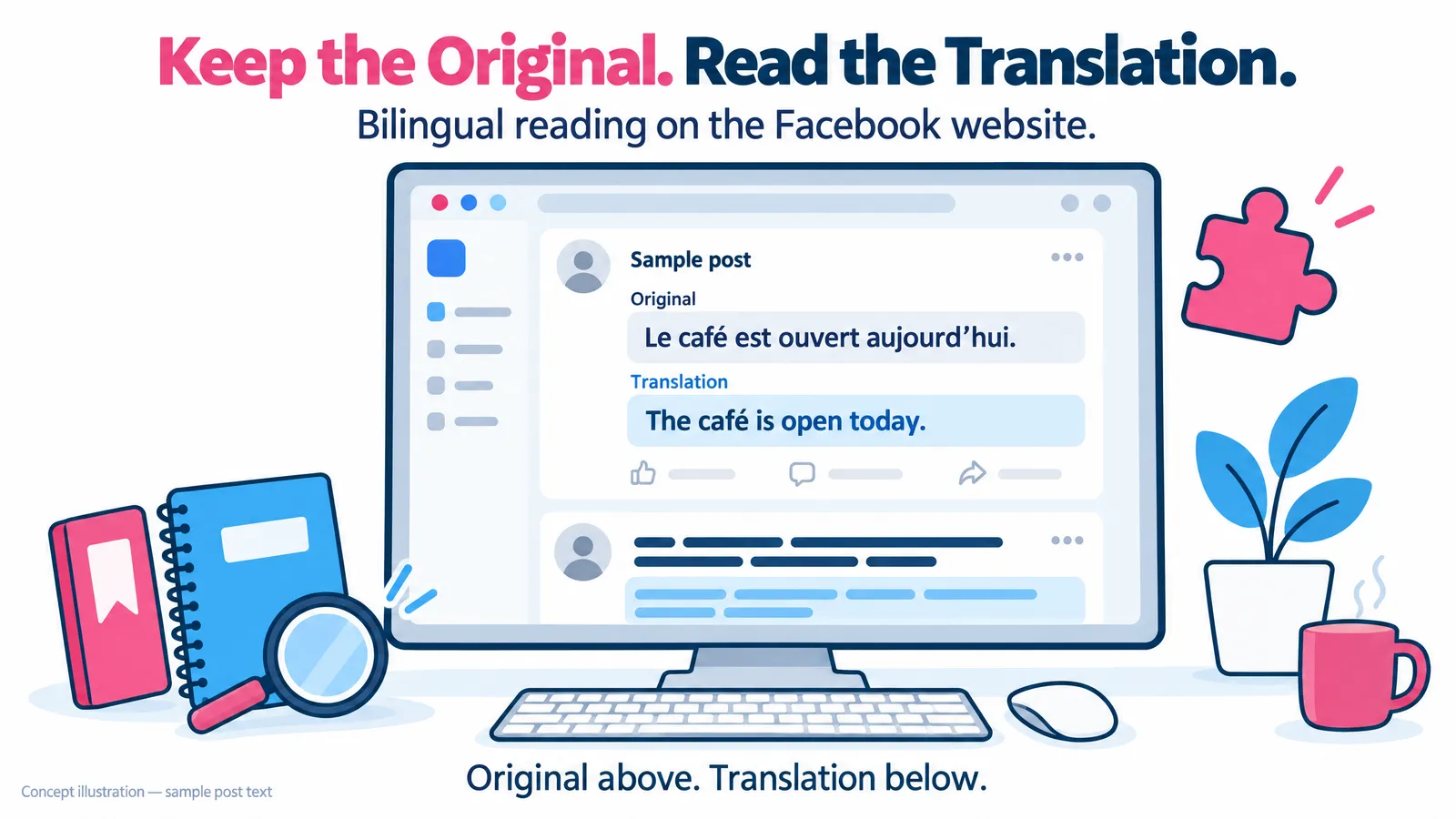
If you read Facebook in a desktop browser, a bilingual extension can translate the entire page (posts, feed, and comments) in one pass, keeping the original text visible above each translation. Immersive Translate is a free, bilingual AI translation tool built for exactly this kind of side-by-side website reading. It works as a browser extension for Chrome, Edge, Firefox, and Safari, and it's also available as iOS and Android apps. The workflow below focuses on the desktop browser case, since Facebook's own apps rely on the built-in settings covered earlier.
Install the Browser Extension
-
Visit the Immersive Translate download page.
-
Choose your browser—Chrome, Edge, Firefox, or Safari.
-
Confirm the installation, and pin the extension if you want it one click away.
The extension is free to install, and the same page lists the mobile apps if you want them later.
Read Facebook Posts Side by Side in Two Languages
-
Open facebook.com and log in as usual.
-
Use the extension's shortcut to start translating the page.
-
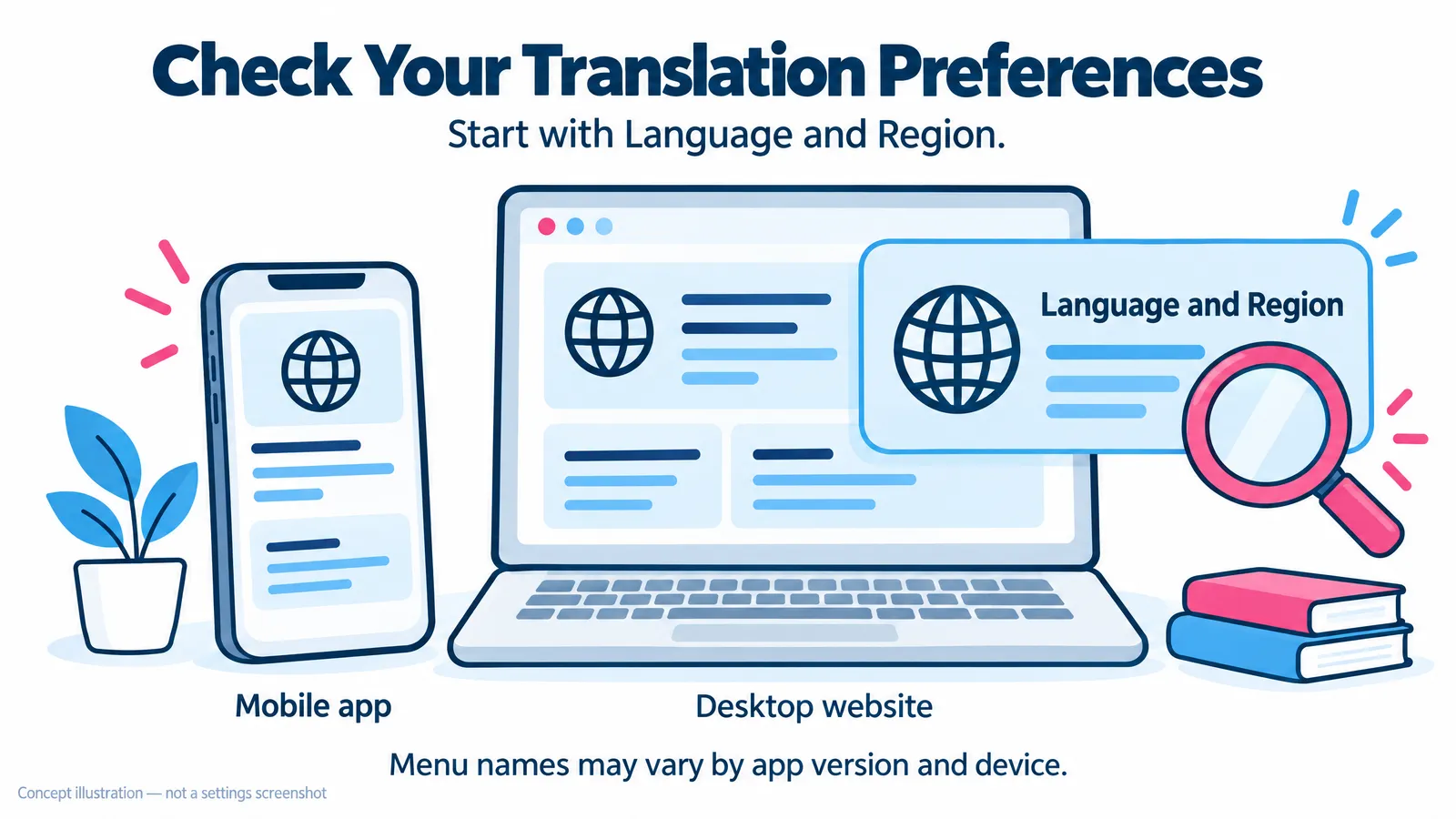
Read: each post appears with its translation directly below the original text.
Immersive Translate pioneered the side-by-side vertical bilingual layout for website translation, so the original post stays intact and the translation sits beneath it—no tab switching, no losing the source text. For a single paragraph, hover over it and press the shortcut key (Ctrl) to display just that translation below.
Translate Comments and Your Whole Feed
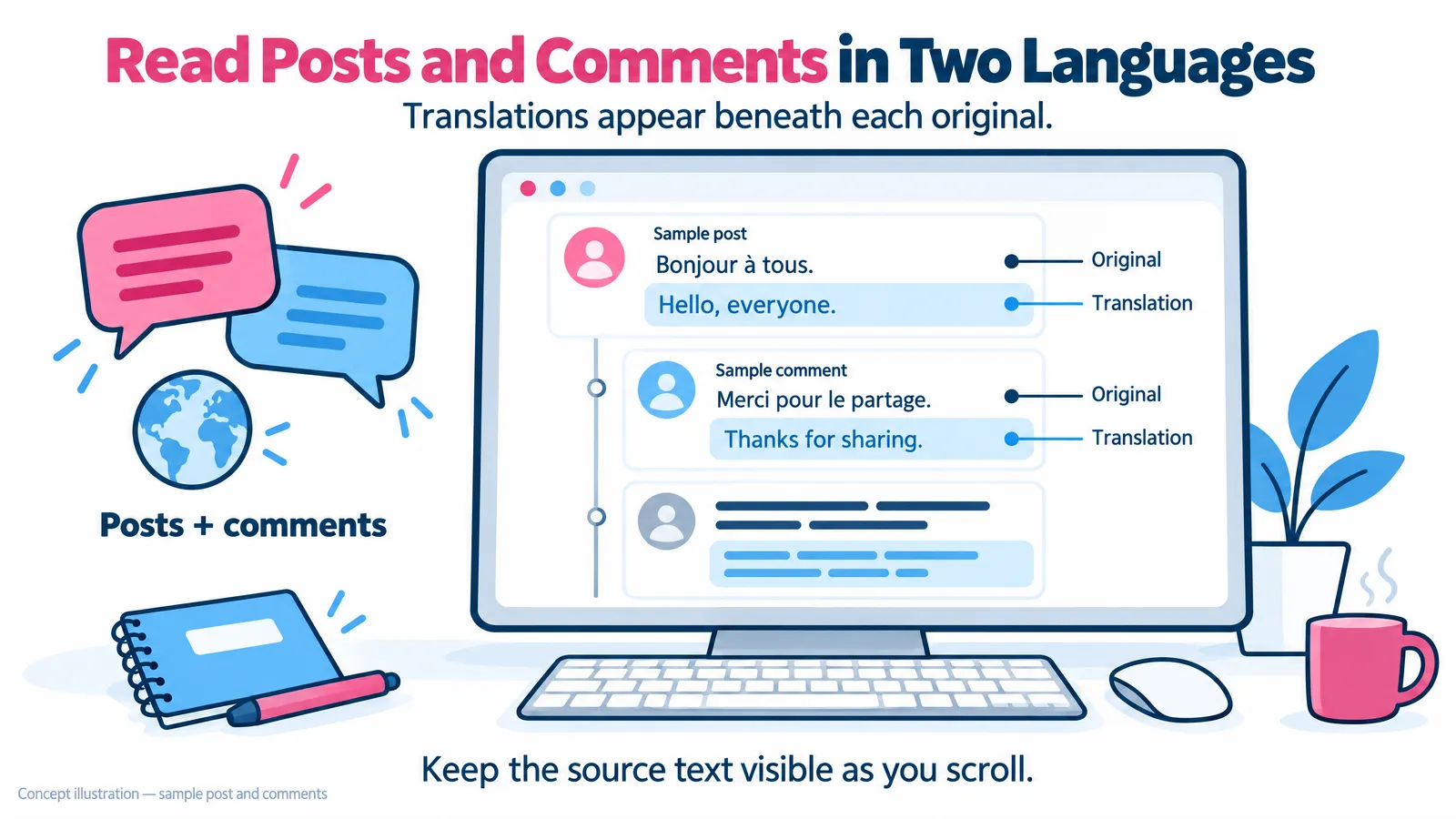
Turn the page translation on while you scroll, and the translations follow—post after post, including the comment sections underneath. Facebook comments are translated the same way posts are, so compared with tapping See Translation on every single item, the whole feed is handled in a single sweep. That's the practical difference when most of your feed is in a language you don't read. The tool is publicly recommended for bilingual reading on social platforms like Facebook.
Choose the Translation Engine That Suits You
No single engine is best for every language pair. Immersive Translate integrates over 20 translation engines, including ChatGPT, DeepL, DeepSeek, and Gemini, and supports more than 100 language pairs, so you can switch engines when a translation doesn't read right and compare the results against the original text. If the built-in Facebook translation ever leaves you unsure, an engine you trust plus a visible original is a reasonable check.
Official Settings vs. Bilingual Extension: Which Should You Use?
So, can Facebook translate posts on its own? It can, and the extension isn't a replacement for it, but a complement. The right choice depends on how you read:
| Your situation | Better fit |
|---|---|
| You mostly read Facebook in its mobile app | Built-in settings |
| You read Facebook in a desktop browser | Either; the extension adds a bilingual view |
| You want to check translations against the original text | Bilingual extension |
| You want to choose the translation engine | Bilingual extension |
| You want zero extra installs and official support only | Built-in settings |
If you're comfortable with a single translated line under each post, Facebook's settings are enough. If you read a lot of foreign-language content, or a mistranslation has burned you before, the bilingual reading workflow earns its keep.
Bonus: Write Facebook Posts in Multiple Languages
Everything above covers reading. If you post, the posting side of the question—"I wish you could have a translate feature to your posts," as one Facebook user put it—has answers too.
Facebook itself offers a background option: go to Settings & Privacy > Settings, select Language and Region, look for Multilingual Posts, and toggle on "Write posts in multiple languages" so Facebook translates your text in the background for readers.
Alternatively, write it yourself in the reader's language: Immersive Translate's input box translation translates whatever you type into any webpage input box when you press the spacebar three times—handy for composing a post or a reply in another language without leaving Facebook.
Frequently Asked Questions
How do I stop Facebook from automatically translating my posts?
Open your language settings (Settings & privacy → Settings → Language and Region) and turn off translation options for posts and comments there.
Why does Facebook automatically translate posts?
Based on Facebook's public guidance and observable behavior: when a post's language differs from the languages you've set in your language settings, Facebook offers or applies a translation so you can read it. That's a description of the visible trigger, not a claim about Facebook's internal implementation.
Why can't I translate on Facebook anymore?
Work through the checklist above—language settings, post language, app version, and where you're reading (groups behave differently from the feed). Most cases trace back to one of those. If the button stays missing in the app, try facebook.com in a desktop browser, where a bilingual extension can also translate posts and comments directly.
How do I turn on automatic translation?
Go to Settings & Privacy > Settings > Language and Region and set the languages you want translated. Full steps are in Turn On (or Off) Automatic Translation.
Can Facebook translate posts automatically?
Yes. Facebook translates posts automatically through its built-in language settings. Independently, a bilingual browser extension can translate Facebook posts and comments on the web version. Both are covered in the sections above.
Auto translate facebook posts not working
The most common causes are language settings, a post that's already in your language, an outdated app, or a context like groups where translation behaves differently. See Why the See Translation Button Might Be Missing for the full checklist.
How to turn on translation in Facebook
On mobile: Menu → Settings & privacy → Settings → Language and Region. On desktop: Settings & Privacy → Settings → Language and Region. Then select the languages you want translated.
Two paths, one goal: Facebook's built-in settings handle translation inside the app, and a bilingual extension brings side-by-side translation to the web version. For more, check the Immersive Translate FAQ for product questions, browse more translation guides on the blog, or add Immersive Translate to Chrome to try bilingual Facebook reading.
Last updated: October 27, 2026. Facebook's menu paths and feature names may vary by app version and device—verify against Facebook's current interface.