 01
01Install the browser extension
Install and enable the Immersive Translate extension to access live-page caption controls.
Install browser extension ↗ Immersive Translate Desktop
Immersive Translate Live Assistant
Choose the most direct next step for where you are now.
Once they are met, you can use bilingual captions on supported live pages.
01Install and enable the Immersive Translate extension to access live-page caption controls.
Install browser extension ↗02Live translation requires the Immersive Translate Live Assistant. After installing it, sign in to your account.
This feature is currently in beta, and the client download is not available yet. 03
03Sign in to Live Assistant and confirm that your current account has beta access.
This feature is currently in beta. Membership subscriptions will be available at public launch.With the client and browser extension ready, follow these steps to turn on bilingual captions on a live page.
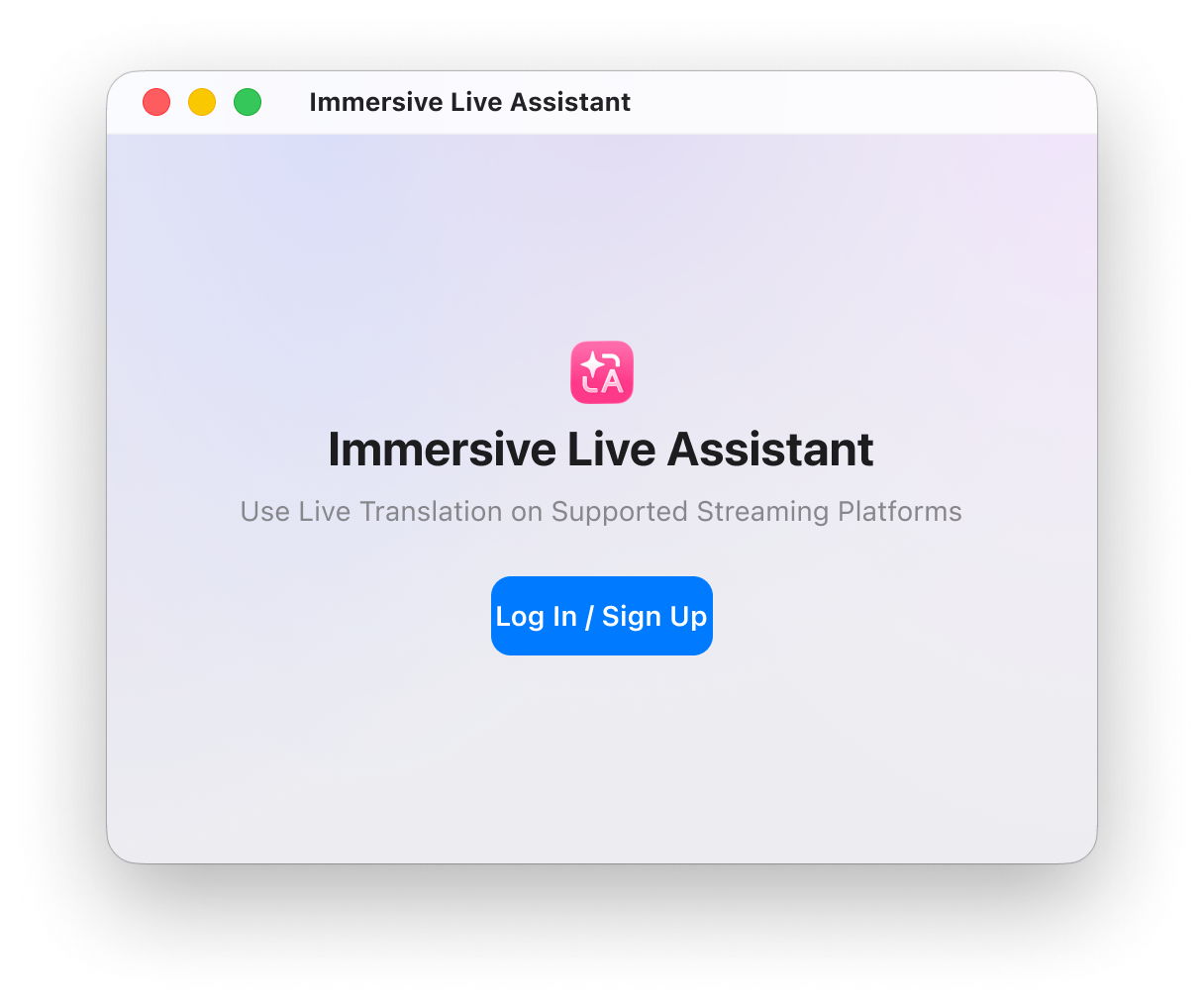
Launch Immersive Translate Live Assistant and confirm that you are signed in.
In your browser, open a supported live platform and the stream you want to watch.
Click the Immersive Translate icon in the player controls, choose “Start live captions,” and wait for captions to prepare.
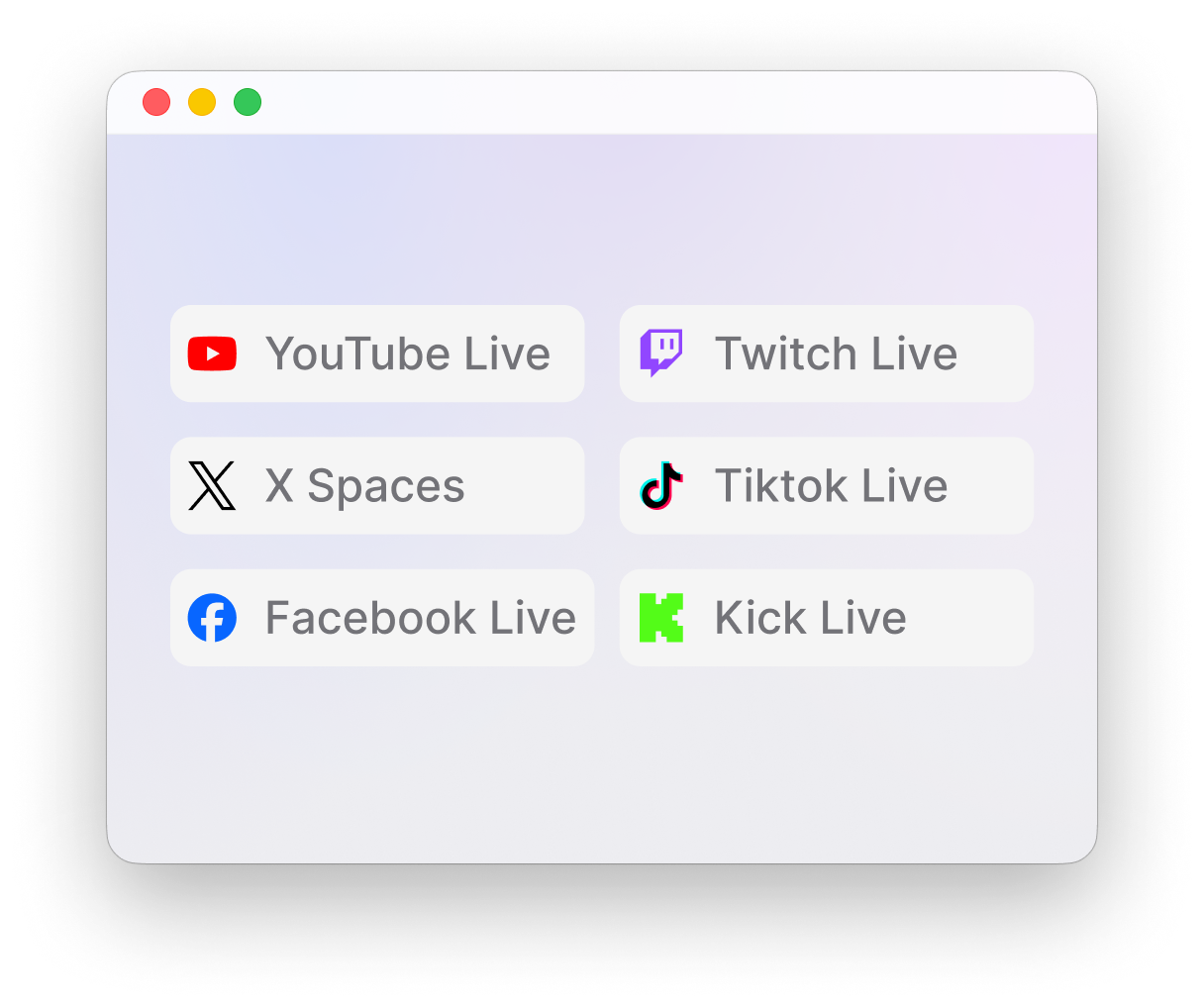
View supported platforms →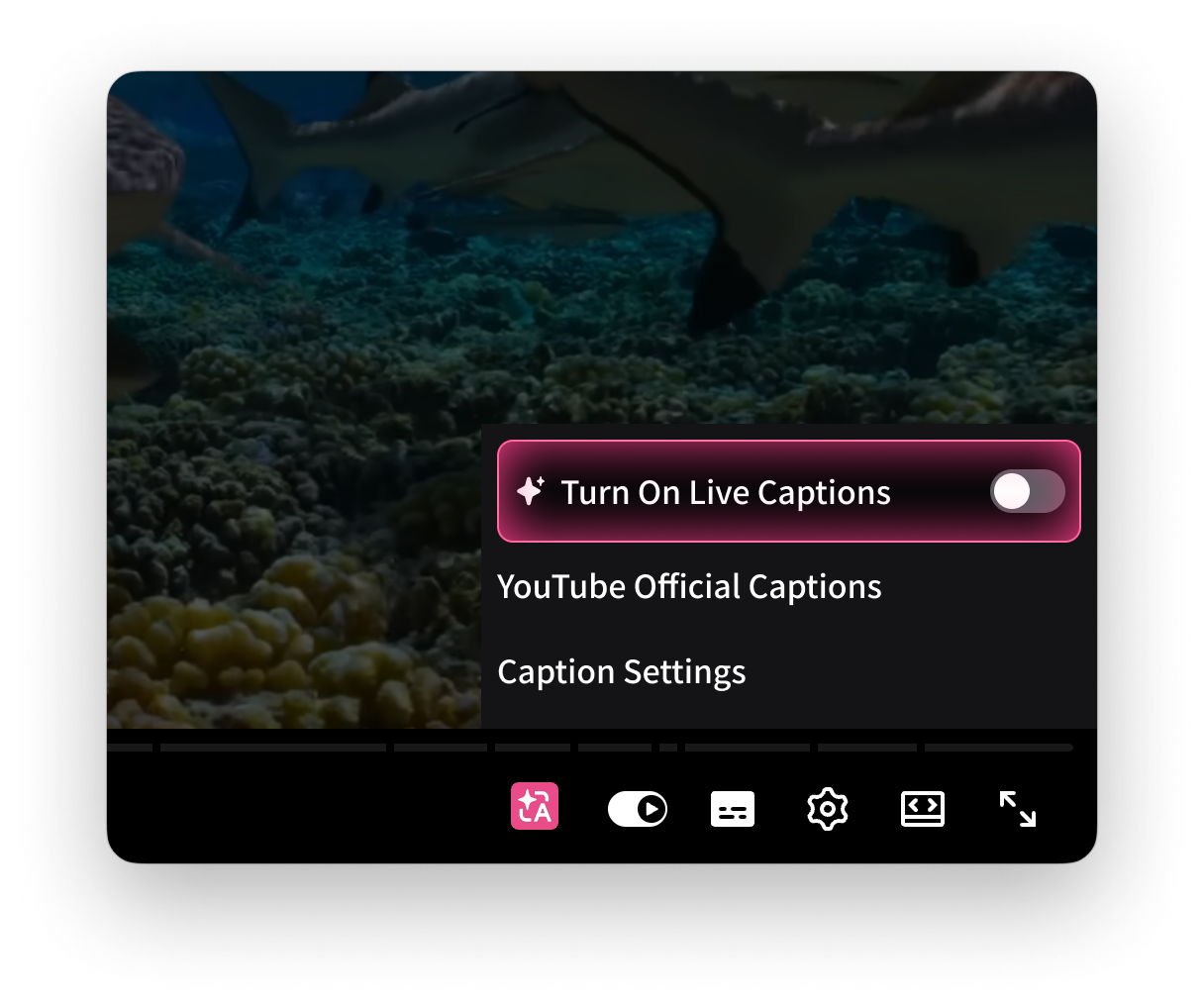
Live captions are available only for streams that are currently live on supported platforms. Use standard web captions for replays, ended streams, and regular videos. Some platforms will ask you to confirm a page refresh before switching.
Only streams that are currently live are supported. Once the live page is open, use the Immersive Translate entry in the player to turn on bilingual captions.
First check your account, membership, and browser extension status. Here are the most common questions.
Sign in to your Immersive Translate account in Live Assistant.
Live translation requires an active membership.
Launch Live Assistant and keep it running in the background.
Confirm that the extension is installed, enabled, and able to connect to the client.
 Twitch Live
 YouTube Live
 X Spaces
 TikTok Live
 Instagram Live
 Facebook Live
 Kick Live