For anyone working with multilingual video content - students watching foreign lectures, creators repurposing cross-language clips, or professionals transcribing interviews - the search for a reliable tool usually leads to the notta video translator. Notta has become a popular choice thanks to its speech recognition engine and simple workflow. But many users still struggle with long videos, subtitle synchronization, or translating YouTube and X videos without downloading files first.
That's where this how-to guide comes in.
Below, you'll learn not only how to use
Notta Video Translator step by step, but also how to solve its common limitations by using a browser-native alternative: Immersive Translate. Unlike upload-based platforms, Immersive Translate works directly on streaming sites and is often a smoother option for real-time watching, especially for long videos and dual-subtitle learning.
Let's go through everything you need—from getting started with the notta video translator to optimizing your workflow using Immersive Translate.
What Notta Video Translator Actually Does
Before jumping into steps, it helps to understand what the notta video translator is built for. Notta positions itself as a speech-to-text transcription and subtitle translator primarily for uploaded files.
It is best suited for:
- transcribing meetings and interviews
- extracting text from uploaded videos
- translating subtitles into your target language
- generating shareable text files or subtitle files
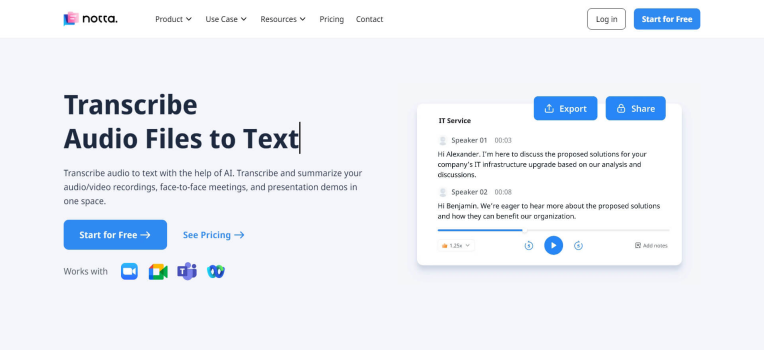
What most users misunderstand is that Notta doesn't directly translate streaming videos such as YouTube or X, nor does it generate subtitles unless the video is uploaded or the audio is fed through its recorder. It works well for structured business workflows, but is less convenient for casual real-time viewing.
That's why understanding these constraints early helps you choose the right workflow - or switch to the browser-based Immersive Translate if streaming translation is your priority.
How to Use Notta Video Translator: Step-by-Step Guide
Step 1: Prepare Your Video File
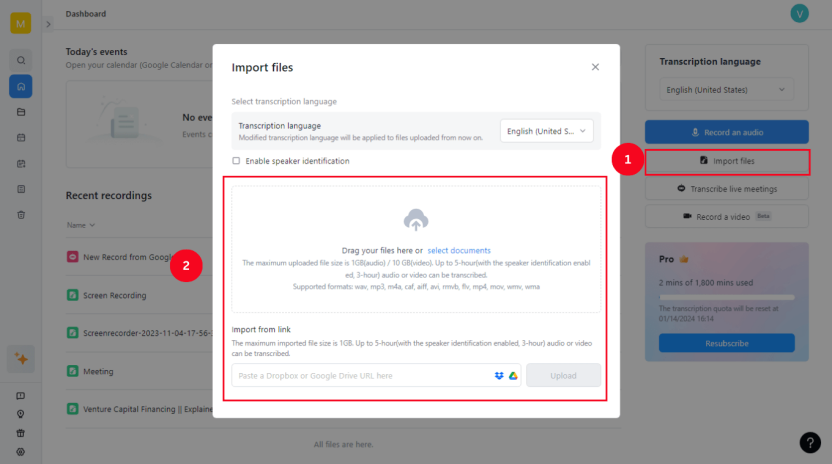
Because the notta video translator works mainly through uploads, make sure your video file is in a supported format (MP4, MOV, AVI).
If your source is from YouTube or another platform, you'll need to download it using a separate tool.
Tips:
- Shorter videos process faster; for long videos, consider splitting file segments.
- Clear audio reduces transcription errors significantly.
Step 2: Upload the Video to Notta
- Log into your Notta dashboard.
- Select Upload File.
- Choose the language spoken in the video (e.g., English, Hindi, Japanese).
- Wait for the transcription to finish.
Processing time depends heavily on video length. A 30-minute lecture may require several minutes.
Tips:
- If you need faster turnaround, Notta's paid tiers offer higher processing priority.
- Make sure background noise is minimal; Notta's recognition engine is sensitive to cluttered audio.
Step 3: Translate the Transcription
Once the transcription is ready:
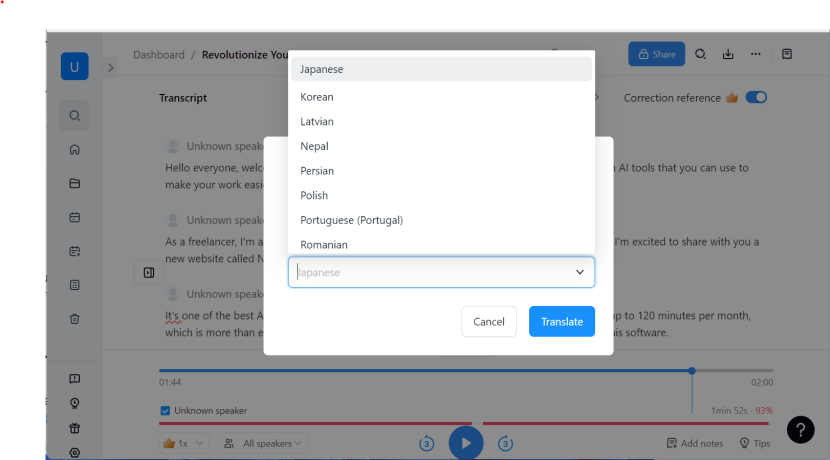
- Open the transcript.
- Click Translate.
- Choose your target language.
Wait for the translated version to generate.
Try Immersive Translate?
Translate web pages, PDFs, and video subtitles in real-time. Bilingual display makes foreign language content easier to read.
Install for FreeNotta supports multiple languages, and translations are generally clean for business contexts, though conversational videos may produce occasional wording mismatches.
Step 4: Export Your Subtitles or Text
You can export:
- SRT
- TXT
- DOCX
These outputs can be used in editors like Premiere Pro, CapCut, or Davinci Resolve.
Tips:
- SRT exports retain timing for subtitle editing.
- If you need bilingual subtitles, you must manually combine the original and translated versions.
Limitations of Notta Video Translator
Based on real user discussions and top-ranking reviews, several recurring limitations appear:
- Not suitable for real-time streaming translation: Notta cannot translate YouTube, X, or Vimeo directly unless you download the video first.
- Long video processing can be time-consuming: A 2-hour lecture requires long upload and processing times.
- Dual subtitles are not supported natively: Most language learners want bilingual subtitles. Notta only produces one language at a time.
- No browser-level overlay translation: If your goal is simple watching—not downloading, not exporting—you need a tool that works inside the browser.
These challenges create friction, especially for people who just want to understand videos quickly without heavy processing steps.
Fortunately, that's exactly where Immersive Translate shines.
Using Immersive Translate as a Better Alternative for Real-Time Video Translation
If Notta's upload-based workflow feels too rigid, Immersive Translate offers a more flexible browser-native approach for everyday use.
Unlike the notta video translator, Immersive Translate:
- works directly on YouTube, X, and most streaming sites
- supports dual subtitles instantly
- doesn't require downloading video files
- can translate long videos without performance slowdowns
- can generate AI subtitles (Pro) when videos do not come with CC
This makes it ideal for learners, casual viewers, and professionals who want translation without heavy file processing.
How to Use Immersive Translate for Video Translation
Step 1: Install the Extension
Immersive Translate works on Chrome, Edge, Firefox, Arc, Brave, and more.
- Visit the official website.
- Install the extension with one click.
- Pin it to your browser toolbar for quick access.
Step 2: Open Any Video with Subtitles
Go to YouTube or X and play any video that contains CC subtitles.
You'll immediately see bilingual captions generated below the player.
Features you can toggle:
- subtitle position
- font styles
- dual-line layout
- translation language
Try Immersive Translate?
Translate web pages, PDFs, and video subtitles in real-time. Bilingual display makes foreign language content easier to read.

Step 3: For Videos Without CC (Pro Feature)
This is where Immersive Translate becomes a powerful alternative to notta video translator.Enable AI Subtitle Mode:
- Click the Immersive Translate icon.
- Select AI Subtitles.
- The tool will detect speech, convert it into text, translate it, and align timing automatically.
This mimics the "upload + transcribe + translate" workflow of Notta—but faster and directly in your browser.
Step 4: Export Your Subtitles (Optional)
After generating bilingual subtitles, you can export them as SRT for professional editing.
Notta Video Translator vs Immersive Translate: Practical Differences
Video Source Handling
- Notta: Only works with uploaded files.
- Immersive Translate: Works directly on streaming sites; no downloads required.
Speed
- Notta: Long videos require long upload and processing cycles.
- Immersive Translate: Real-time translation in-browser with no waiting.
Subtitle Support
- Notta: One language at a time.
- Immersive Translate: Dual subtitles by default.
CC Independence
- Notta: Requires audio transcription first; no streaming support.
- Immersive Translate: Can generate AI subtitles even if videos have no captions.
Ideal User
- Notta: Professionals needing clean exportable transcriptions.
- Immersive Translate: Learners, casual viewers, productivity users.
Pro Tips to Improve Your Video Translation Workflow
- For long lectures or courses: Use Immersive Translate first for real-time comprehension → download subtitles for later editing → finalize in a video editor.
- For content creators: Use Notta's export tools if you need DOCX or polished transcripts for blogs, scripts, or documentation.
- For bilingual learning: Enable Immersive Translate's bilingual subtitle mode and switch colors to differentiate languages visually.
- When working offline: Download videos via Notta if you need text extraction for offline annotation.
- When speed matters: Immersive Translate offers immediate results without heavy server processing.
Final Takeway: Which Tool Should You Use?
The notta video translator remains useful for structured transcription tasks, especially when you want exportable documents or subtitle files. But for real-time understanding, language learning, casual watching, or translating long streaming videos, Immersive Translate is the more practical option.
With its dual subtitles, streaming compatibility, and integrated AI subtitle generation for non-CC videos, Immersive Translate provides a faster and more natural video translation workflow in 2025.
If you simply want to open a video and understand it instantly—without downloading, uploading, or waiting—Immersive Translate should be your go-to tool.