
To translate a Facebook post, find the post in your feed and click or tap See Translation directly below the text. Facebook offers the option on posts written in a language other than the one you use on Facebook, so most foreign-language posts can be read with a single tap. This page covers every way to add translation to a Facebook post on the web, on Android, and on iPhone: the built-in button, auto-translate settings, repairs for a translation button that has gone missing, and a bilingual browser extension that translates your entire feed.
The four paths at a glance:
-
See Translation — translate one post or comment on the spot, no setup required
-
Auto-translate settings — configure Facebook to translate posts in the languages you choose
-
Troubleshooting — bring back a translation button that has disappeared
-
A bilingual browser extension — read your whole feed, comments included, in two languages side by side

How to Translate a Facebook Post Using "See Translation"
See Translation is Facebook's built-in translation button, and it is the fastest way to read a single foreign-language post. It's ready to use as-is; the steps differ only slightly depending on where you're browsing.
On Desktop (facebook.com)
-
Open facebook.com in your browser and scroll to the post you want to translate.
-
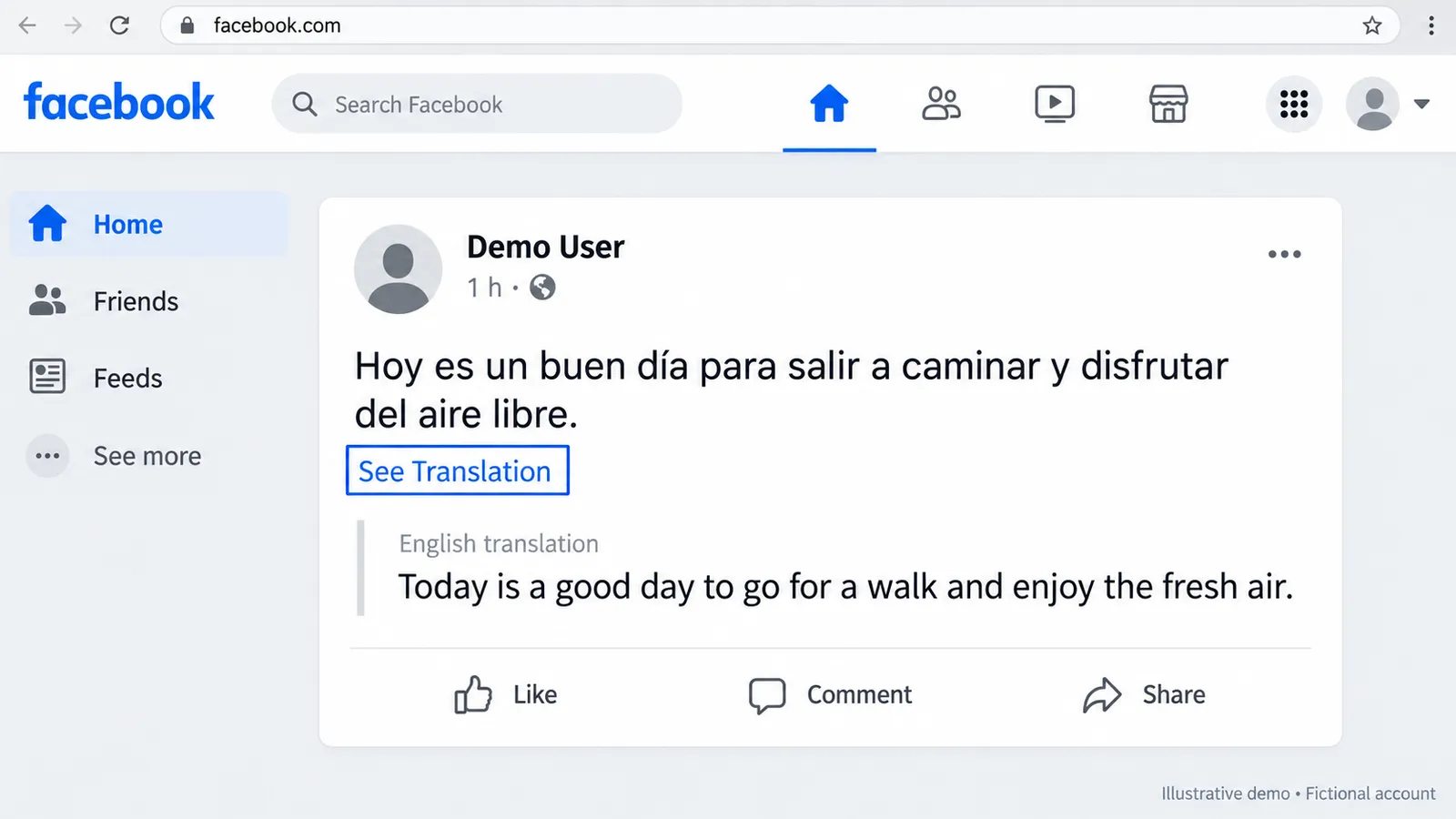
Click See Translation below the post's text.
-
The translated text appears, letting you read the post without leaving your feed.
That's the entire process. The button sits under the original text, so you can compare the two directly if you want to check a phrase or learn a few words along the way.
On the iPhone and Android Apps
-
Open the Facebook app and find the post in your feed.
-
Tap See Translation below the post's text.
-
Read the translation — the experience matches the desktop site.
The button works the same way in the mobile apps as on facebook.com: one tap, and the post becomes readable in your language. If you don't see the option at all, skip ahead to the troubleshooting section below — in most cases it's a settings issue you can fix in a couple of minutes.
How to Translate Facebook Comments
Comments get the same treatment as posts. Under an individual comment written in another language, you'll find the same See Translation link — tap it and the comment is translated on the spot.
This matters most on pages and groups where the conversation spans several languages: a post in English can carry replies in Spanish, Portuguese, or any other language, and each one translates individually. Facebook translates one comment at a time, though. If you're reading a long comment section that's mostly in one foreign language and you want all of it translated at once, that's where auto-translate settings — or the bilingual reading approach later in this guide — save time.
How to Turn On Auto-Translate on Facebook
What the auto-translate settings control is which languages get translated, and into what. Configuring them once means foreign-language posts and comments are ready to read the moment they appear in your feed, instead of demanding a tap on each one.
The auto-translate options live in one place: Language and Region settings. The path there is nearly identical on every device — only the starting point moves.
On Desktop
-
On facebook.com, click your profile menu at the top right of the screen.
-
Select Settings & Privacy, then Settings.
-
Under the Preferences section, click Language and Region.
-
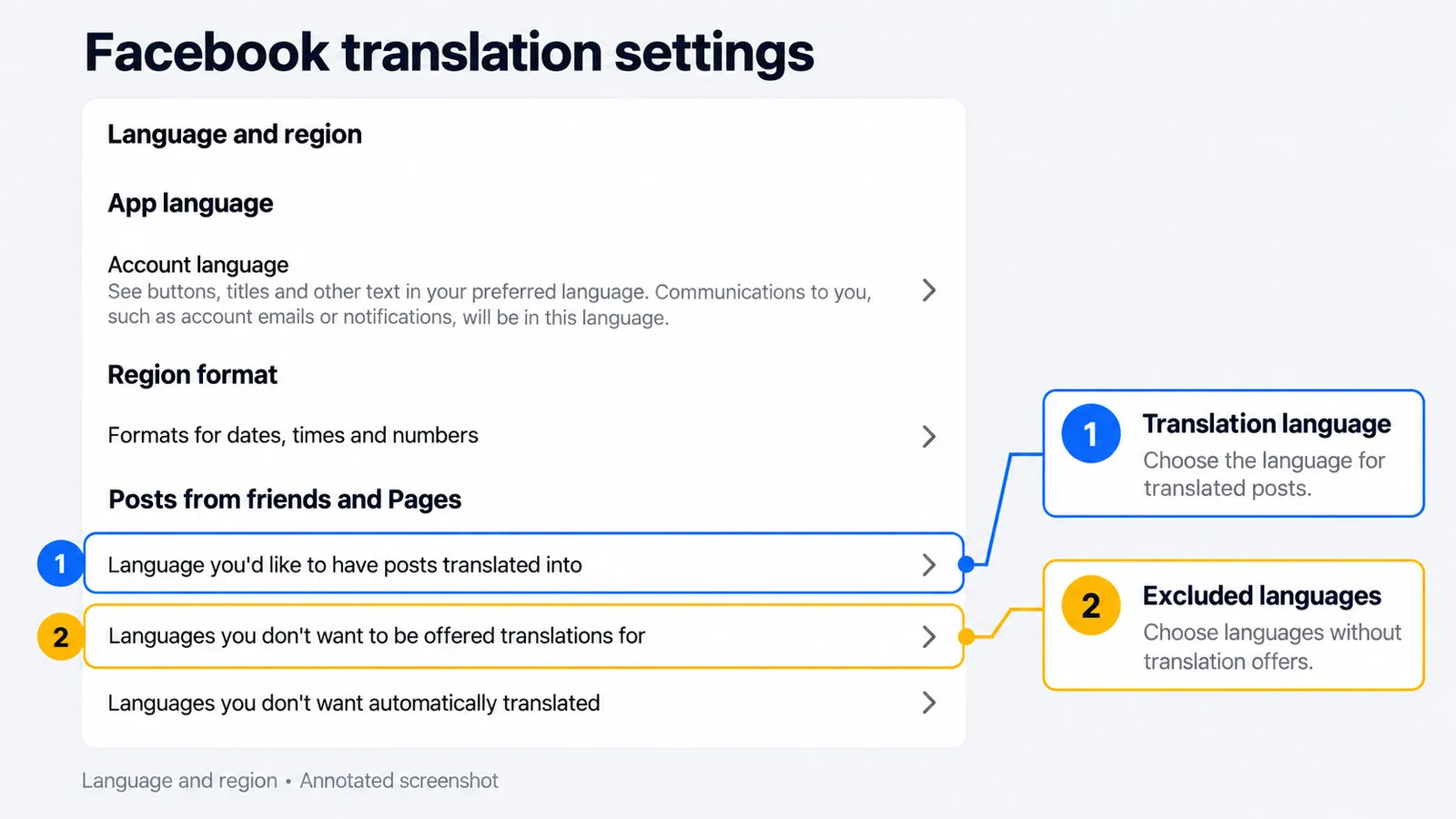
Check Languages you'd like to have posts translated into and make sure your preferred language — for example, English — is selected.
-
Check Languages you don't want to be offered translations for and make sure the language you actually want translated isn't listed there.
On iPhone and Android
-
In the Facebook app, tap your profile menu — at the top right on Android, at the bottom right on iPhone.
-
Tap Settings & Privacy, then Settings.
-
Under Preferences, tap Language and Region.
-
Verify your preferred language under Languages you'd like to have posts translated into.
-
Review Languages you don't want to be offered translations for for accidentally blocked languages.
Managing Target and Excluded Languages
The two lists in Language and Region do opposite jobs, and getting them right is what makes automatic language translation work:
| Setting | What it controls | Example |
|---|---|---|
| Languages you'd like to have posts translated into | The language Facebook translates posts into | You read Spanish posts, so English is selected here — Spanish posts appear with translation ready |
| Languages you don't want to be offered translations for | Languages Facebook will never offer to translate for you | If Spanish is on this list, you won't see See Translation on Spanish posts at all |
A typical setup for reading a Spanish-language feed in English: select English as the language to translate posts into, and make sure Spanish is not on the excluded list. If you're fluent in a language and tired of being offered translations for it, that language belongs on the excluded list — it's the right tool for the job, not just a trap.
The most common pitfall: adding a language to the excluded list by accident. If See Translation has vanished from posts in one specific language but still shows up elsewhere, this list is the first place to look. Removing the language restores the translation option.
"See Translation" Missing or Not Working? How to Fix It
If the translation button has disappeared from your feed, the cause is usually a settings issue — and settings issues are fixable. Work through the fixes below in order; each one targets a different symptom.
Fix 1: Update your language and region preferences. This is Facebook's standard repair for missing translations, and it resolves most cases:
-
Open Facebook and go to your profile menu (top right on Android and on the web, bottom right on iPhone).
-
Go to Settings & Privacy, then tap Settings.
-
Select Language and Region under the Preferences section.
-
Check Languages you'd like to have posts translated into and make sure your preferred language is selected.
-
Check Languages you don't want to be offered translations for and make sure you haven't accidentally blocked the language of the post.
Steps 4 and 5, the two language lists, are the first place to look when the button disappears: a deselected target language, or an excluded language that shouldn't be there.
Fix 2: Translate the post manually. If the automatic button is completely gone for one specific post, you can usually still translate it: click the three dots (...) in the top right corner of the post and select Translate post. The manual option doesn't restore See Translation elsewhere, but it gets that one post read.
Fix 3: Confirm the post is actually in another language. Facebook only offers translation on posts written in a language other than yours — if the post is already in your Facebook language, there's nothing to translate, and no button is expected behavior. Mixed-language posts can also confuse the detection; if only part of a post is foreign, the option may not appear.
Fix 4: If it broke after an app update, give it time. Users have reported the translation feature stopping after updating the Facebook app, including reports of the feature failing on iPhone the day after an update. These are user reports rather than official confirmations, but the pattern points to platform-side bugs: if the settings above all check out and the feature worked yesterday, keep the app updated and wait for a fix rather than reconfiguring everything.
Symptom → Likely Cause → Fix
| Symptom | Likely cause | Fix |
|---|---|---|
| No See Translation on posts in one language only | That language is on your excluded list | Fix 1, step 5 |
| No See Translation on any post | Preferred translation language not selected | Fix 1, step 4 |
| Button missing on a single post | Post-level quirk | Fix 2 — manual Translate post |
| Worked before, broke after an update | Platform-side bug (per user reports) | Fix 4 — wait for a platform fix |
| Foreign-looking post shows no option | Post is detected as already in your language | Fix 3 |
If none of the fixes apply (the language pair you need isn't covered, or you simply want your whole feed readable without tapping post after post), a bilingual browser extension sidesteps the problem entirely. That's the next section.
Read Facebook Posts Bilingually With a Browser Extension (Immersive Translate)
The built-in options share one limitation: they translate one post at a time, and only when Facebook decides to offer the button. A bilingual browser extension takes a different approach: it translates the entire facebook.com page you're viewing, displaying each post and comment alongside its translation. Reading a multilingual feed stops being a series of taps and becomes, simply, reading.
Why Try a Bilingual Extension
-
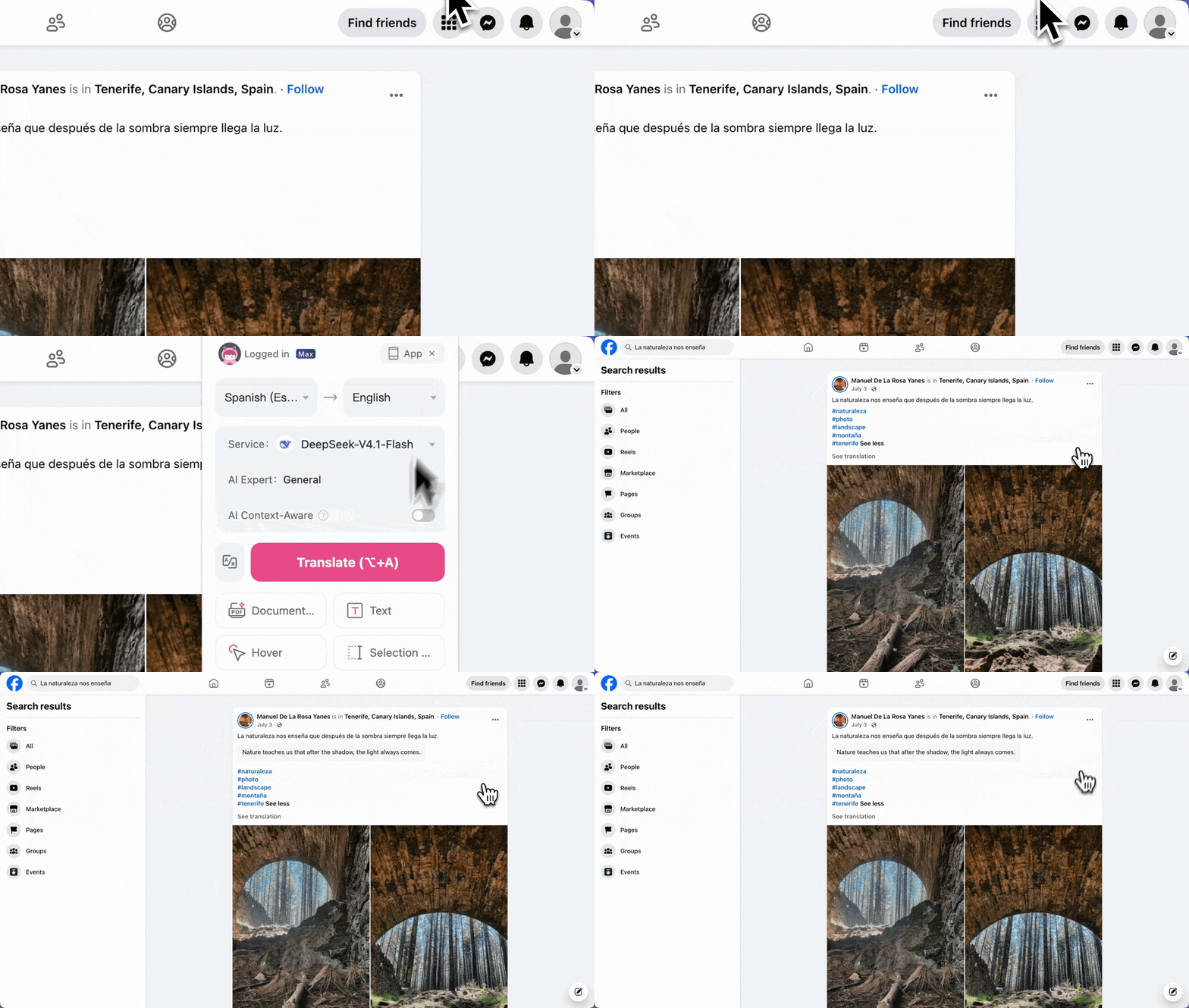
Whole-page translation. Immersive Translate displays the translation directly beneath the original text of every post and comment on the page, a side-by-side layout the extension was built around, rather than a replacement that erases the original.
-
No copy-pasting. The classic workaround (copying text into Google Translate, one paragraph at a time) works, but it drops context, breaks formatting, and means living in two tabs. A bilingual extension keeps the original post and its translation together on the page, in facebook.com itself.
-
Engine choice. It integrates more than 20 translation engines (including ChatGPT, DeepL, DeepSeek, and Gemini) and supports over 100 language pairs, so you can pair engines with the content you read.
-
Precise reading. For checking a single phrase rather than the whole page, selection and hover translation translate one paragraph or word at a time, right where it is.
-
Images too. Memes, screenshots, and photos with text inside posts are translated on the page using OCR and inpainting, so the visual layout survives.
-
Free. The core bilingual webpage translation is free to use.
This section covers Immersive Translate in desktop browsers — Chrome, Edge, Firefox, and Safari on macOS.
How to Set It Up on facebook.com
-
Install the Immersive Translate extension for Chrome — or pick the Edge, Firefox, or Safari version from the same site.
-
Open facebook.com and sign in as usual.
-
Activate webpage translation. Your feed switches to bilingual mode: each post, and each comment below it, is followed by its translation.
From there, scrolling is the whole workflow. Foreign-language posts read themselves. The extension has been trusted by more than 20 million users worldwide and appeared in Google Chrome's 2024 Favorites collection. If anything behaves unexpectedly, the Immersive Translate Help Center documents the extension's settings.
Bonus: Reply in Another Language With Input Box Translation
Reading is half the conversation. Input Box Translation works in any webpage input box — including the Facebook comment box. Type your reply in your own language, press the spacebar three times, and the text is instantly translated into the target language (English by default, customizable). You write what you mean, the extension handles the language, and your comment goes out in the language the thread is actually in.
配图建议
type: screenshot purpose: 演示在 Facebook 评论输入框中用空格三击触发输入框翻译、把英文回复译成外语的完整操作 source: Facebook comment box with Immersive Translate Input Box Translation shot: 画面必须包含评论输入框中已输入的英文文本与空格三击后出现的外语译文;必须避开真实帖子内容、真实好友信息及其他个人数据 state: 桌面浏览器安装扩展后的真实采集;演示账号在通用示例帖子下输入演示文本,遮挡个人信息 ratio: 16:9 alt: A Facebook comment box showing typed English text and its translation after pressing the spacebar three times
For readers whose feeds cross languages daily, that combination (whole-page bilingual reading plus bilingual replies) is the closest thing to a Facebook that's simply in your language all the time.
Download Immersive Translate for free
FAQ: Facebook Post Translation
Why is the language translation option missing on Facebook posts?
Usually a settings issue. In Settings & Privacy → Settings → Language and Region, confirm your preferred language is selected under Languages you'd like to have posts translated into, and make sure the post's language isn't under Languages you don't want to be offered translations for. If it's missing on a single post, use the three-dot menu → Translate post. The full walkthrough is in the troubleshooting section above.
What happened to the translation feature on Facebook?
The feature still exists — its visibility depends on your language settings matching the post's language. Users have also reported it breaking temporarily after app updates; those reports aren't officially confirmed, and such cases tend to resolve with subsequent updates.
Does Facebook translate posts automatically?
Yes. Facebook automatically offers a translation, the See Translation option, on posts it detects as written in a language other than yours. The Language and Region settings control which languages are offered and into which language they are translated.
How do I turn on auto translate?
Go to your profile menu → Settings & Privacy → Settings → Language and Region, then set your preferred language under Languages you'd like to have posts translated into. The auto-translate section above has the full steps for desktop, iPhone, and Android.
How do I add translation to my Facebook post?
If you mean reading others' posts, the methods on this page cover it. If you mean your own post: whether a See Translation option appears is decided by each reader's language settings — Facebook offers it to readers whose language differs from your post's. You can't force it for every reader.
Why is auto translate not working?
Three common causes: your preferred translation language isn't selected, the post's language is on your excluded list, or a platform-side issue after an app update. The troubleshooting section above walks through each in order.
Why is translation not working?
The same causes apply on web and mobile alike. Start with the five-step Language and Region check; for single posts, the manual Translate post option in the three-dot menu is the fallback.
How do I turn on translate on Facebook Messenger?
Chat translation in Messenger is handled separately from the main Facebook app's settings, and its menu locations change independently. For the current steps, check Facebook's official Help Center.
Why is the translate app not working?
It depends which app you mean. Facebook's built-in translation is fixed through the settings described above. If you're copying text into the Google Translate app instead, those Facebook settings don't affect it — and copy-pasting is exactly the workflow a bilingual browser extension replaces.
How do I turn off Facebook auto translate? (asked in related searches, not a PAA question)
In Language and Region settings, add the language to Languages you don't want to be offered translations for. Facebook will stop offering translations for posts in that language.
Which Facebook Translation Method Should You Use?
| Your situation | Best method | Why |
|---|---|---|
| You need to read one post right now | See Translation | One tap, zero setup |
| You scroll a multilingual feed every day | Auto-translate settings | Set once; translations are ready as you scroll |
| The translation button is missing | Troubleshooting steps | Fixes the settings causes behind most disappearances |
| The button won't come back, a language pair isn't covered, or you read and reply across languages | Immersive Translate | Whole-page bilingual reading plus input-box replies |
Facebook language translation isn't one feature — it's a handful of tools for different reading habits. For the occasional foreign post, the built-in button is enough. For feeds that cross languages daily, a bilingual setup pays for itself in the first afternoon. If that's you, you can download Immersive Translate free from the official site and have your feed reading bilingually in a few minutes.