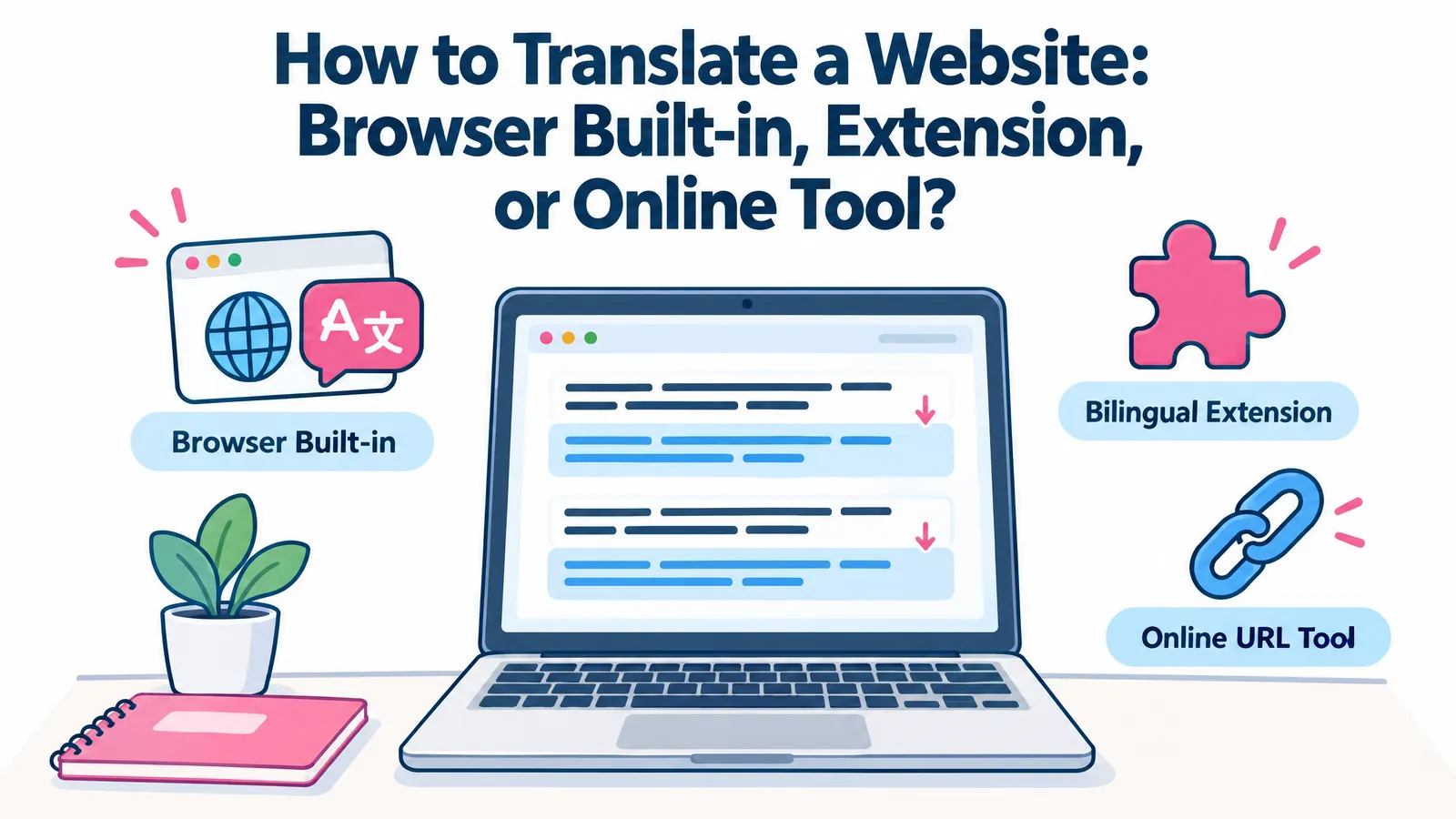
How to Translate a Website: Browser Built-in, Extension, or Online Tool?
You can translate any website in under a minute using one of three methods: your browser's built-in translation, a browser translation extension, or an online page translator where you paste the site's URL. This guide demonstrates each method step by step, then gives you a simple framework for choosing between them.
One clarification before we start, because "website translator" covers two very different jobs. If you want to read a foreign-language website in your own language, you're in the right place—all three methods below are built for exactly that. If you instead want to make your own website multilingual for visitors in other languages, that's a different task handled by dedicated business translation platforms, and we won't cover it here.
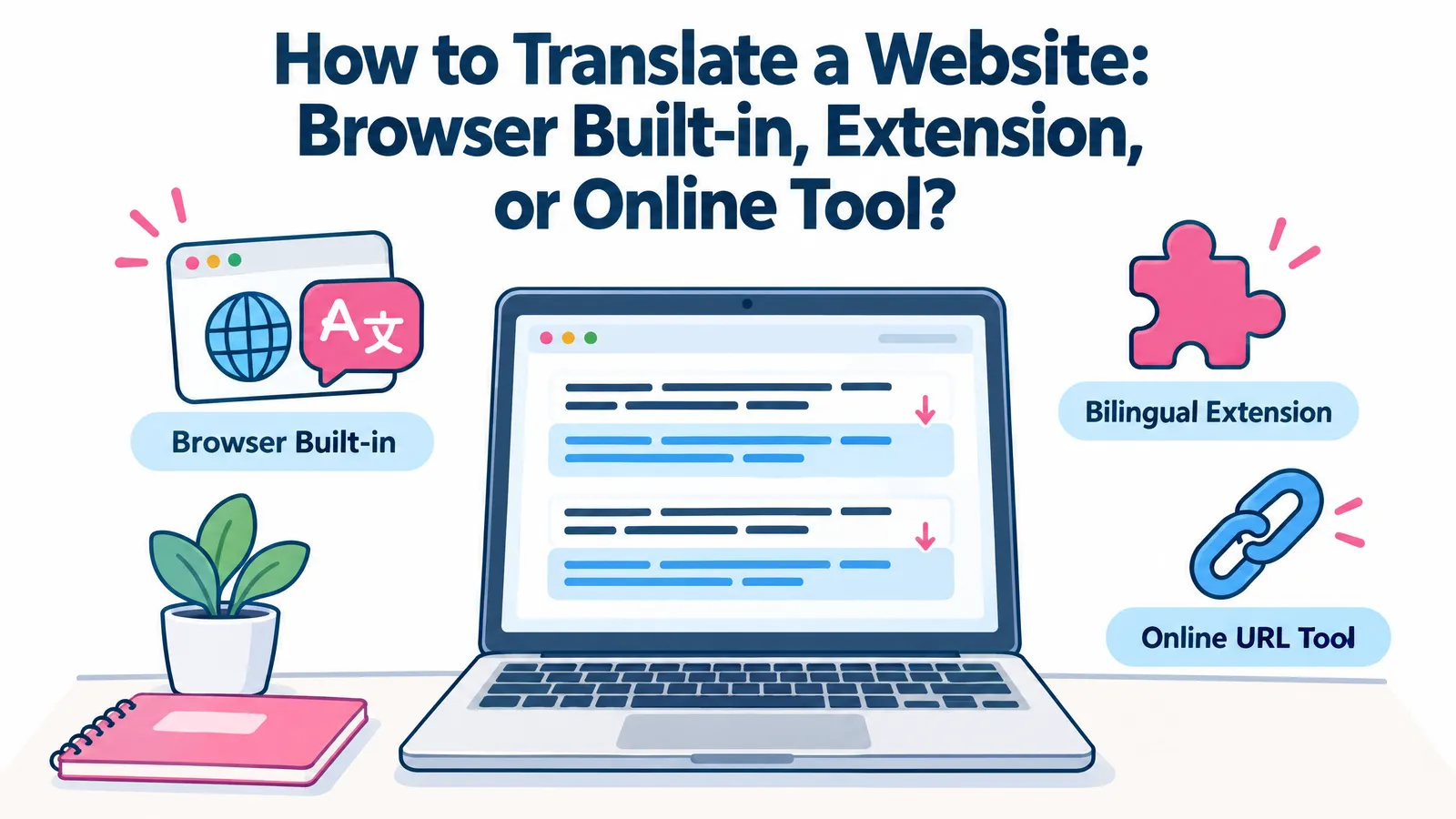
Quick Answer: How to Translate a Website in Under a Minute
Pick whichever of these three paths is closest to hand:
-
Use your browser's built-in translation. In Chrome, click the Translate icon in the address bar, or right-click the page and choose "Translate to [Language]". In Edge, accept the translation prompt that appears automatically. In Safari, open the "A" menu in the smart search field and select the translation option.
-
Install a translation extension and translate with one click. A bilingual translation extension adds a side-by-side original-plus-translation view to any page you visit.
-
Paste the URL into an online website translator. Google Translate and Yandex Translate both render a clickable, translated copy of the page when you enter its address.
All three take well under a minute for a typical page. The rest of this guide explains each method in detail, its trade-offs, and when to prefer one over the others.
Method 1: Translate a Website with Your Browser's Built-in Translation
Desktop Chrome, Edge, and Safari can translate the page you're viewing without installing anything:
-
Google Chrome: Open the page you want to read. On the right of the address bar, select the Translate icon, or right-click anywhere on the page and choose "Translate to [your language]". Chrome then renders the page text in your language.
-
Microsoft Edge: When you visit a page in a foreign language, the built-in Microsoft Translator bar prompts you automatically—accept it and the page is translated in place.
-
Apple Safari: Tap the "A" menu in the smart search/address bar on iPhone or Mac and select the translation option.
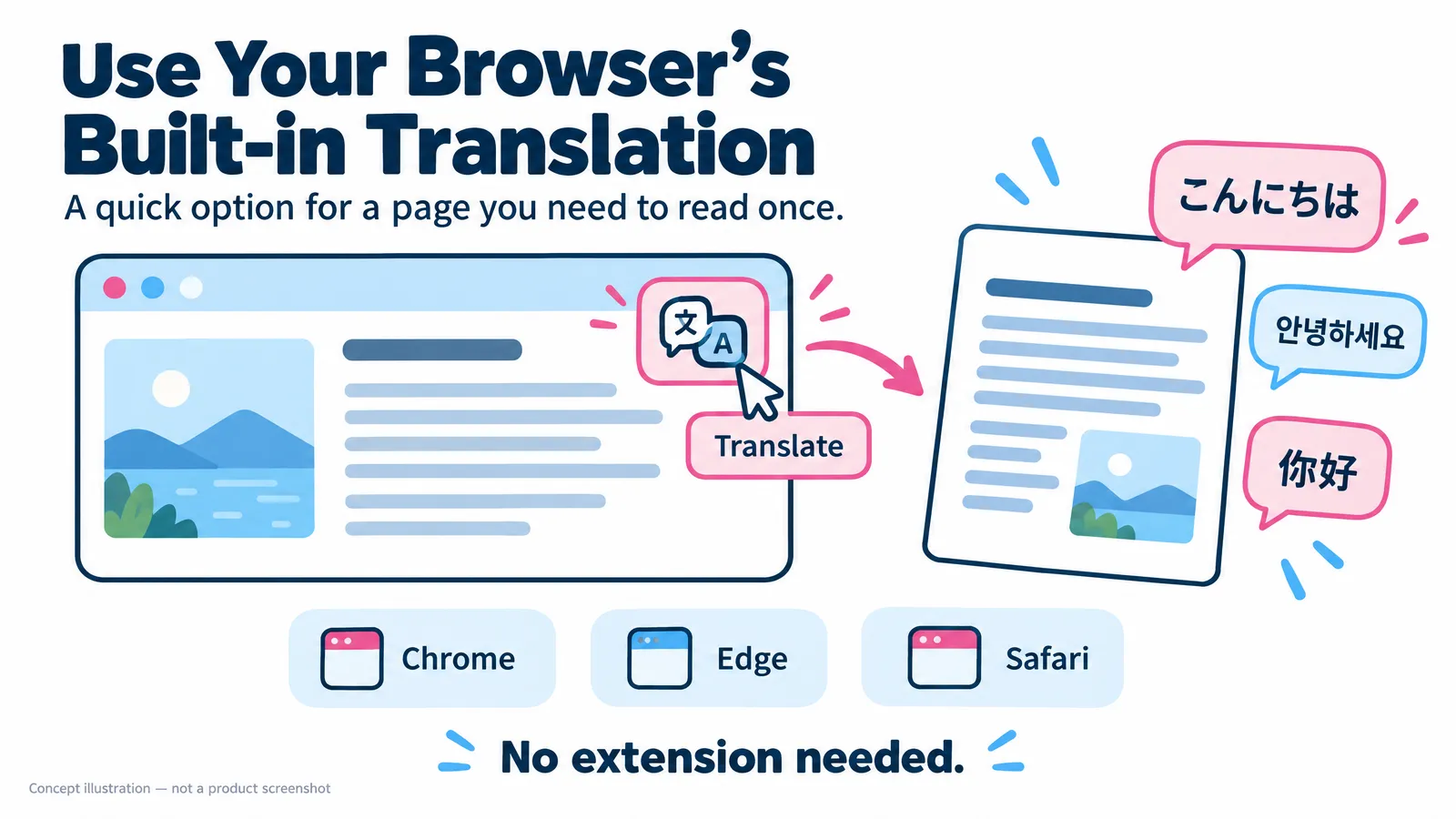
Strengths and limits. Built-in translation is the fastest route, with zero setup, and for a single page you'll read once, it is often all you need. In practice, the trade-off is that it replaces the page: once translation kicks in, the original text is no longer visible, so you cannot compare the two languages, check a term against the source, or keep reading bilingually. You also cannot choose which translation engine does the work—each browser uses its own, with no option to switch. If you translate foreign pages only occasionally, that's a price worth paying for the convenience.
Method 2: Use a Translation Extension for Bilingual Website Reading
If you read foreign-language websites regularly—or you're learning a language or checking terminology—a translation extension is the method that grows with you. The core difference from built-in translation is that an extension can keep the original text on screen and add the translation beneath or beside it, instead of replacing the page outright.
Here's how it works with Immersive Translate, a free bilingual website translator available for Chrome, Edge, Firefox, and Safari:
-
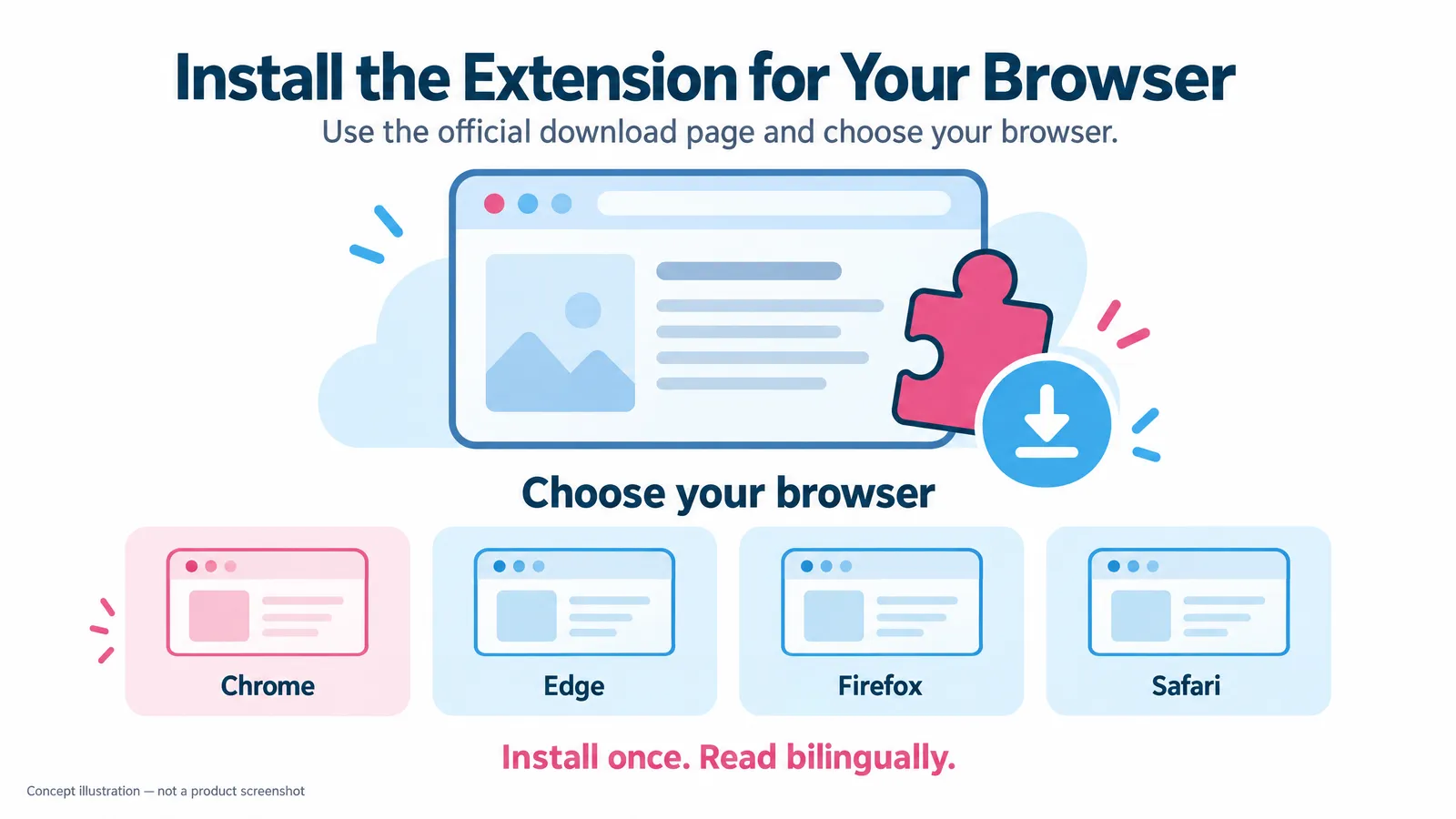
Install the extension. Start from the official extension installation guide for Chrome; the Edge, Firefox, and Safari stores are linked from the same page.
-
Open any foreign-language page you want to read.
-
Start translation with one click—via the extension icon or its shortcut.
-
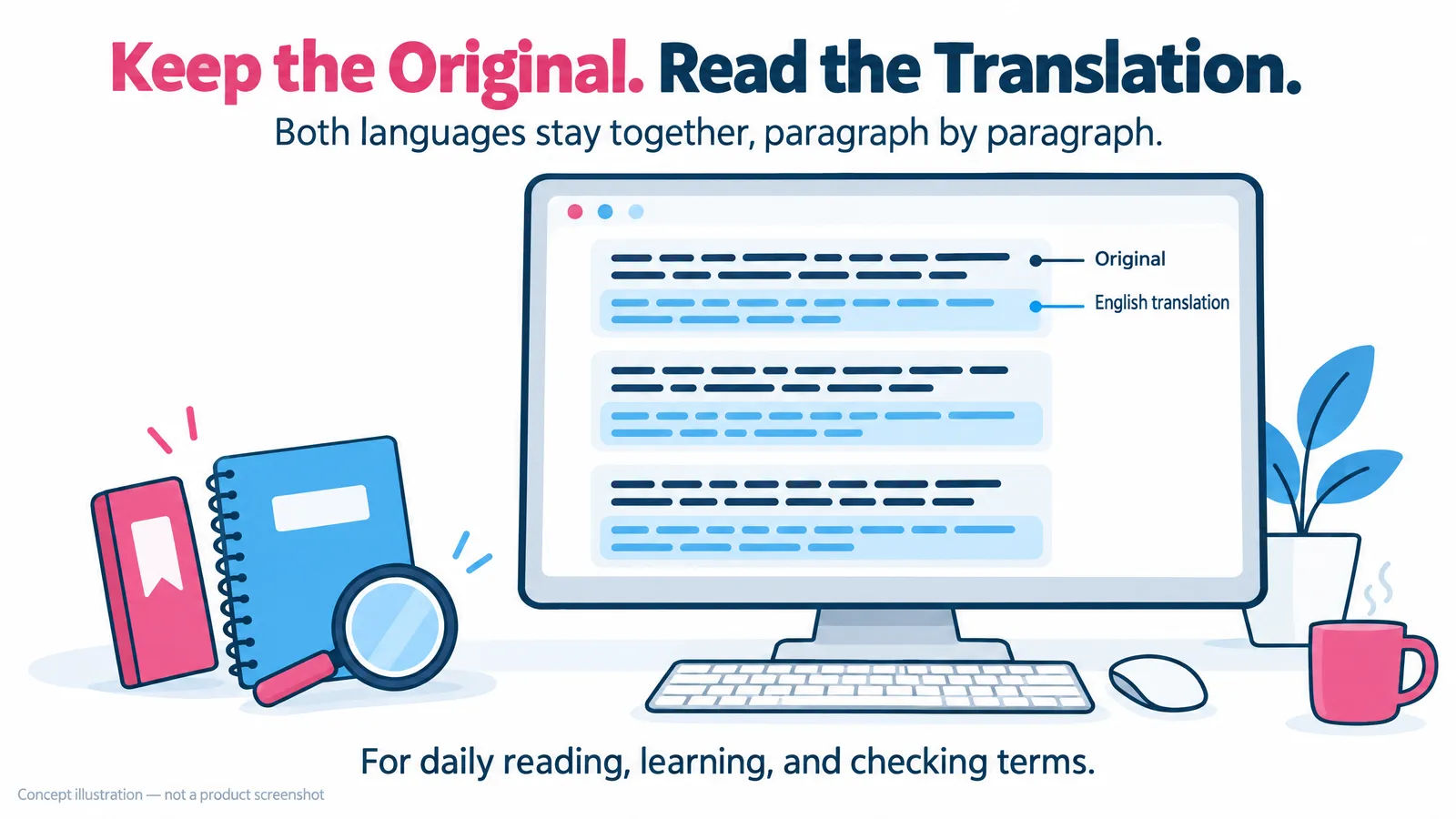
Read the bilingual result. The translation appears directly alongside each paragraph, so the original and your language stay together on one page.
Immersive Translate's official site describes its signature layout as a side-by-side vertical bilingual design, which the company says it pioneered to keep the original page's structure readable while the translation flows next to it. For learners and professionals, that pairing matters: you can verify how a phrase was translated, check a technical term against the source, and gradually absorb the foreign phrasing instead of losing it behind a full-page replacement.
Two further points are worth knowing. First, engine choice: according to the product's official site, Immersive Translate integrates more than 20 translation engines—including Google, DeepL, Gemini, and DeepSeek—and supports over 100 language pairs, so you can switch engines when one handles your content better than another. Second, cost and privacy: the core website translation is free to use, and the company states that translated content is not used for AI training and that requests are encrypted—details are on its security page.
The extension is also widely used: the official site cites more than 30 million users (as of October 2026) and a 2024 Chrome "Favorite" selection. Once installed, the same tool covers reading well beyond websites—PDF translation, video subtitles, and more are documented in the usage guide.
Method 3: Paste the URL into an Online Website Translator
When you'd rather not install anything—say you're on a shared computer, or you just need one page once—an online page translator does the job entirely in the browser. To translate a site this way, you only need its address:
-
Google Translate: Go to translate.google.com, paste the URL of the page you want, and Google renders an interactive, clickable translated version of the site, with support across 100+ languages. The service is offered free of charge, and you browse the translated copy right there, following links as you would on the original.
-
Yandex Translate: At translate.yandex.com, enter the site's link, choose your target language, and the page is translated—Yandex lists support for over 90 languages.
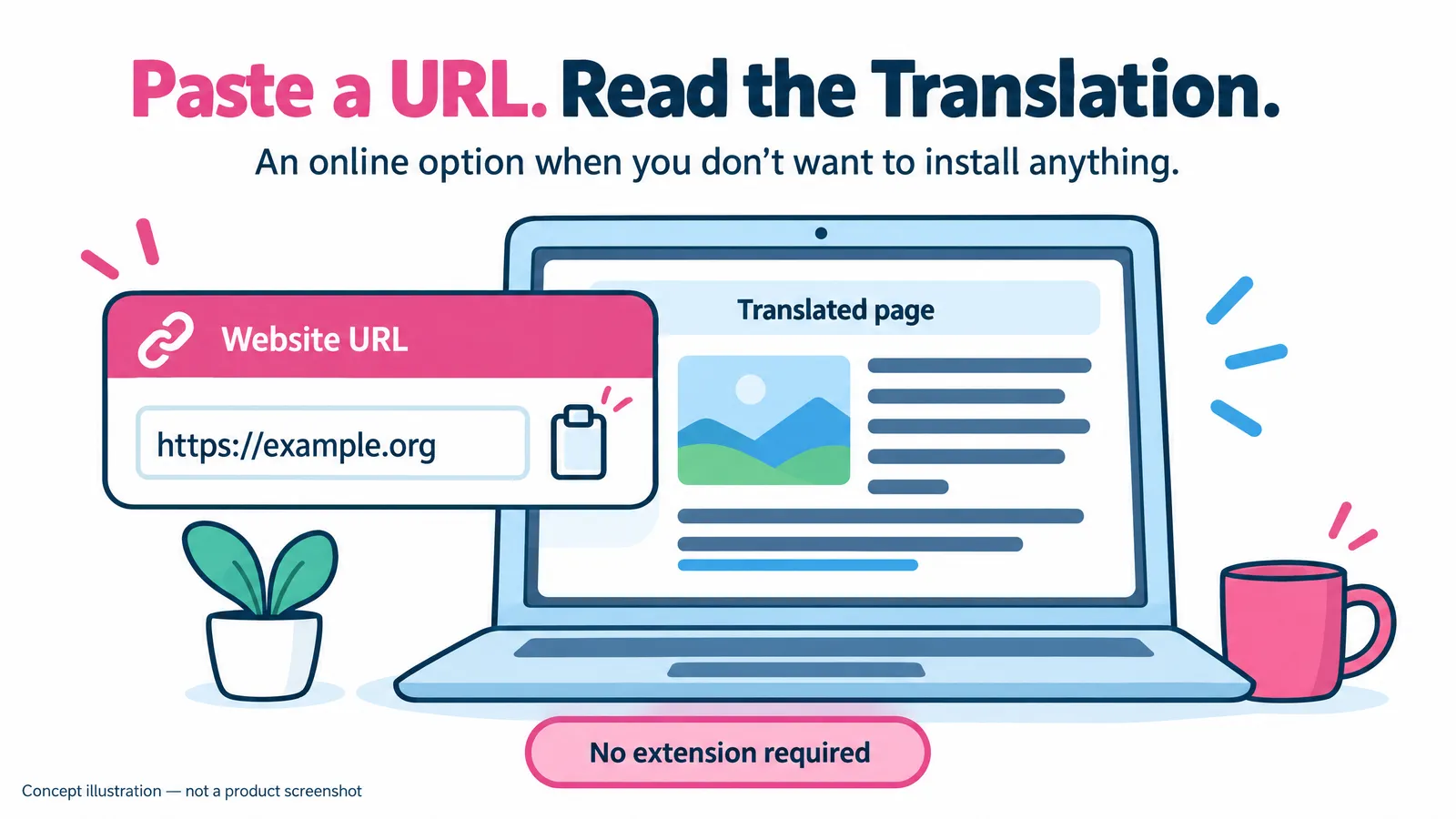
Both are free in the straightforward sense: no account required, nothing installed, and they work in any desktop browser regardless of its brand. That makes them ideal when you need a page translated just once, on a machine you don't control.
The limitations mirror built-in browser translation. The page is replaced rather than shown bilingually, and on some heavily interactive sites the translated copy can behave unpredictably—buttons, menus, or dynamically loading sections may not work exactly as on the original. That unpredictability is a general characteristic of URL-based translation rather than a documented limitation of either service. For anything you'll return to more than once, Method 1 or Method 2 usually makes for better reading.
Which Website Translation Method Should You Choose?
All three methods will translate a website. They differ in setup, in whether you keep the original text, and in how much control you get:
| Browser built-in | Translation extension | Online URL translator | |
|---|---|---|---|
| Setup cost | None | One-time install | None |
| Keeps the original text | No—page is replaced | Yes—bilingual view | No—page is replaced |
| Engine choice | Fixed by the browser | Yes—20+ engines in Immersive Translate | Fixed by the service |
| Free to use | Yes | Yes (free tier; paid Pro exists) | Yes |
| Works across browsers | Each browser has its own | Same extension on Chrome, Edge, Firefox, Safari | Any browser, nothing installed |
| Best for | Quick one-off reads | Daily reading, learning, terminology work | One-off translation without installing anything |
Three scenarios cover most readers:
-
If you just need to read one page once—a recipe, a news story, a product page—use your browser's built-in translation, or paste the URL into Google Translate. Nothing to install, done in seconds.
-
If you read foreign-language sites every day, or you're learning a language or checking terminology—install a bilingual extension. Keeping the original on screen changes the reading experience far more than the one-time setup costs.
-
If you can't or don't want to install anything—the online page translator is your method; it works wherever you can open a browser.
How to Translate a Website on Your Phone
On iPhone, Safari can translate pages directly: tap the "A" menu in the smart search field and choose the translation option, just as on desktop. Most major mobile browsers today also offer some form of built-in page translation, though the exact menus vary by app and version.
If you translate websites on your phone often, a dedicated translation app gives you the same bilingual reading experience as the desktop extension. Immersive Translate is available on iOS and Android, including a Google Play release and a direct Android APK download.
For a single urgent page on mobile, the built-in route is usually fastest; for regular bilingual reading, the app matches what Method 2 offers on desktop.
Frequently Asked Questions
How do I translate an entire website?
Three routes: use your browser's built-in translation on the page you're viewing; install a translation extension and switch on bilingual translation; or paste the site's address into an online translator such as Google Translate or Yandex Translate, which renders a translated, clickable copy you can browse page by page. The sections above give exact steps for each.
How can I translate an online website?
The fastest path: in Chrome, click the Translate icon in the address bar; in Edge, accept the automatic prompt; in Safari, use the "A" menu. Alternatively, paste the page's URL into translate.google.com or translate.yandex.com for a translated version with no setup at all.
Can Google Translate a website?
Yes. Paste the website's URL into Google Translate, and it renders an interactive, clickable translated page, supporting 100+ languages, free of charge. The translation replaces the original page, so it works best when you want to read the content rather than compare it against the source text.
How can I automatically translate a website?
For reading purposes, two options exist. Edge automatically offers to translate foreign-language pages through its built-in prompt bar—you just accept it. A translation extension goes further: it can be configured to translate matching pages automatically once you open them, and you can always start translation manually with one click.
How is a translation extension different from built-in browser translation?
Built-in translation replaces the whole page with your language, which makes it the fastest option for a quick read. An extension can keep the original text and display the translation alongside it, lets you choose among multiple translation engines, and typically allows styling adjustments. If you only occasionally read a foreign page, built-in is fine; if you read them often or need the original for reference, an extension fits better.
Is there a free website translator?
Yes—several. Google Translate is free of charge, the major browsers' built-in translation is free, and Immersive Translate's core website translation has a free tier, so you can translate a website for free with any of the three methods in this guide. If you need a free page translator just for now, Google Translate and Yandex Translate both qualify. Paid plans generally add features for heavier use; current free-versus-Pro boundaries are on the pricing page.
Start Reading in Two Languages Tonight
Each method has its place: built-in translation for the quickest possible read, an online page translator for one-off jobs on any machine, and a bilingual extension for everything you read day after day.
If you read foreign websites regularly, install the Immersive Translate extension and see what a difference a side-by-side original makes—the Chrome installation guide takes about a minute. Prefer not to install anything right now? Try the online translator instead and translate a page straight from your browser.